
A CDN resource that serves traffic is not automatically a resource that serves it well. Four settings decide how fast your site actually feels: the cache hit rate you can read, the compression you can switch on, the shield you can put in front of your origin, and the per-path rules for content that should not follow the defaults.
This guide is the tuning pass a practitioner runs over an already-serving resource. Every step happens in the resource’s own settings; nothing needs a new product or a support ticket.
Prerequisites
- An active CDN resource created for your hostname. See Add Your First CDN Resource.
- Your domain pointed at the CDN and serving traffic through it, so the statistics have data to show. See Point Your Domain at the CDN.
- Client Area access to the package.
Why Tune Instead of Trusting the Defaults
- The hit rate measures origin load: every request the edge answers from cache is a request your origin never sees. Raising that number is the main purpose of running a CDN.
- Compression cuts bandwidth on every text response: HTML, CSS, JavaScript and JSON shrink before they travel, and both switches are off by default.
- Exceptions stay correct: per-path rules let you tune the resource aggressively while an API or a checkout keeps bypassing the cache entirely.
Step 1: Read the Hit Rate Before You Change Anything
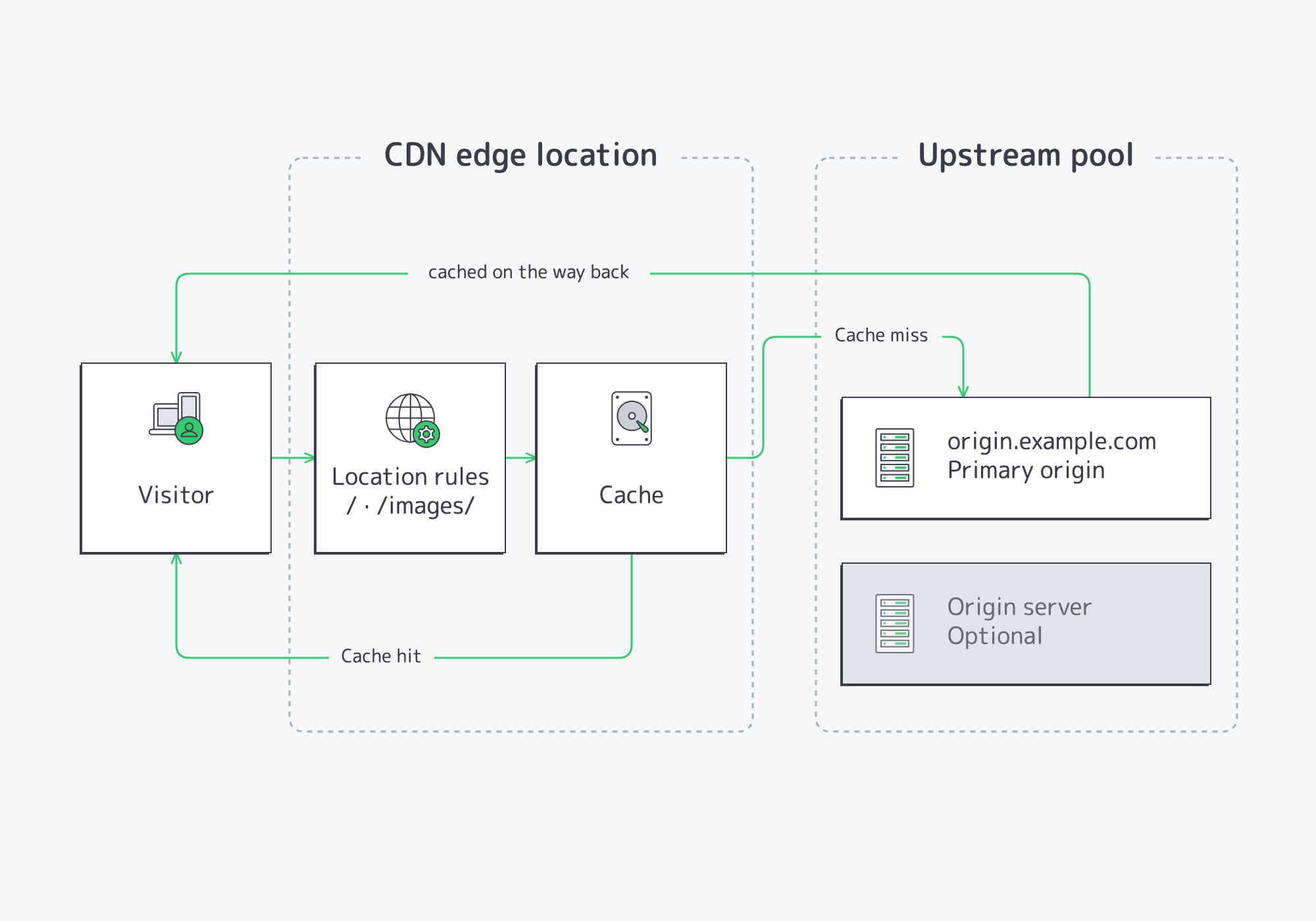
Start with the number you are trying to move. Every request either ends at the edge cache (a hit) or crosses over to your origin (a miss):
In the Resources table of your package, click the chart icon (View statistics) on the resource’s row. The same view is also the Statistics tab of the advanced settings, so you can check it between changes:

Pick a period with the preset chips and read HIT %: the share of requests answered from cache, your tuning metric. Everything below that share is work your origin is still doing.
Note the current value over a period like Last 30 Days, then come back after each change below. A low hit rate usually means cacheable content without usable lifetimes, which is its own tuning pass: How to Tune Your CDN Caching. The full tour of this view is in Monitor CDN Traffic and Cache Performance.
Step 2: Turn On Gzip Compression
In the Resources table, click the gear icon (Edit resource settings) on the resource’s row, then click Advanced settings. Below the resource form, the Cache & Compression section holds four collapsed rows: Gzip, Brotli, Cache Valid and Cache Use Stale, each with a status pill. These rows save individually: each expanded editor carries its own Save button, independent of the form above.
Click the Gzip row to expand its editor and switch on Enable Gzip:
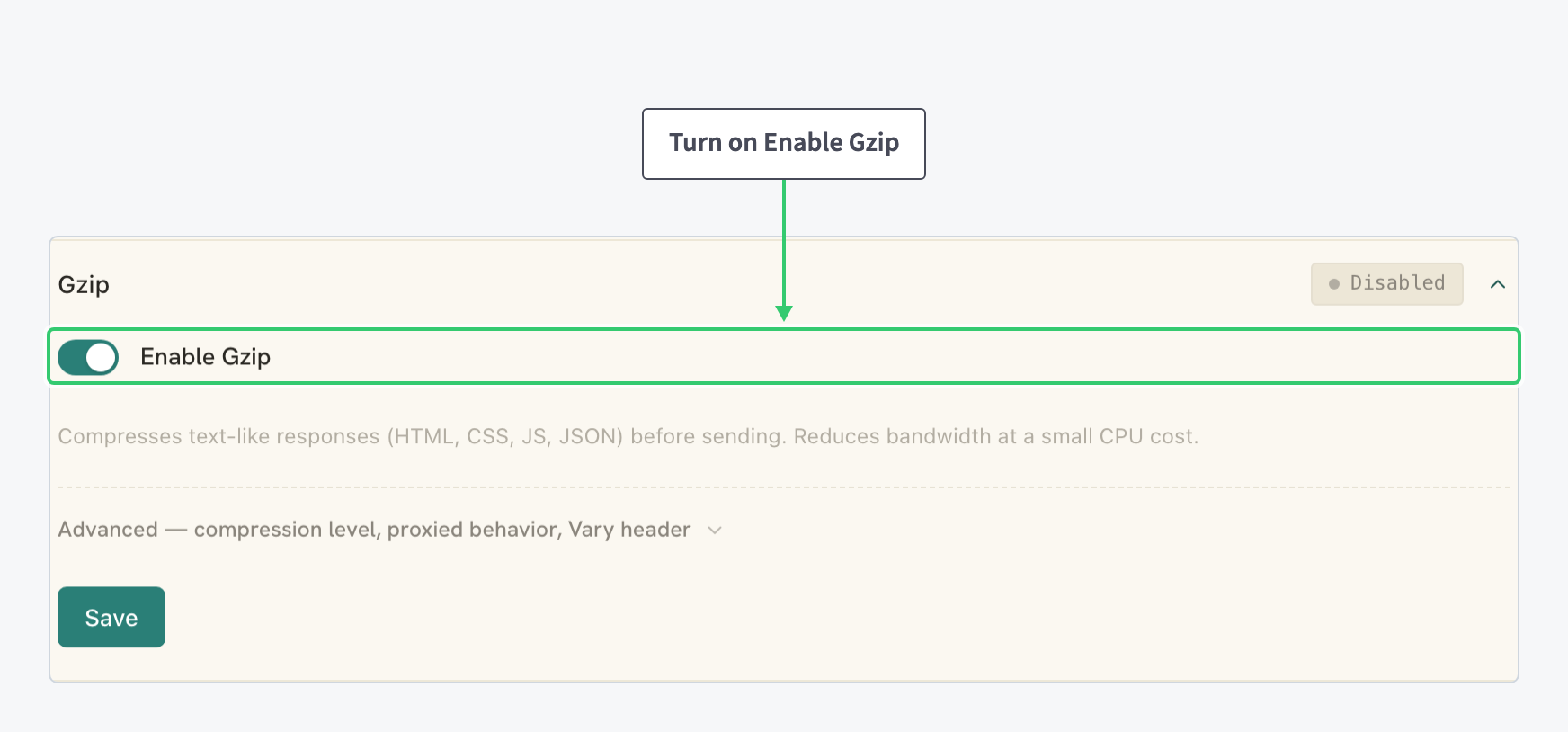
Gzip compresses text-like responses (HTML, CSS, JavaScript, JSON) before they travel, cutting bandwidth for a small CPU cost. The change stays staged until you click the section’s Save; set the advanced options below first.
Step 3: Set the Level and Keep the Vary Header On
Open the Advanced disclosure in the same Gzip editor. It covers the compression level, the proxied behavior and the Vary header:
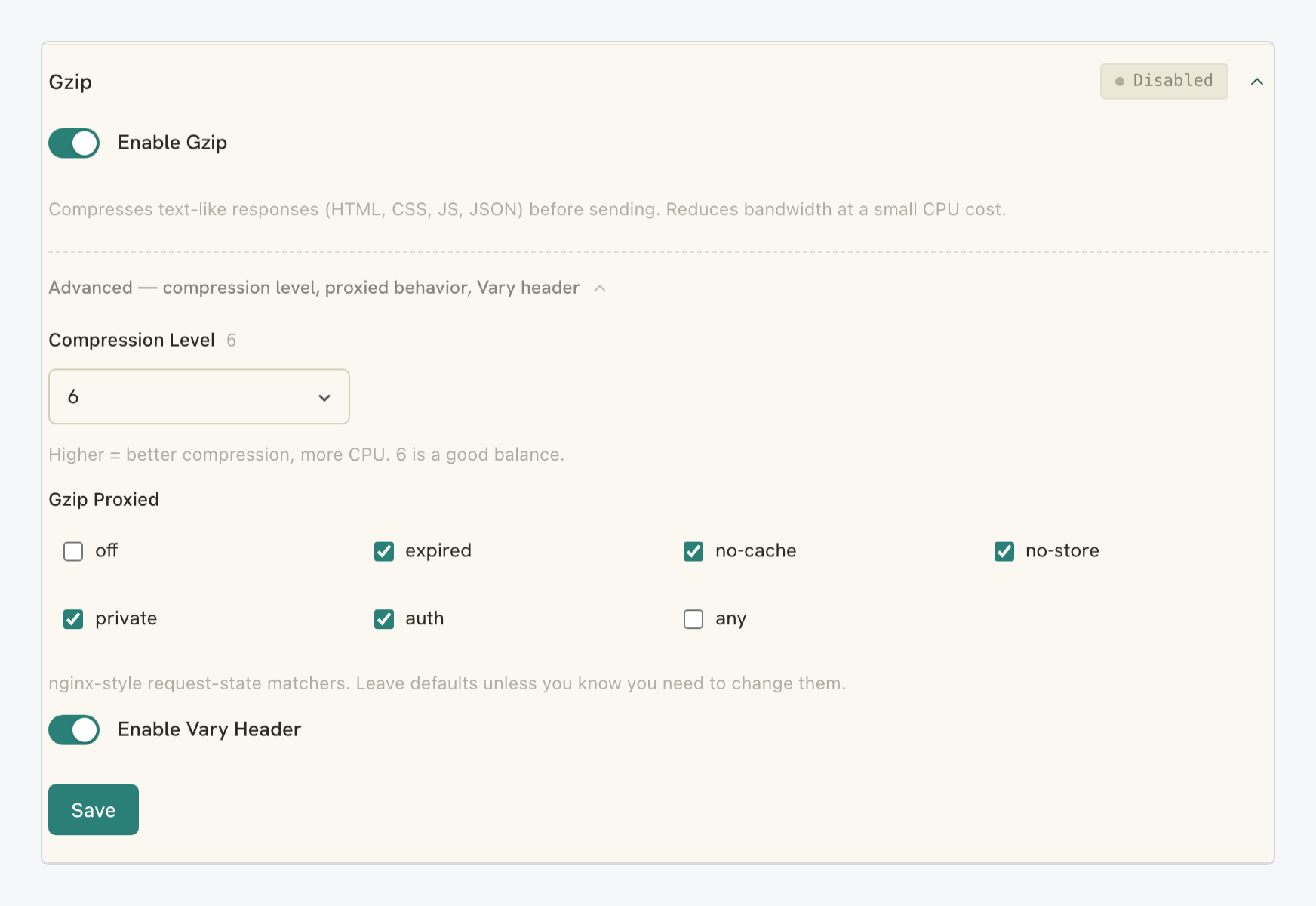
| Setting | Value |
|---|---|
| Compression Level | The default is the right balance of ratio and CPU; keep it. |
| Gzip Proxied | Nginx-style request-state matchers (off, expired, no-cache, no-store, private, auth, any). Leave the preselected defaults. |
| Enable Vary Header | A toggle, on by default. Keep it on; the next paragraph is why. |
The Vary header is what makes running two encoders safe. Once Gzip and Brotli are both enabled, one URL has several valid representations, and the standard HTTP Vary response header marks a response as depending on what the client asked for. Caches between the CDN and the visitor then store the encodings separately instead of handing the first stored copy to everyone, so a browser that never asked for Brotli never receives it. Click the section’s Save to apply the Gzip editor.
Step 4: Turn On Brotli Beside Gzip
Back in the section list, expand the Brotli row and switch on Enable Brotli:
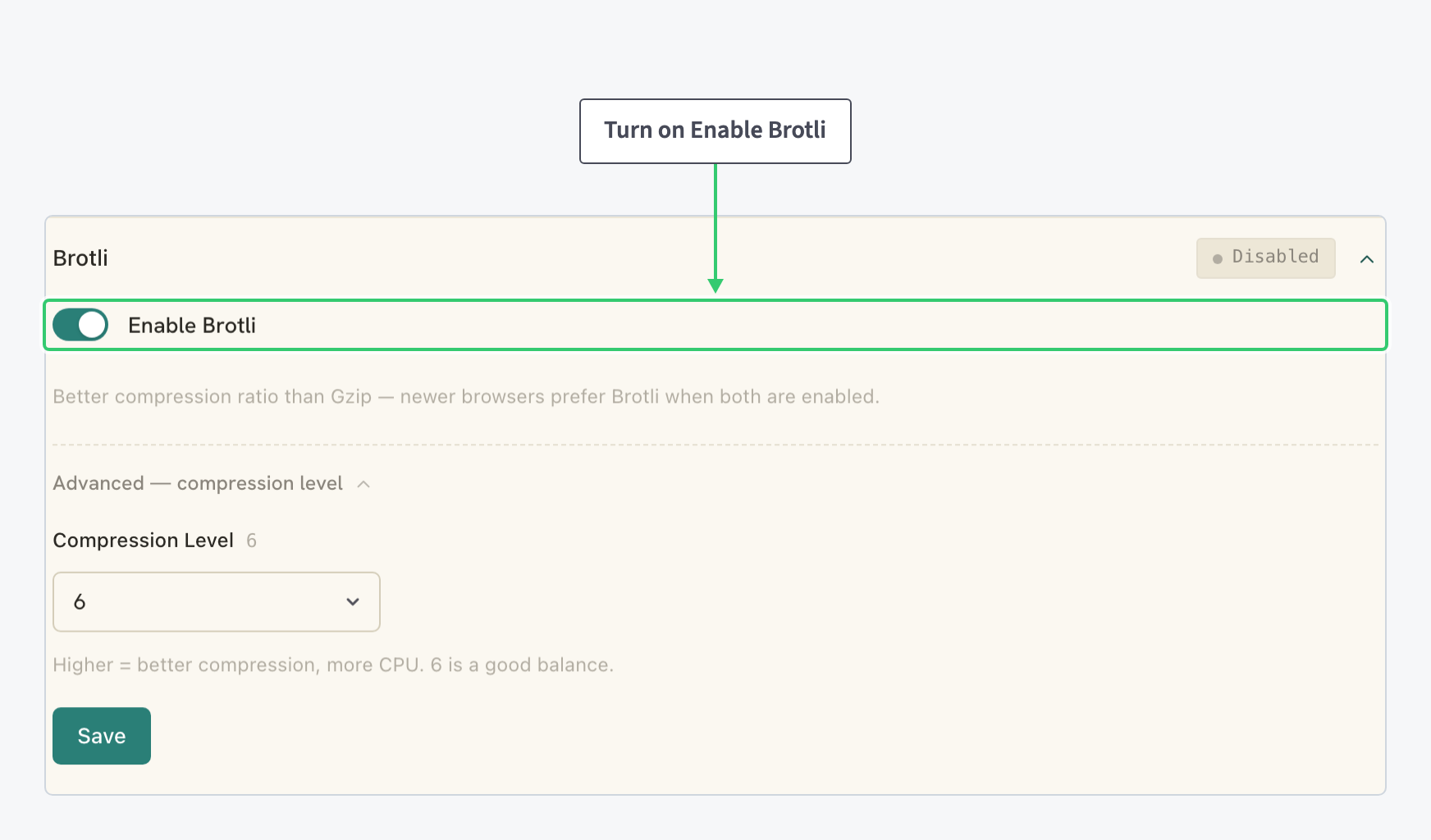
Brotli does not replace Gzip, it sits beside it: Brotli compresses tighter, and newer browsers pick it when both are enabled. Keep its default Compression Level too. Click the section’s Save and both codecs are active: Brotli for the browsers that prefer it, Gzip for the rest, the Vary header keeping the variants apart.
Field-level detail on both editors: Enable Gzip and Brotli Compression on Your CDN.
Step 5: Concentrate Cache Misses with Origin Shield
Compression shrinks responses; Origin Shield cuts how many requests reach your origin at all. Still on the advanced General page, the Origin Shield row sits in the Connection area, under the Protocol selector:
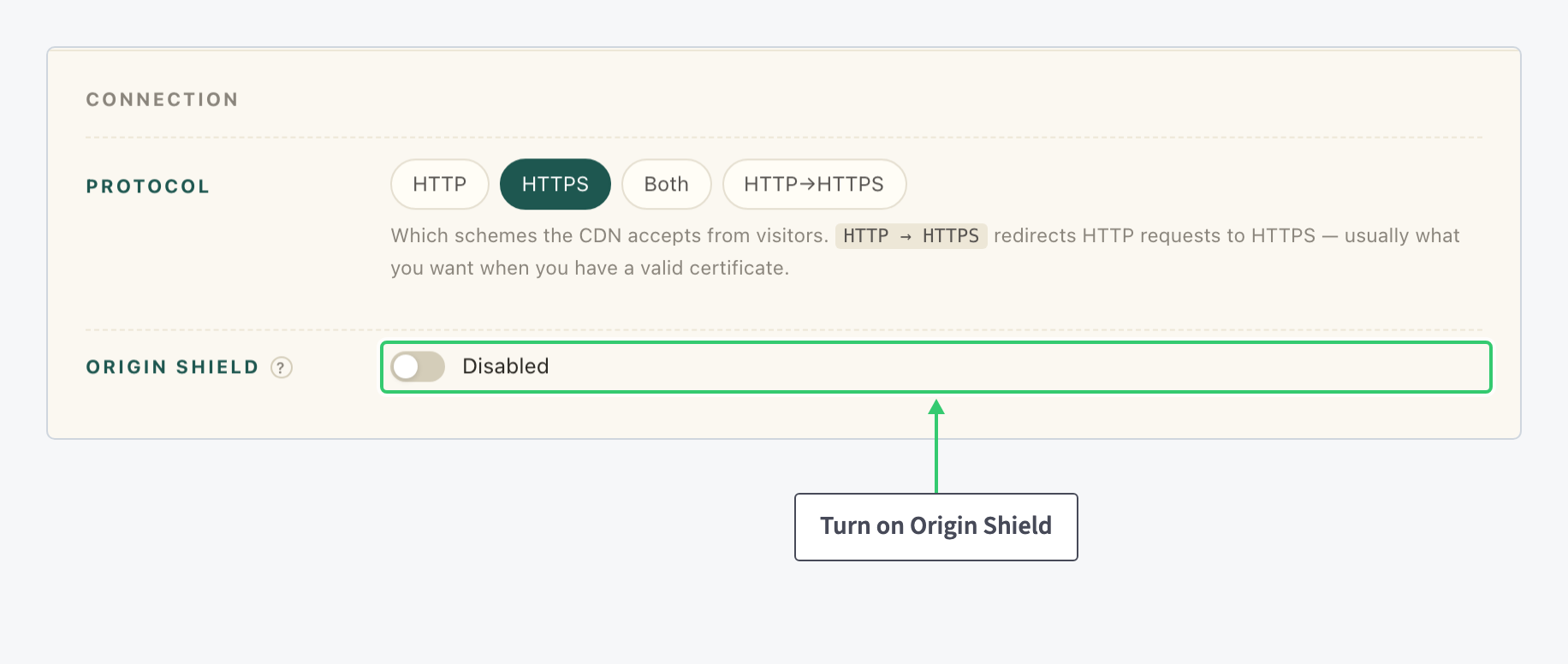
Origin Shield routes cache misses through one shared edge layer. Instead of every edge asking your origin for the same object separately, the origin answers once and the shield feeds the rest.
Click the toggle. This row belongs to the main resource form, so apply it with the form’s Save bar at the bottom of the page. The benefit is largest during a traffic spike, when every edge requests the same object at once and your origin answers only once.
Step 6: Give Exception Paths Their Own Rules
The steps so far tuned the whole resource. Content that should not follow those defaults gets a location: a path-based routing rule that overrides settings for one URL prefix. Open the Origins tab of the advanced view; the Locations panel lists every rule, starting with the catch-all /, and a resource holds up to 10. To add one, click + Add a Location, enter the path prefix and an optional description, and click Save; more specific prefixes win over /.
Click a location’s row to expand its card:

Two overrides matter for performance. The Disable Cache toggle in the card’s General section makes the location proxy every request straight to the origin, the standard treatment for dynamic APIs and authenticated endpoints: correctness for the paths that must never serve a cached copy. And the card’s own Cache & Compression group repeats the four rows from Step 2, so a path can run different compression or cache settings than the resource default. Each section applies with its own Save.
Full walkthroughs: Route and Configure a Specific URL Path on Your CDN, and Speed Up E-Commerce Product Images and Store Assets for a complete storefront path split.
What You’ve Tuned
One pass, four settings. Text responses now leave the edge Brotli- or Gzip-compressed with the Vary header keeping the variants separate, the misses that remain funnel through Origin Shield instead of hitting your origin one edge at a time, and the paths that must stay live bypass the cache by explicit rule rather than by chance.
The HIT % counter from Step 1 shows the result: give the changes a few days of traffic, then compare HIT % over the same preset. From here, the biggest remaining gains are in what the cache is allowed to hold and for how long: the caching pass linked in Step 1.