
CDN usage is metered continuously and settled at month-end. This guide explains how CDN charges are covered, then sets up a Prepaid Pocket: money moved from your credit balance into a reserve that only your CDN services can spend. You will fund it, automate its refills, redeem a promotion code, and know exactly what happens when an invoice arrives or the pocket runs out.
Prerequisites
- An active CDN service on your Melbicom account.
- Funds in your account credit balance.
What is a Pocket
A Prepaid Pocket is a reserve of funds dedicated to your CDN services, held separately from your account credit balance. You fund it by moving money from the credit balance; the transfer is free, and unused funds can be returned at any time. Only concerned CDN charges draw on the pocket. At month-end, the invoice for actual CDN usage settles from the pocket automatically. If the pocket balance runs out, the services it covers pause together and resume together after a top-up; auto-refill keeps the balance above a threshold you set.
Why Reserve Money in a Pocket
- The funds are protected: your credit balance is shared, and any invoice can drain it. Pocket money is reserved for CDN; no other bill can touch it.
- Service continuity is predictable: covered services pause together when the pocket runs out and resume together after a top-up. Delivery stops at the limit you funded, not at an unexpected payment failure.
- Invoices arrive already paid: at month-end, one invoice for actual usage settles from the pocket automatically, regardless of how many refills happened during the month.
Step 1: Know Which Money Your CDN Spends First
Melbicom CDN packages come in two families, and they draw on the pocket differently:
| Package family | What pays for traffic |
|---|---|
| Traffic included (e.g. CDN Volume Plus) | The package’s monthly traffic allowance is consumed first. The pocket only covers usage beyond the allowance. |
| Pay-as-you-go (e.g. CDN Premium Go) | No included traffic: every byte settles from the pocket, so it needs funds before delivery starts. A promotion code from onboarding can provide the first credit. |
A service pauses only when it needs pocket money and none is available. An included-traffic package within its allowance therefore serves normally even with an empty pocket; a pay-as-you-go package needs funds before delivery starts. The pocket is the single reserve all your CDN services share.
Step 2: Open Prepaid Pockets
In the Client Area, open Billing menu and then select Prepaid Pockets. Everything in this guide happens here: your credit balance with an + Add funds shortcut, the CDN Pocket, the services it covers, and the transaction history:
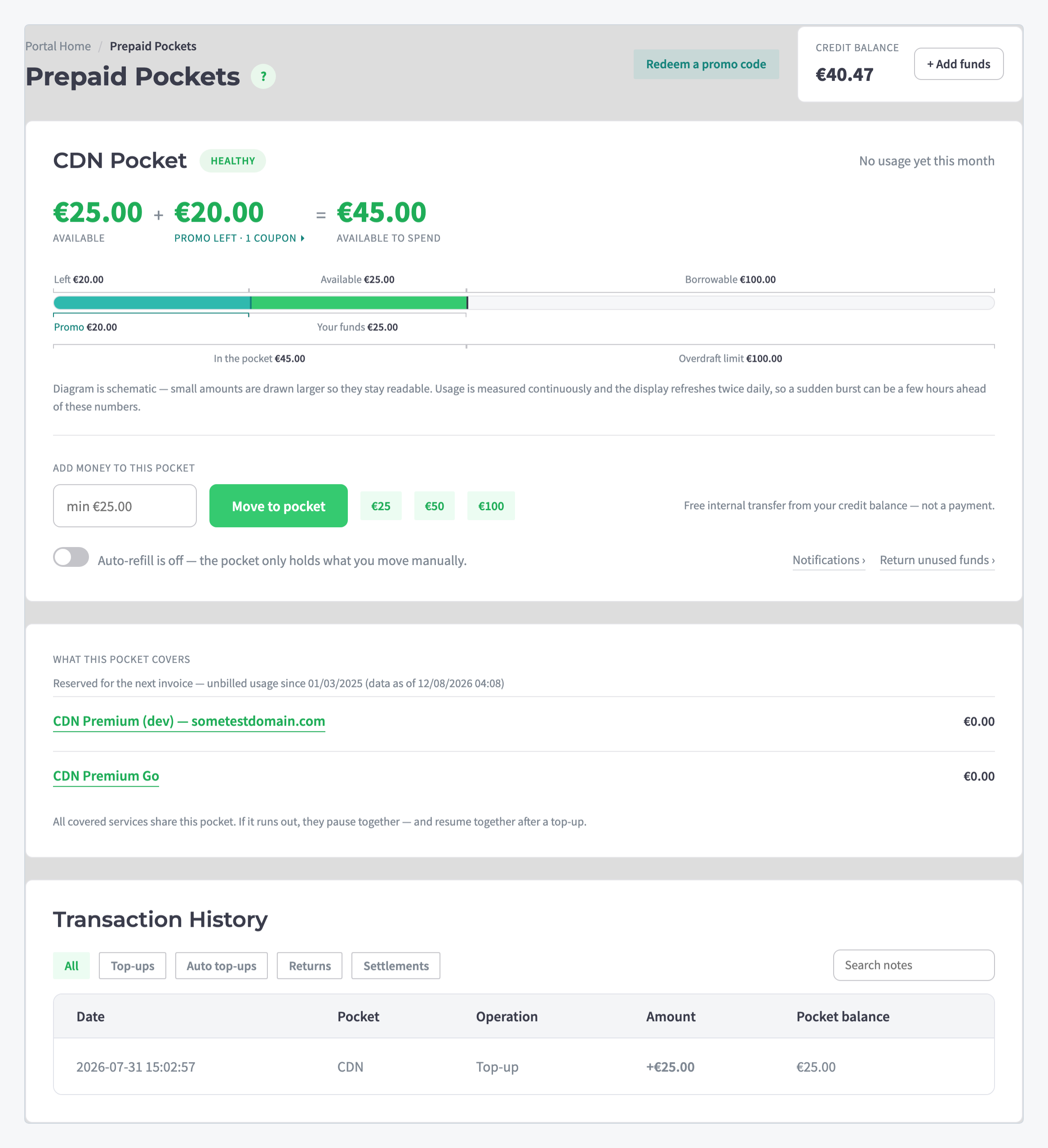
Two kinds of money add up to the amount available to spend: funds you moved in, plus promotion credit. Usage is measured continuously but reported twice daily, so a sudden traffic burst can run a few hours ahead of the numbers on screen.
Step 3: Move Money into the Pocket
Funding is a free internal transfer from your credit balance, not a payment, and it is reversible while unused. In Add money to this pocket, enter an amount or use a quick-amount button, then click Move to pocket:
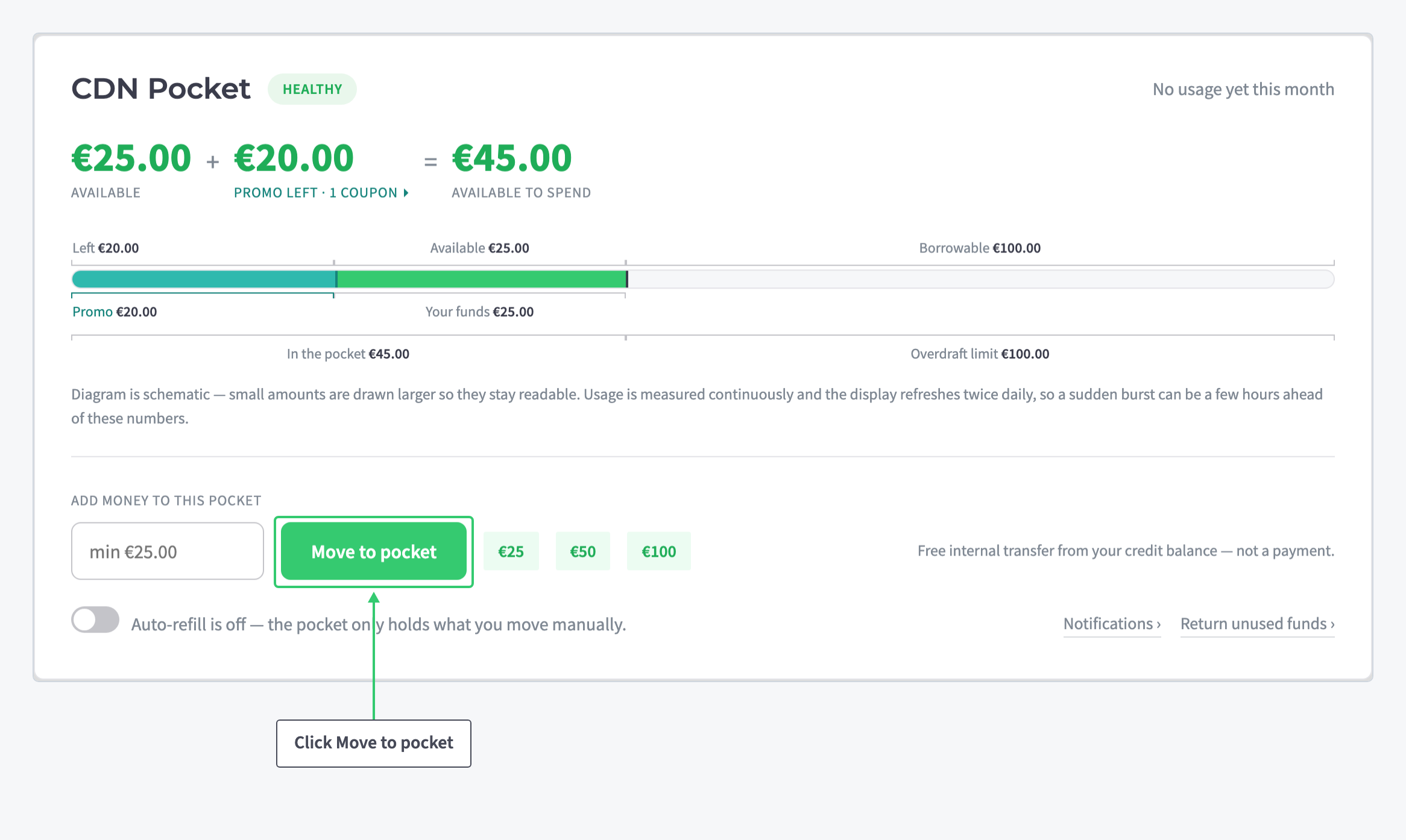
The money stays yours until an invoice is issued. Until then it sits in the pocket as reserved CDN spending power.
Step 4: Turn On Auto-Refill
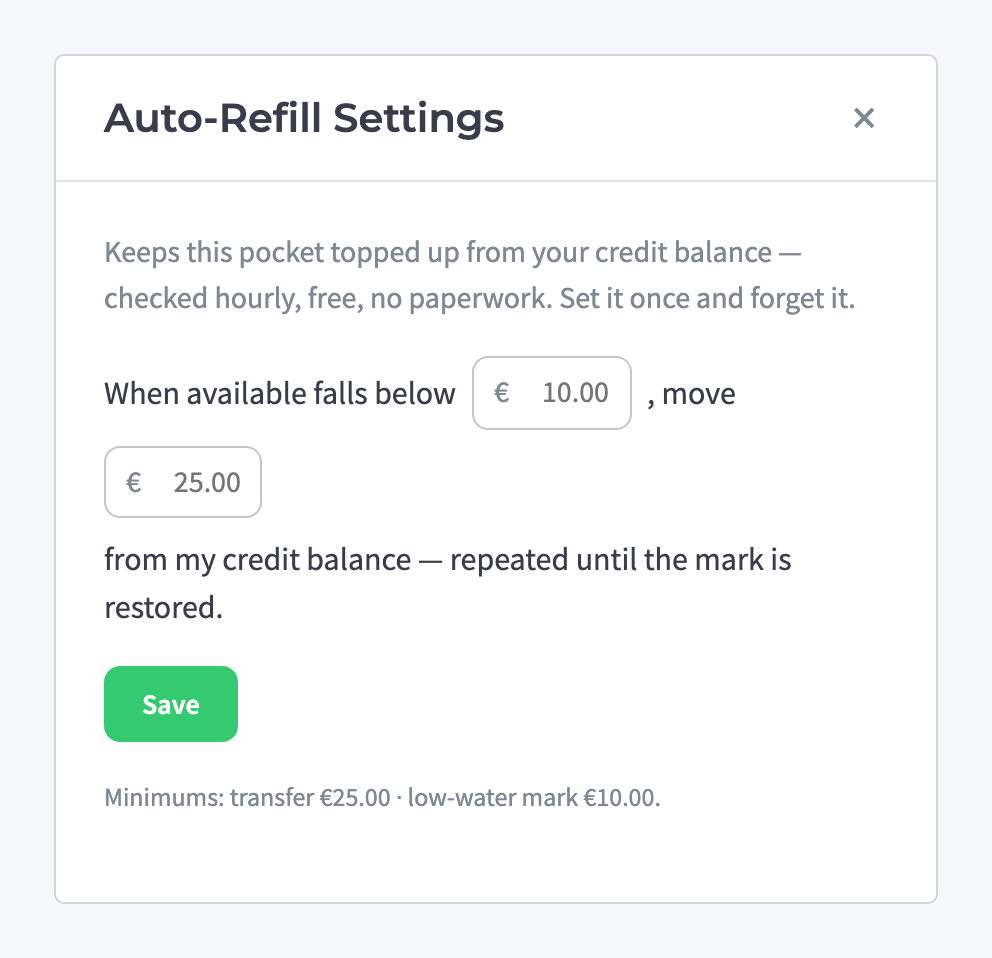
Usage drains the pocket in small steps, and a manually funded pocket eventually empties unnoticed. Switch on the Auto-refill toggle under the add-money field and set the two amounts:
| Setting | Value |
|---|---|
| When available falls below | The low-water mark that triggers a refill (minimum €10.00). Set it above a typical day’s spend so a refill lands before the pocket empties. |
| Move | The top-up taken from your credit balance each time (minimum €25.00), repeated until the mark is restored. Size it to a few days of typical spend rather than months. |
Click Save. The balance is checked hourly and refills are free internal transfers, so the pocket maintains itself from your credit balance with no further action.
Step 5: Redeem a Promotion Code
Campaign coupons, including the one from onboarding, are redeemed on this same page. Click Redeem a promo code at the top, enter the code exactly as issued (lowercase letters, digits, dash), and click Redeem:
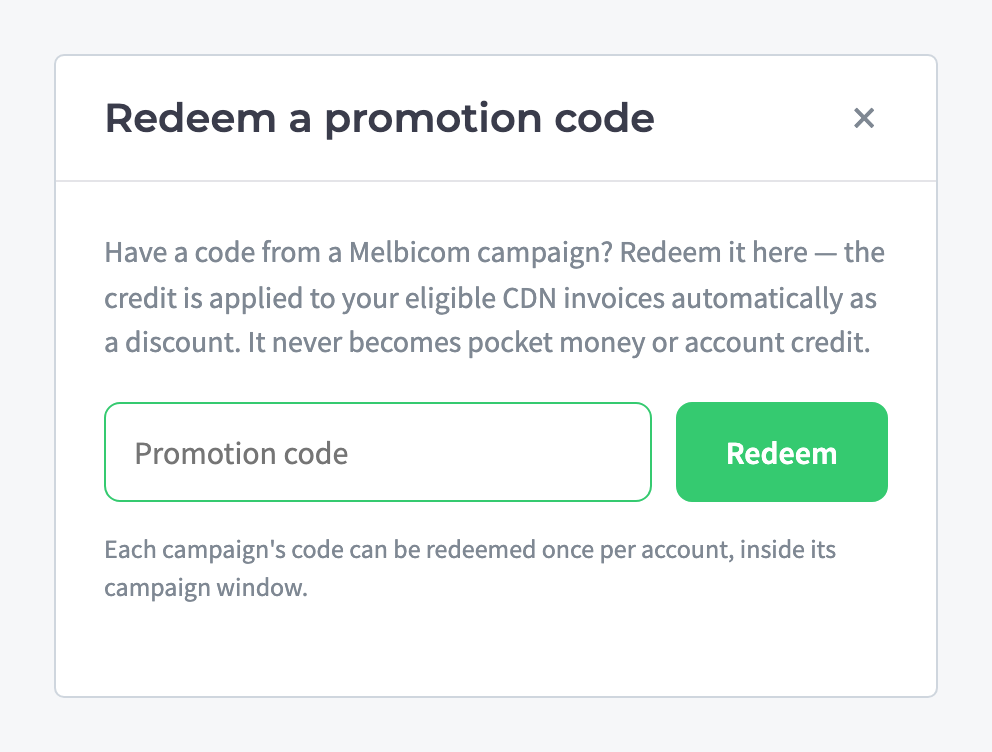
Promotion credit is applied to your eligible CDN invoices automatically and shows in the pocket card as a separate promo amount, next to the funds you moved in yourself. On a pay-as-you-go package, an onboarding coupon is enough to start serving traffic before you move in any money of your own.
Step 6: Read What the Pocket Covers
Every CDN service drawing on the pocket appears under What this pocket covers, with the usage each has accrued toward the next invoice:
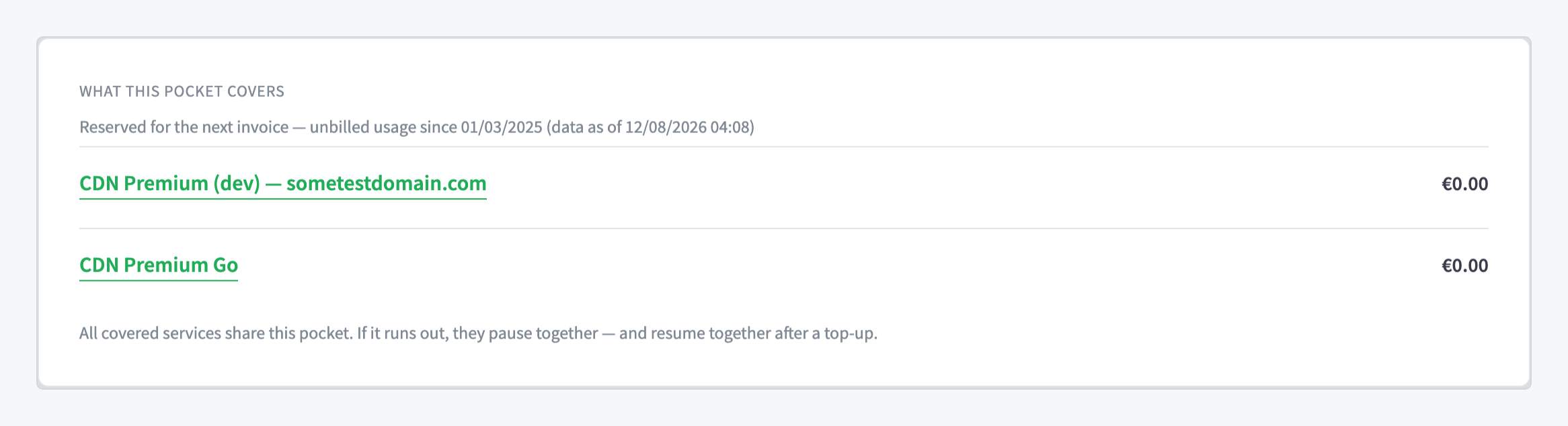
Two rules govern this list:
- All covered services share the one pocket. If it runs out, they pause together and resume together after a top-up.
- Amounts already reserved for the next invoice are committed. At month-end the invoice settles from the pocket automatically.
Each movement appears in the Transaction History below, filterable by top-ups, auto top-ups, returns and settlements.
Step 7: Return Unused Funds
Reserving money is not spending it. To take unused funds back, open Return unused funds on the pocket card, enter an amount up to the available balance, and click Return to credit:
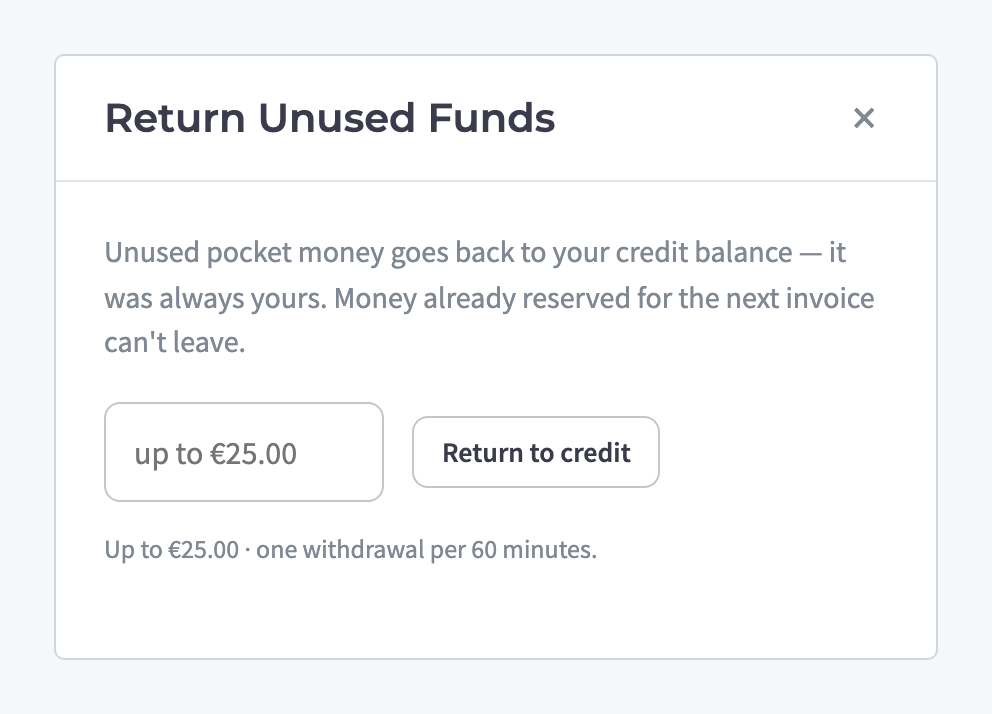
The money goes back to your credit balance, where it is usable by any service again. One rule applies: funds already reserved for the next invoice cannot leave the pocket.
What You’ve Set Up
Your CDN spending now has its own protected reserve. Included-traffic packages consume their allowance first and fall back on the pocket; pay-as-you-go services draw on it from the first byte; promotion credit adds to it; auto-refill keeps it above your low-water mark from the credit balance. At month-end, one invoice settles itself, and anything you never spent returns to your balance with one click.
To see the usage behind the numbers, per resource and per period, read Monitor CDN Traffic and Cache Performance.