
Not every path on your site needs the same treatment. Long-cached images, an API that must never be cached, an admin area that should be locked down: the CDN handles this with locations. The Origins tab describes them as path-based routing rules, where each location can override cache, ACL, headers and rate limiting from the resource’s defaults.
This tutorial adds a location for a URL path, explains which rule wins when prefixes overlap, and covers the per-path settings a location enables.
Prerequisites
- A CDN resource already created and serving. See Add your first CDN resource.
- Client Area access to the package.
- Optional: a second upstream, if the path should be served from a different origin pool. See Add multiple origins and failover to your CDN.
Step 1: Open the Origins tab
In the Resources table of your package, click the gear icon (Edit resource settings) on the resource’s row, then click Advanced settings, and open the Origins tab.
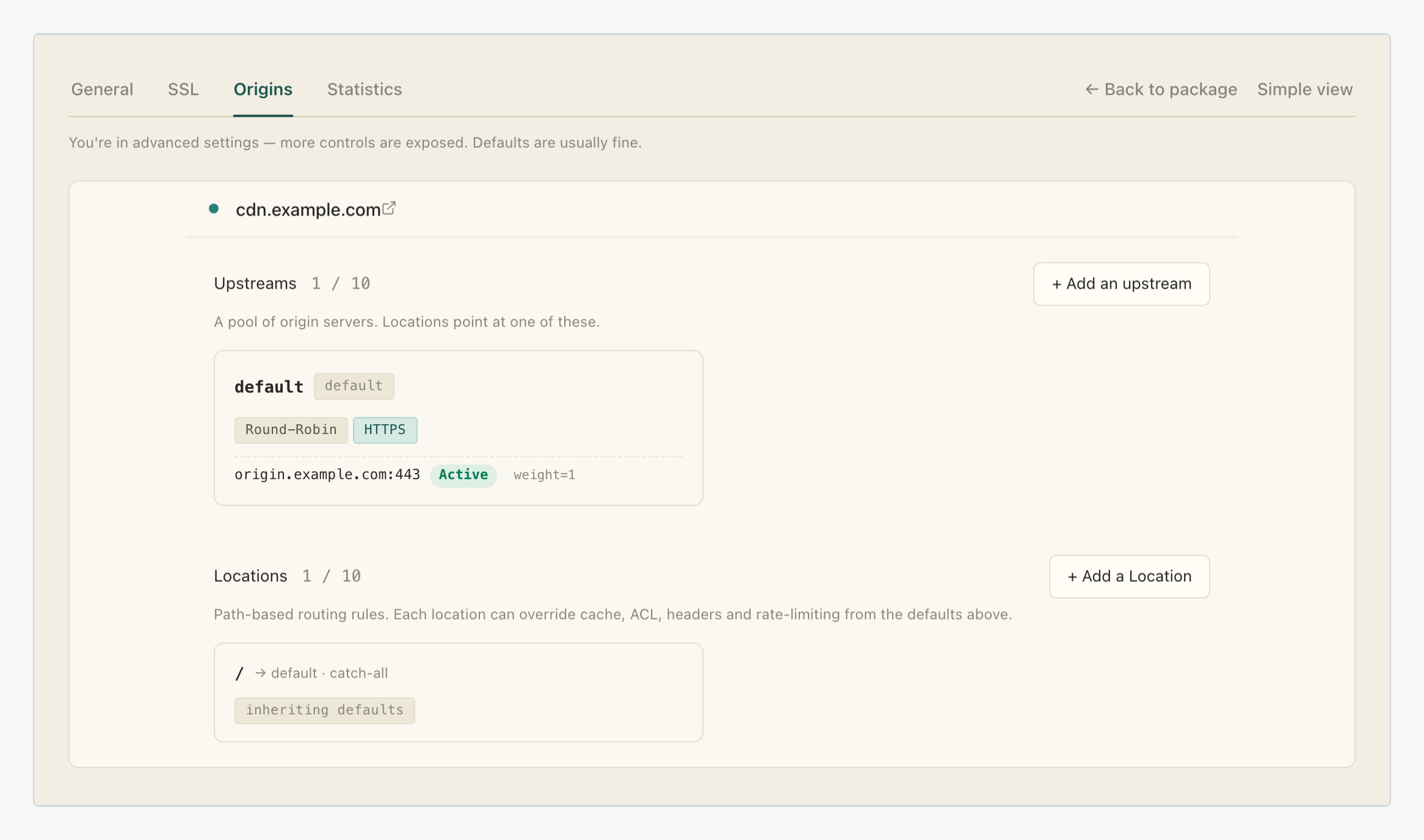
The Locations panel sits under the upstreams pool. Every resource starts with one location: the catch-all /, pointing at the default upstream and marked inheriting defaults, meaning it changes nothing until you override something. A resource can hold up to 10 locations; the counter reads 1 / 10 here.
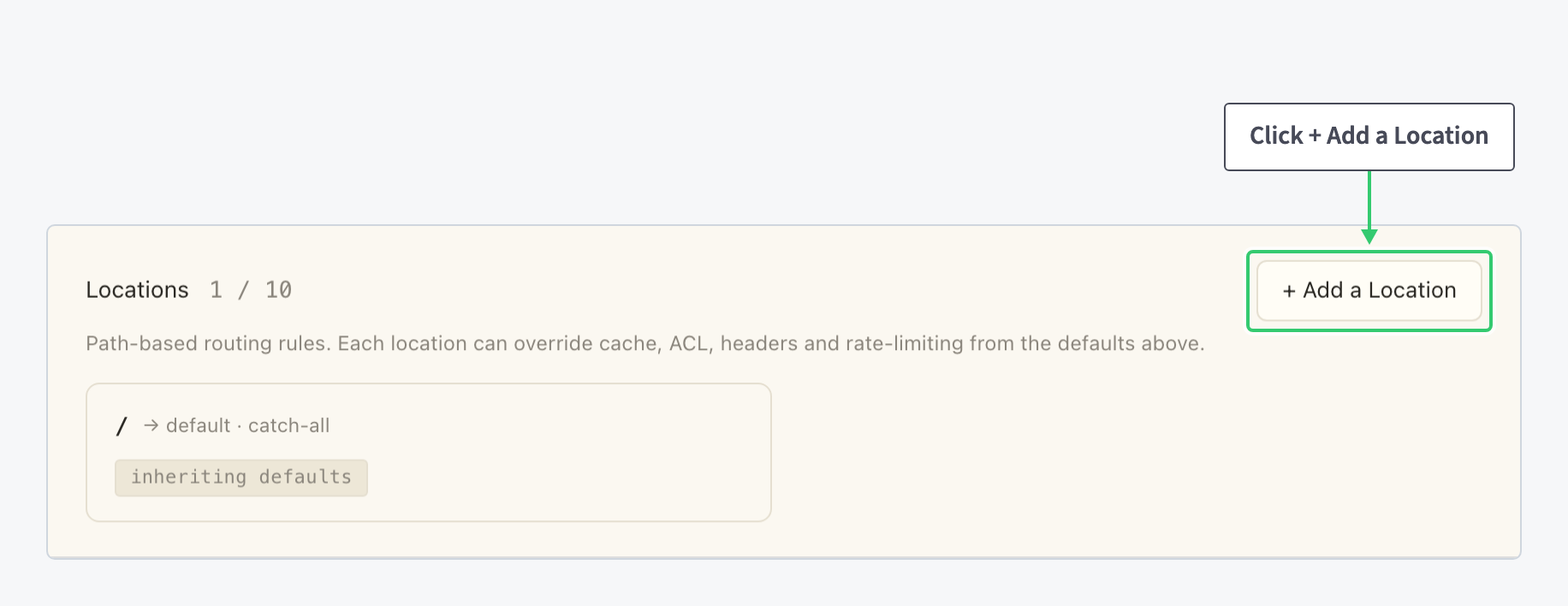
Step 2: Click + Add a Location
Step 3: Enter the path prefix and save
The Add a Location form asks for two things:
| Setting | Value |
|---|---|
| Path | The prefix to match, for example /images/. The form’s own examples are /, /api and /static. |
| Description | A note for yourself, for example Static images. Optional. |
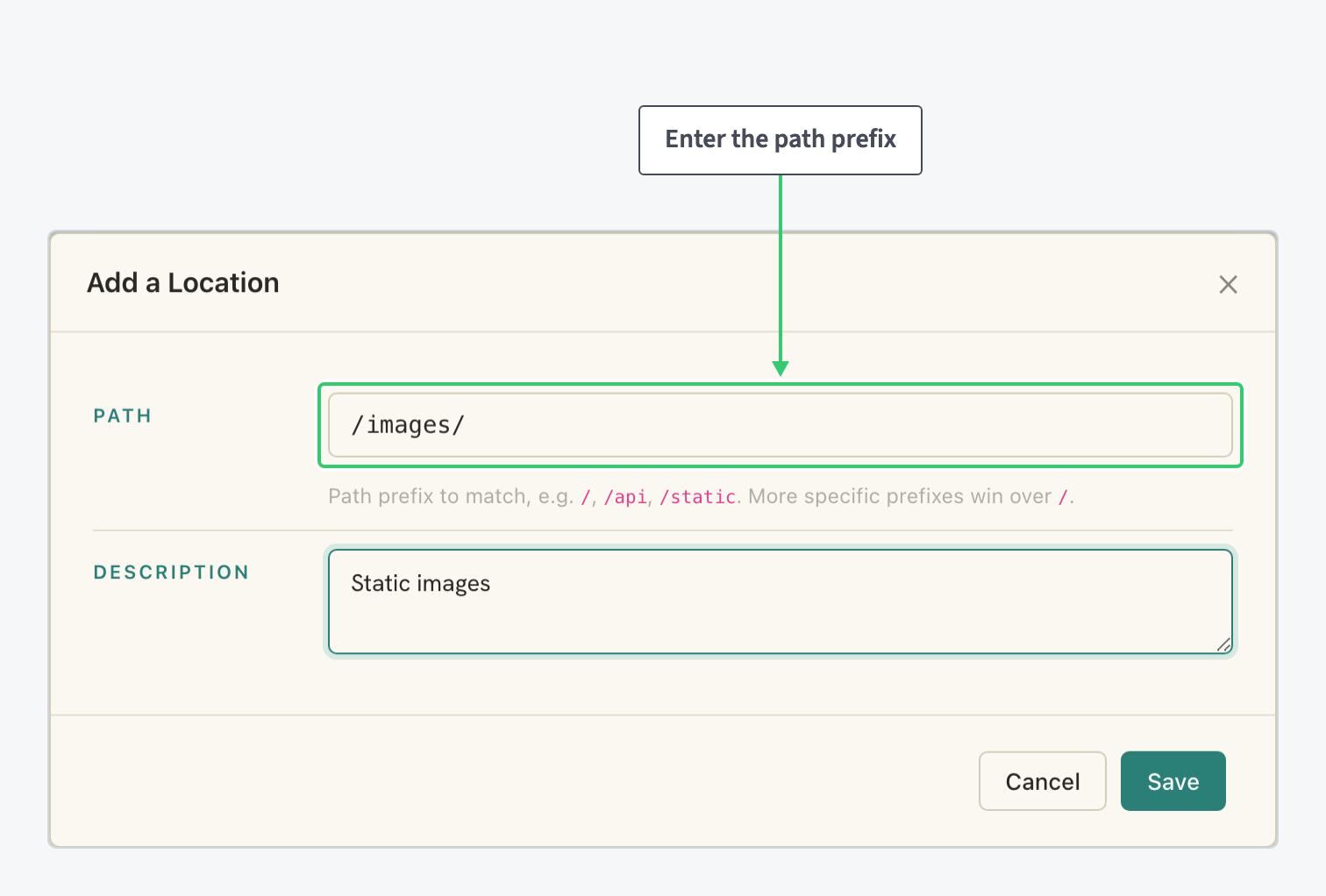
More specific prefixes win over /, and the catch-all matches everything no other prefix claims. So with /images/ defined, a request for /images/logo.png follows the new location’s rules, and everything else keeps following /.
Click Save and the location joins the Locations list.
Step 4: Configure the location
Click a location’s row to expand everything it can override. Here is the catch-all / expanded; every location card carries the same sections:

The General section holds the routing decisions:
| Setting | Value |
|---|---|
| Name | The path prefix that routes to this location |
| Upstream | Which origin pool serves this path. Use resource default inherits the resource’s default upstream; picking a named upstream sends the path’s cache misses to that pool instead. |
| Description | Your own note |
| Cache | The Disable Cache toggle. When on, the location proxies every request straight to the origin, useful for dynamic APIs and authenticated endpoints. |
Each General change applies with the section’s Save button. Below it, the card stacks the per-path override groups, each collapsed with a status badge (all Disabled on a fresh location, which is exactly what inheriting defaults means):
- Headers: up to 20 custom headers per location, added with + Add header.
- Cache & Compression: Gzip, Brotli, Cache Valid and Cache Use Stale.
- Access Control: ACL IP, ACL User Agent and ACL GEO.
- Rate Limiting: request rate limits for the path.
- Security: Secure Link.
Anything you enable here affects only requests matching this location’s prefix; the rest of the resource keeps its defaults.
What you’ve built
Your resource now routes by path: one prefix, one rule. The /images/ location can cache aggressively while / stays untouched. An API path can bypass the cache entirely; any path can carry its own upstream pool, headers or access rules.
As the site grows, the pattern repeats: add a prefix, decide its upstream, override only what that path needs, up to 10 locations per resource.