
Most sites use more than one origin. The application answers from your web server, while the uploads it stores, images, documents, exports, belong in a bucket that holds large files without a server behind them. Both should be reachable from the same hostname with the same certificate.
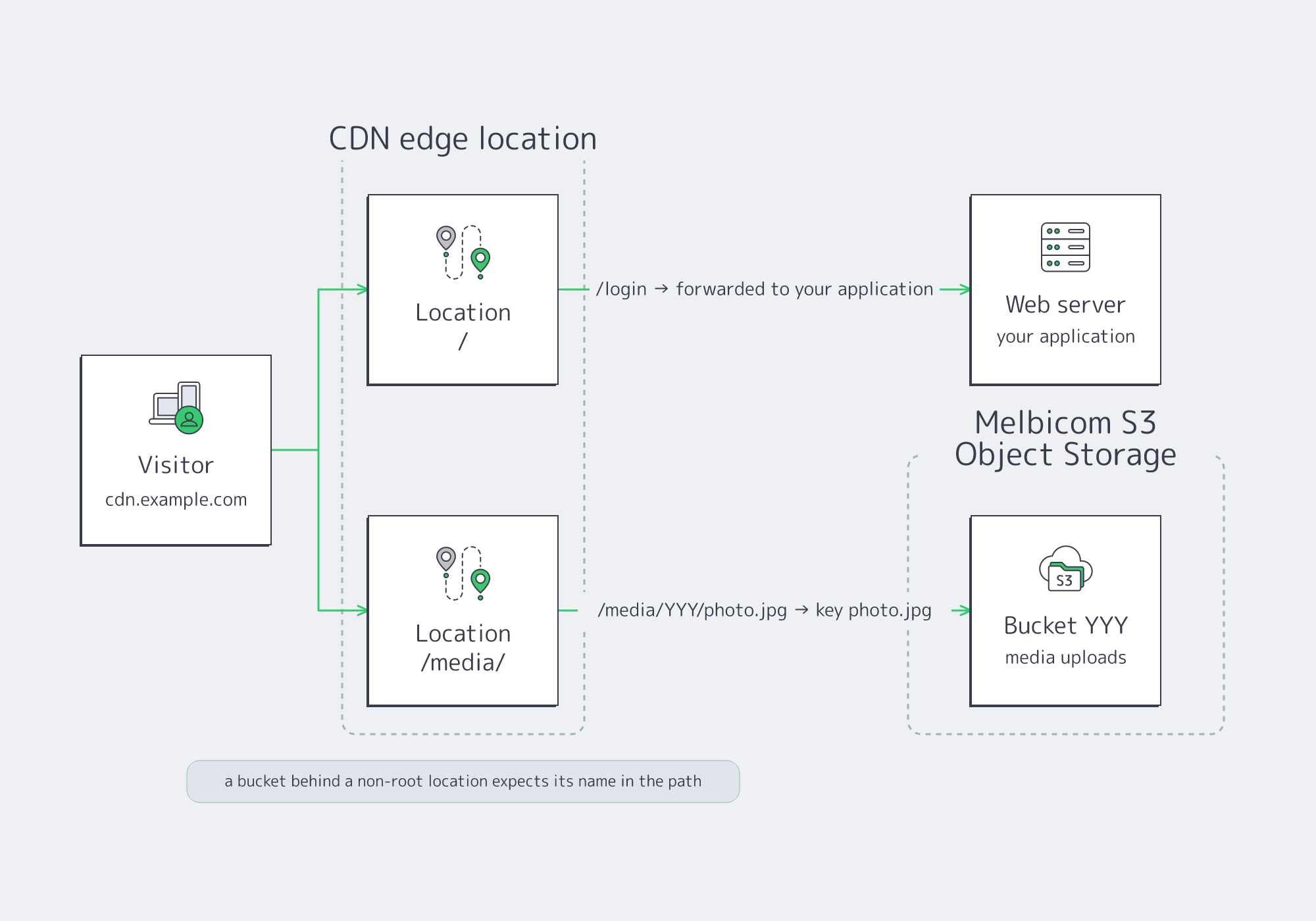
The CDN does this with two building blocks: an upstream per origin, your server or a bucket on Melbicom S3 Object Storage, and a location per URL path prefix that decides which upstream answers. This guide keeps the web server on the catch-all path, puts the bucket behind /media/, and shows the one URL rule that comes with a bucket behind a prefix.
Prerequisites
- A CDN resource with your domain pointed at it (Add Your First CDN Resource, Point Your Domain at the CDN).
- Your web server as the resource’s origin, set on the General page (Set Your CDN Source Server (Origin)).
- A bucket for the uploads, on a Melbicom S3 service of the same account (Create a Bucket on Melbicom S3 Storage).
- Client Area access to the package.
Why a Server and a Bucket behind One Hostname
- One certificate, one hostname: visitors, browsers and search engines see a single site, whether a page comes from the application or a file from the bucket.
- Each origin serves the content it is built for: the server renders pages and runs the application; the bucket holds the uploads, scales with them and needs no disk, patching or web server of its own.
- Rules per path: each location carries its own cache, header, access and rate-limit settings, so the media path is cached for a day while the application path stays dynamic.
Step 1: Plan the Paths
Every request is matched against the locations of the resource; the most specific prefix wins and the catch-all / takes the rest. The application keeps the catch-all, the bucket takes a prefix. Decide the map before configuring the resource, because a bucket behind a path prefix shapes the URLs your pages must use:
| Location | Origin | Public URL and what it fetches |
|---|---|---|
/ |
Web server | https://cdn.example.com/login is forwarded to your application with its path, exactly as before the CDN; the server routes it as it always did. |
/media/ |
Bucket YYY | https://cdn.example.com/media/YYY/photo.jpg fetches the object photo.jpg from bucket YYY. The bucket name is part of the path: https://cdn.example.com/media/photo.jpg returns 403. |
/ (variant) |
Bucket XXX | A bucket on the catch-all location instead of a server: https://cdn.example.com/image.jpg fetches the object image.jpg, the path is the key. This is the pattern of a bucket-only site. |
The second row is the rule to remember: a bucket behind a prefix expects its own name after that prefix, while a web server behind any path simply receives the request path. Where media URLs must stay short, give the bucket its own hostname instead (Serve a Melbicom S3 Bucket through Your CDN).
Step 2: Add an Upstream for the Bucket
A location can only route to an origin the resource knows, and so far it knows one: the default upstream, your web server as set on the General page. The bucket needs an upstream of its own. Open the resource’s settings (the gear icon on its row), click Advanced settings, open the Origins tab and click + Add an upstream:

Fill in the dialog and click Save:
| Setting | Value |
|---|---|
| Name | media. The name is how the location will refer to this origin. |
| Origin type | S3 bucket |
| Provider | Melbicom S3 storage. Choose another provider only for a bucket hosted elsewhere, with credentials you provide (Connect External S3 Storage to Your CDN). |
| Bucket name | The bucket to serve, picked from every bucket on your account’s S3 services. No credentials: the CDN creates its own read-only key for it on save. |
| Origin path | Optional. A key prefix inside the bucket when the content to serve is not at the bucket root. |
| Description | A note for yourself. |

The resource now has two upstreams: default for the web server and media for the bucket. The web server needs nothing here; a server pool or a failover server behind it is a separate procedure, Add Multiple Origins and Failover to Your CDN.
Step 3: Add the Location and Point It at the Upstream
A new upstream serves nothing until a location sends requests to it, and the catch-all / keeps sending everything to the web server. In the Locations panel below, click + Add a Location, fill in the dialog and click Save:
| Setting | Value |
|---|---|
| Path | /media/ |
| Description | A note for yourself, for example Media uploads. |

The new location starts on the resource’s default upstream, the web server. Click its row to expand the card and change one setting in the General section, then click the section’s Save:
| Setting | Value |
|---|---|
| Upstream | media |

Both routes are in place: / on default, the web server, and /media/ on media, the bucket. Repeat Step 2 and Step 3 for every further origin that deserves its own path, an archive bucket under /archive/ for instance; content that shares cache and access rules with an existing path belongs on that path, not on a location of its own.

Step 4: Build the URLs on the Application Side
Routing alone does not change a single link on your pages: the application still emits the media URLs it always did, and those must now carry the location prefix and the bucket name. Pages, scripts and everything else the server renders keep their URLs unchanged. A file uploaded as 2026/09/photo.jpg into the media bucket is served at:
https://cdn.example.com/media/100-00-1000-100-kb-media/2026/09/photo.jpg
Set the location prefix and the bucket name once, in the base URL of the helper that builds media links, and every link it produces is valid. A URL that names a prefix instead of an object, or one that omits the bucket name behind the location, returns 403; that is the first thing to check when a media link fails after the switch.
Step 5: Give the Media Path Its Own Cache Rule
Uploads never change once stored, so the media location can be cached far longer than the application. Expand the /media/ card again, open Cache Valid in its Cache & Compression section, add one rule and click the section’s Save:
| Code | Duration | Why |
|---|---|---|
200 |
1d |
A stored upload never changes; the edge holds it for a day and refills with a single miss. |
The catch-all location keeps the resource’s rules for the application. If the application serves personalised pages, switch on Disable Cache in that card’s General section and every request on / goes straight to your server. The cache editor is described field by field in Control How Your CDN Caches Content.
What You’ve Built
One hostname that answers from two origins: pages from your web server, uploads from a bucket behind /media/, each path with the cache rules appropriate to it, and the bucket read by the CDN with a key you never handled. Adding the next origin is another upstream and another location, and the URL rule for buckets behind a prefix is the only thing your application has to know.