
Licensed content comes with territorial boundaries: territories where you may serve it, and territories where you may not. When the licence, the regulator or your own distribution deal defines that boundary, the CDN can enforce it, so the boundary is a saved setting instead of a promise.
This guide builds that enforcement in the panel: a geo allow-list with the ACL GEO editor, narrowed to the licensed paths with a location, hardened with Secure Links for the files themselves, and checked after the fact in the resource’s country statistics.
Prerequisites
- An active CDN resource created for your hostname. See Add Your First CDN Resource.
- Your domain pointed at the CDN and serving traffic through it, so the rules act on real requests and the statistics have data to show. See Point Your Domain at the CDN.
- Client Area access to the package.
Why Enforce Territory in the CDN
- Compliance becomes configuration: the licence’s territory list turns into a saved rule applied to every request, instead of a policy that lives in a document.
- Regions keep the list maintainable: one Europe entry stands for its member countries, so the rule reads like the licence does.
- Scope stays precise: the same editor exists per URL path, so the licensed library is restricted while the rest of the site serves worldwide.
Step 1: Open the ACL GEO Editor
In the Resources table of your package, click the gear icon (Edit resource settings) on the resource’s row, then click Advanced settings. The advanced General page stacks the feature groups below the resource form: Cache & Compression, Access Control and Rate Limiting.
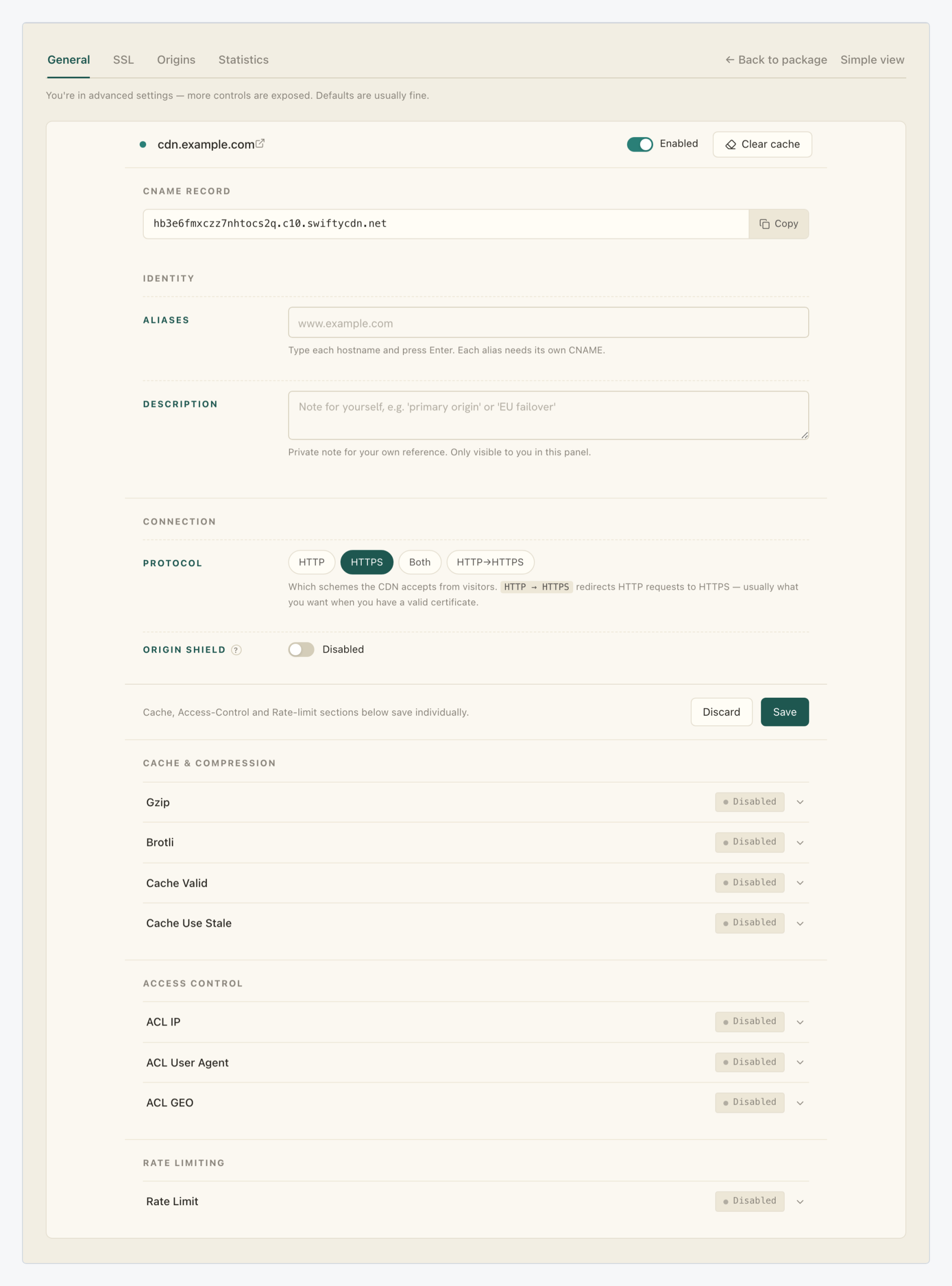
The Access Control section holds three collapsed rows: ACL IP, ACL User Agent and ACL GEO, each with a status pill (Disabled on a fresh resource) and a chevron. Click the ACL GEO row head to expand its editor. Each row is its own small form with its own Save button: everything you stage in it applies only when that Save is clicked, and the pill shows the saved state.
Step 2: Allow Only the Places You Are Licensed For
ACL GEO restricts access by visitor country: the tool for licensing compliance and abuse mitigation. Detection is geo-IP based, so the rule acts on the network location of the requesting address.

The editor’s fields, top to bottom:
| Setting | Value |
|---|---|
| Enable ACL GEO | The on/off toggle for the rule. |
| Policy | A two-way switch. Allow only listed admits the places in your list and turns away everyone else, which is the compliance posture: serve only where you hold rights. Block listed is the inverse, for blocking specific places while staying open elsewhere. |
| Countries and Regions | A searchable multi-select. The list opens with eleven regions (Europe, CIS, North America, South America, East Asia, Southeast Asia, South Asia, Central Asia, Middle East, Africa, Oceania), then individual countries; picked entries appear as removable chips. |
Regions are shorthand: one Europe chip covers its member countries, and the Region includes countries link under the field expands exactly which. Regions and single countries mix in the same list, so a licence that covers Europe plus Japan is two picks. Switch the rule on, select Allow only listed, make your picks and click the section’s Save.
Step 3: Scope the Rule to the Licensed Paths
Saved at the resource level, the rule covers everything the resource serves. When only part of the site is licensed content, put the rule on a location instead: a path-based routing rule that can override settings for one URL prefix.
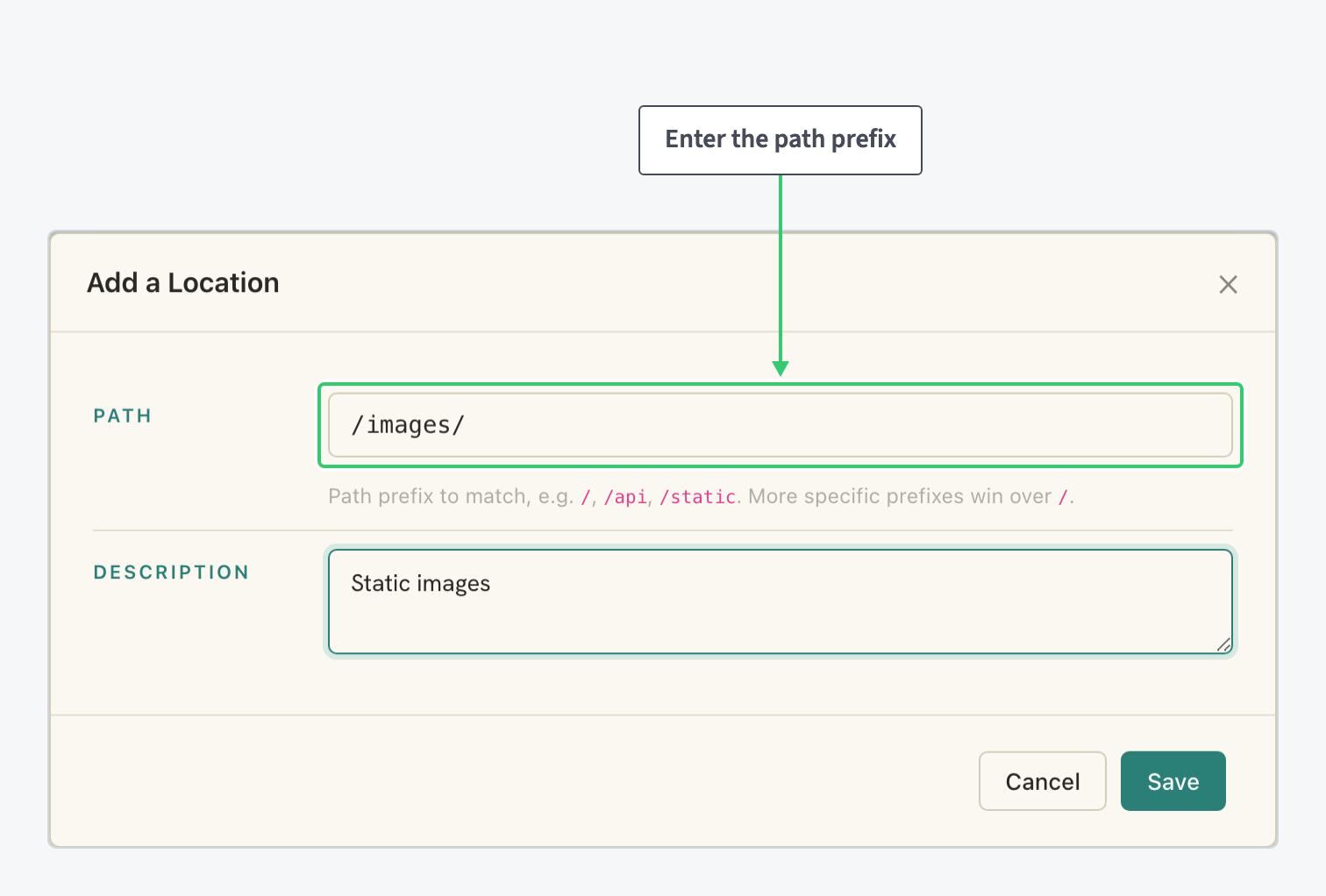
Open the Origins tab of the advanced view. The Locations panel lists every rule, starting with the catch-all /, with a counter (a resource holds up to 10). Click + Add a Location, enter the path prefix, for example /video/, add an optional description, and click Save; more specific prefixes win over /, so the new location takes over exactly its own subtree.
Click the location’s row to expand its card. Each location can override cache, ACL, headers and rate limiting from the resource’s defaults. The card’s Access Control group carries the same three rows, ACL IP, ACL User Agent and ACL GEO, all Disabled until you enable one, meaning the location follows the resource-level defaults:

So for a partly licensed site: leave the resource-level ACL GEO off and expand the card’s own ACL GEO row instead. It expands to the same editor you used in Step 2, the enable toggle, the policy switch and the Countries and Regions select, with its own Save. Stage the allow-list there and save the section; the licensed prefix becomes territory-restricted while every other path keeps serving worldwide. The full walkthrough of locations is in Route and Configure a Specific URL Path on Your CDN.
Step 4: Put Signed Links on the Files Themselves
A geo rule bounds where requests may come from. When the licence also demands that only your paying or entitled users reach the files, add Secure Link, the location card’s Security group at the bottom. Expanding its row reveals an editor of two toggles and a Save button:
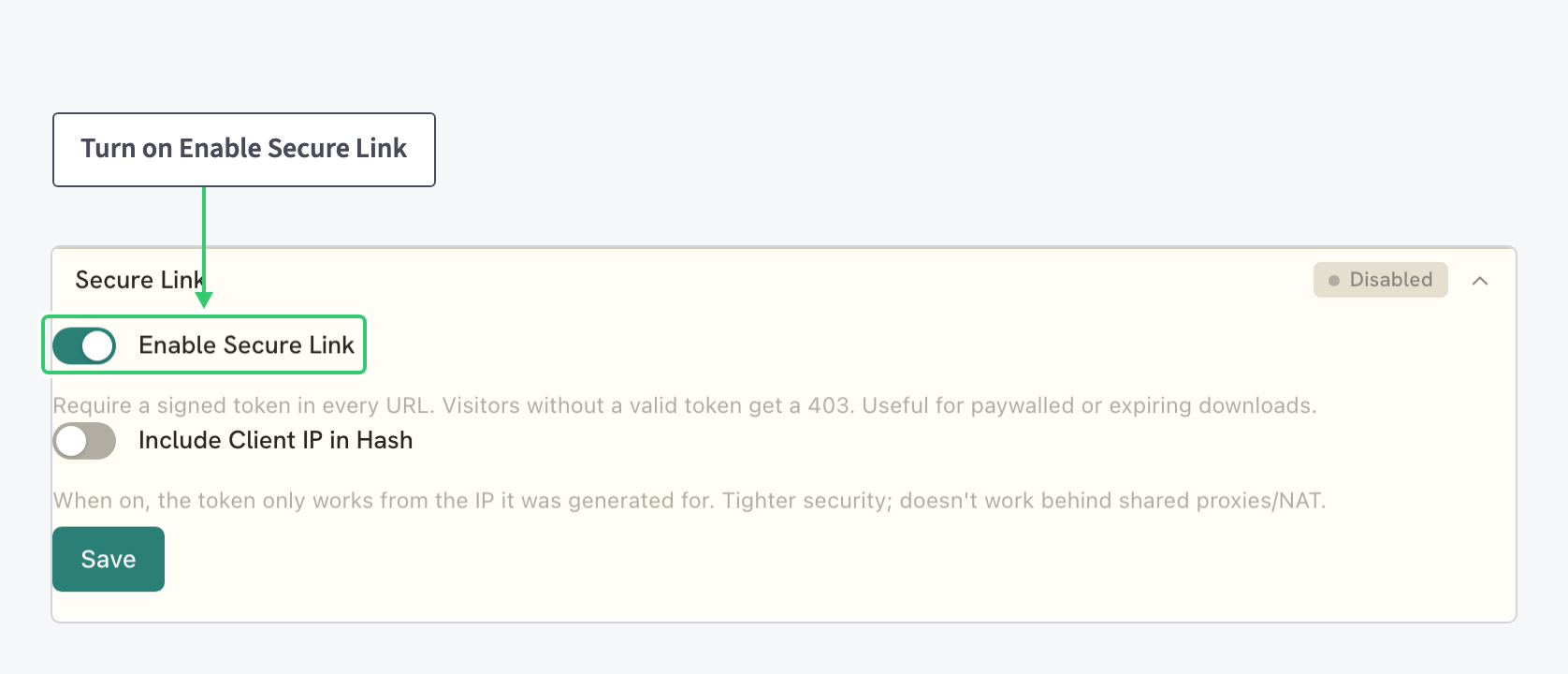
Enable Secure Link makes every URL under the location require a signed token: visitors without a valid one get a 403, exactly the treatment paywalled or expiring downloads require. The second toggle, Include Client IP in Hash, locks each token to the IP it was generated for; leave it off when visitors sit behind shared proxies or NAT, where the binding breaks. Switch on the requirement and click the section’s Save.
Generate the signed links on your side, typically in the application that issues the download URLs: Secure Link validates tokens, it does not create them, and the signing secret, token format and URL builder live outside these settings. The feature’s settings are covered in Protect Content with Secure Links.
Step 5: Read the Country Statistics as Your Evidence
Enforcement deserves a check. In the Resources table, click the chart icon (View statistics) on the resource’s row and scroll to the country panels: a Traffic by Country treemap of shares, and the Top countries table with per-country traffic, requests, cache hit rate and status codes, each country carrying its zone as a pill:
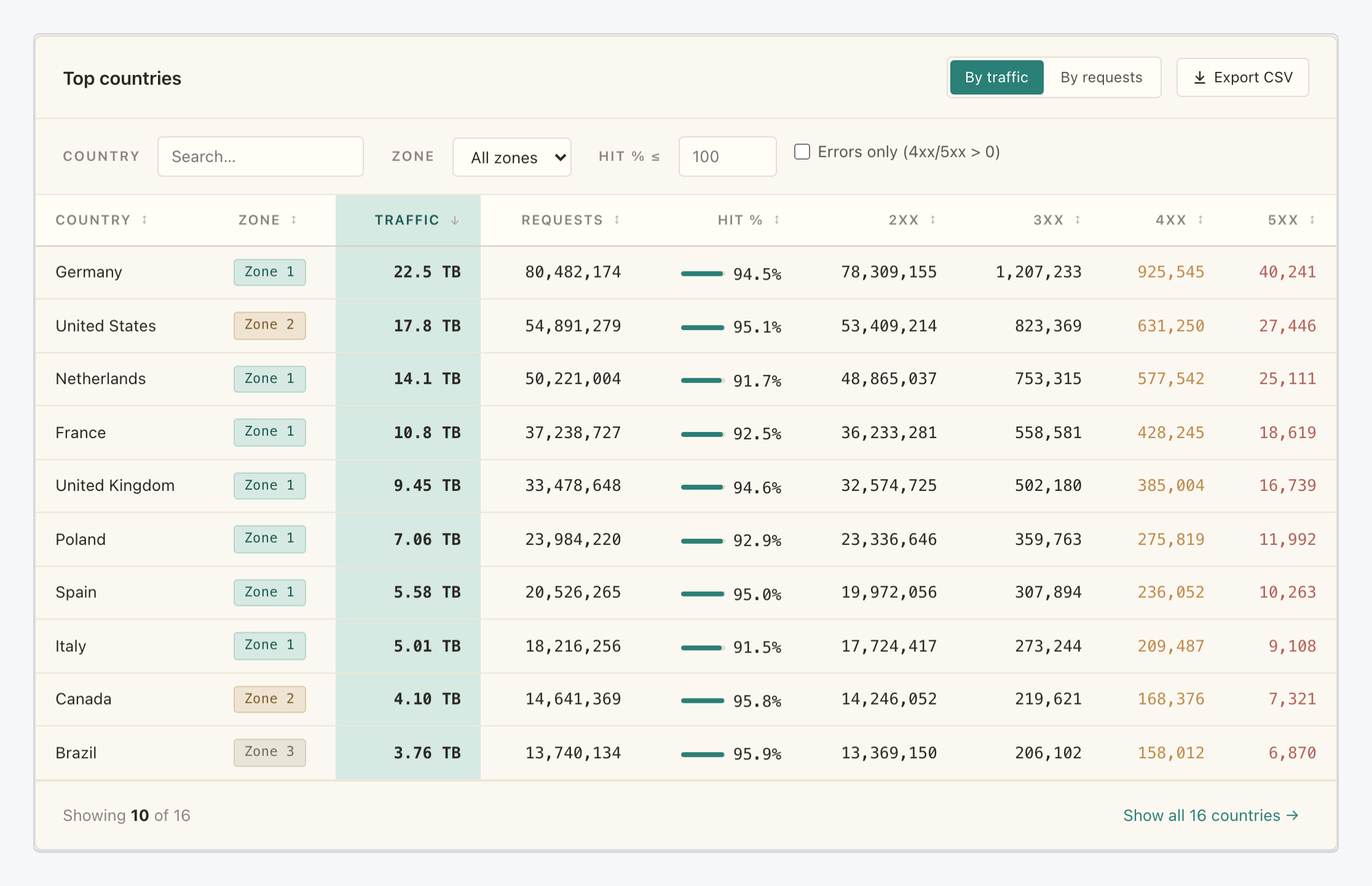
The table lists the countries the resource actually served in the period, which is exactly the evidence a licensing review requires. With the allow-list from Step 2 in force, the mix you see here is the mix you chose to permit. Filtering, sorting and the CSV export of this table are covered in Analyze and Export CDN Traffic by Country; the rest of the statistics view is in Monitor CDN Traffic and Cache Performance.
What You’ve Locked Down
Territory is now an enforced rule: the resource, or just its licensed paths, serves only the places on your allow-list, the list reads like the licence thanks to region shorthand, and the files themselves can additionally require a signed token. When you need to show where the content was served, the Top countries table provides the numbers.
The same Access Control section holds the neighbouring axes, addresses and user agents, plus request rate caps: see Restrict Access to Your CDN by IP, User Agent or Country to combine them on the same resource.