
Your website is read by more than browsers. AI vendors run crawlers that fetch pages to train models and to feed answer engines, and each one announces itself in the User-Agent header, the string every client sends to identify itself. If you do not want your content in those pipelines, the CDN can turn the crawlers away by name.
The tool is the ACL User Agent editor on your resource’s advanced settings. This guide sets it up with a blocklist of the published AI crawler names, explains why short tokens are enough, and states plainly what a user-agent filter does and does not enforce.
Prerequisites
- An active CDN resource created for your hostname. See Add Your First CDN Resource.
- Your domain pointed at the CDN, so crawler traffic actually passes through it. See Point Your Domain at the CDN.
- Client Area access to the package.
Why Block at the CDN
- Blocked before your origin: a listed crawler is turned away at the edge, so it stops consuming pages and bandwidth from your origin.
- One keyword per family: matching is by substring, so
GPTBotcovers every version of that agent string and the list stays short. - One rule, whole resource: the rule applies to every path the resource serves, and per-path overrides exist for the exceptions.
Step 1: Open the Access Control Section
In the Resources table of your package, click the gear icon (Edit resource settings) on the resource’s row, then click Advanced settings. Below the resource form, the Access Control section holds three collapsed rows: ACL IP, ACL User Agent and ACL GEO, each with a status pill (Disabled on a fresh resource) and a chevron:
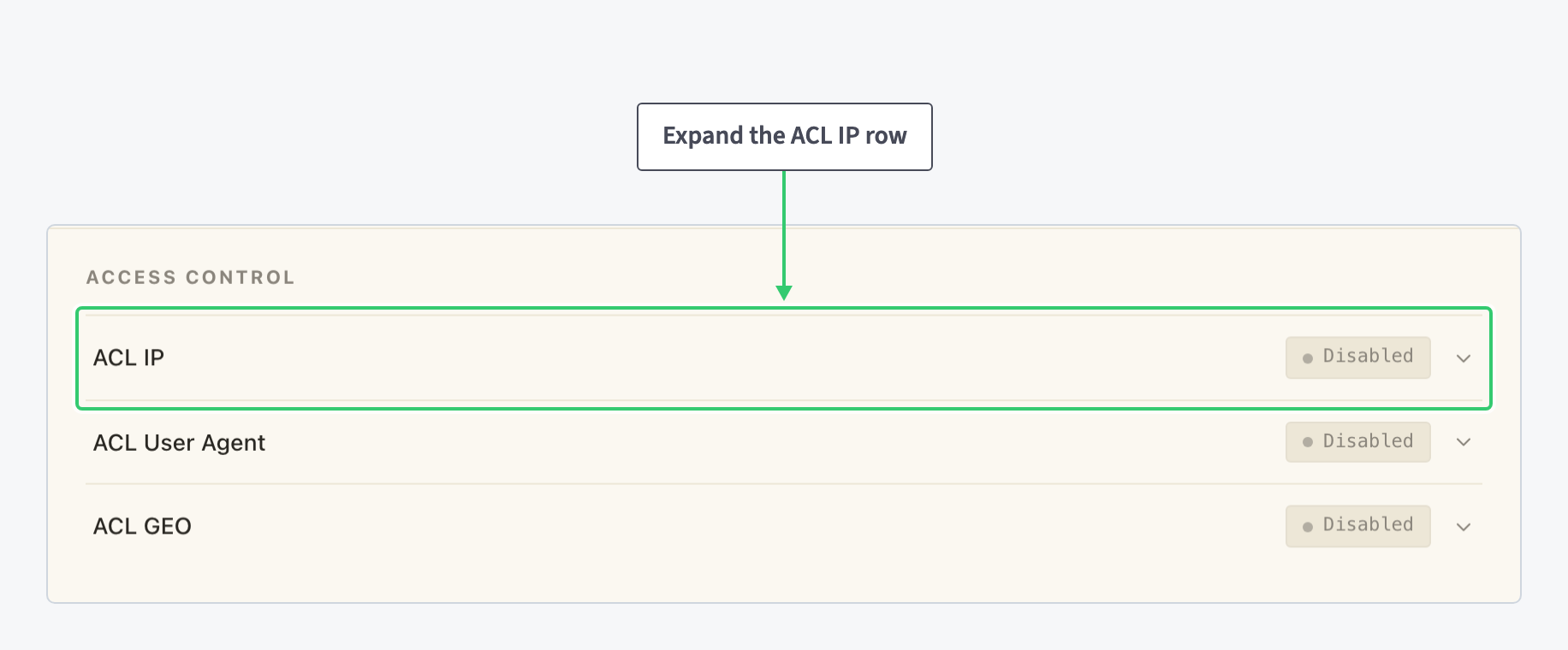
Every row head expands its editor on click, as the ring shows on ACL IP; this guide’s work happens one row down, in ACL User Agent. Each row is its own small form with its own Save button: until you click it, everything you toggle or type stays staged in the page, and the pill keeps showing the saved state.
Step 2: Choose the Crawlers to Block
The editor takes one keyword per line, and each line is a “case-insensitive substring match against the User-Agent header”. That is why the short published name of a crawler is enough: there is “no need to paste the whole browser string”, because ClaudeBot matches every agent string containing it.
The names below are the crawler tokens the vendors publish for their agents, current as of this writing. They are not values the panel suggests; verify them against each vendor’s documentation before you rely on them.
| Token | Operator | Published purpose |
|---|---|---|
GPTBot |
OpenAI | Crawls pages for training OpenAI’s models |
OAI-SearchBot |
OpenAI | Fetches pages for ChatGPT search results |
ClaudeBot |
Anthropic | Crawls pages for training Anthropic’s models |
anthropic-ai |
Anthropic | Older Anthropic token; include it as well |
Google-Extended |
Governs AI training use of your pages; see the note below | |
CCBot |
Common Crawl | Builds the Common Crawl corpus, widely used as training data |
PerplexityBot |
Perplexity | Crawls pages for Perplexity’s answer engine |
Bytespider |
ByteDance | Crawls pages for ByteDance’s models |
Amazonbot |
Amazon | Crawls pages for Amazon’s answer services |
meta-externalagent |
Meta | Crawls pages for training Meta’s models |
Two entries deserve a caveat. Google-Extended is documented by Google as a robots.txt control rather than a crawler that announces itself in the User-Agent header, so listing it here is harmless, but the control it represents is applied through robots.txt. And blocking search-oriented crawlers such as OAI-SearchBot or PerplexityBot removes your pages from those tools’ answers as well as from training pipelines; include them only if that is what you want.
The list is maintenance, not a one-time setting. New crawlers appear as vendors launch products, and names change; revisit the vendors’ documentation periodically and add the new tokens to the same list.
Step 3: Enter the List and Turn On the Rule
Click the ACL User Agent row head to expand its editor. It restricts which client User-Agent strings can access the resource: the tool for blocking scrapers.

The editor’s fields, top to bottom:
| Setting | Value |
|---|---|
| Enable ACL User Agent | The on/off toggle for the rule. |
| Policy | Block listed: turn away the clients matching your list and admit everyone else. The other position, Allow only listed, admits only matching clients and turns away the rest, which would shut out normal browsers; blocking crawlers requires Block listed. |
| User-Agent patterns | One keyword per line. Type the crawler tokens you chose in Step 2. |
Switch on Enable ACL User Agent, select Block listed, type your tokens and click the section’s Save to apply the rule. From then on, requests whose User-Agent contains any of the listed names are turned away at the edge, on every path the resource serves.
What This Blocks, and What It Does Not
A User-Agent filter blocks crawlers that identify themselves. The published agents do; that is what makes the list in Step 2 work. A client that sends a browser-like string passes through it, so this rule is a policy control for named crawlers, not an authentication mechanism. Content that must stay private belongs behind Secure Links or an IP allow-list, both covered in Restrict Access to Your CDN by IP, User Agent or Country.
robots.txt is the advisory layer under this rule: a file on your site where you declare which crawlers may fetch what, using the tokens the same vendors publish. Keep declaring your policy there for the crawlers that honour it, including the robots.txt-only Google-Extended; the ACL is what enforces your decision on the crawlers you listed, whether they read the file or not.
What You’ve Blocked
Your resource now turns away the AI crawlers you named, by a rule you can read in one screen: policy Block listed, one published token per line, substring matching covering new versions automatically. Updating the policy is editing the list and saving the section again.
ACL User Agent also exists a second time as a per-path override inside every location, so a public docs area could stay crawlable while the rest of the site stays closed to them: see Route and Configure a Specific URL Path on Your CDN. And for the other axes the panel can filter on, addresses, countries and request rates, the full walkthrough is Restrict Access to Your CDN by IP, User Agent or Country.