
You just deployed and the CDN is still serving the old file. Purging clears cached copies from every edge node and sends the next request back to your origin server.
The panel lets you choose the scope: one path when a single file changed, or the whole resource when you are not sure what did. The same two options are one authenticated request away if you would rather have your deploy pipeline do it.
Prerequisites
- An active CDN service with at least one resource. If you have not created one yet, start with Adding your first CDN resource.
- Client Area access, and an API token if you want to automate purges.
Step 1: Open the purge dialog
Open your CDN package and find the resource in the Resources table. In the Actions column, click the eraser icon (Clear cache) on the row of the hostname you want to purge.
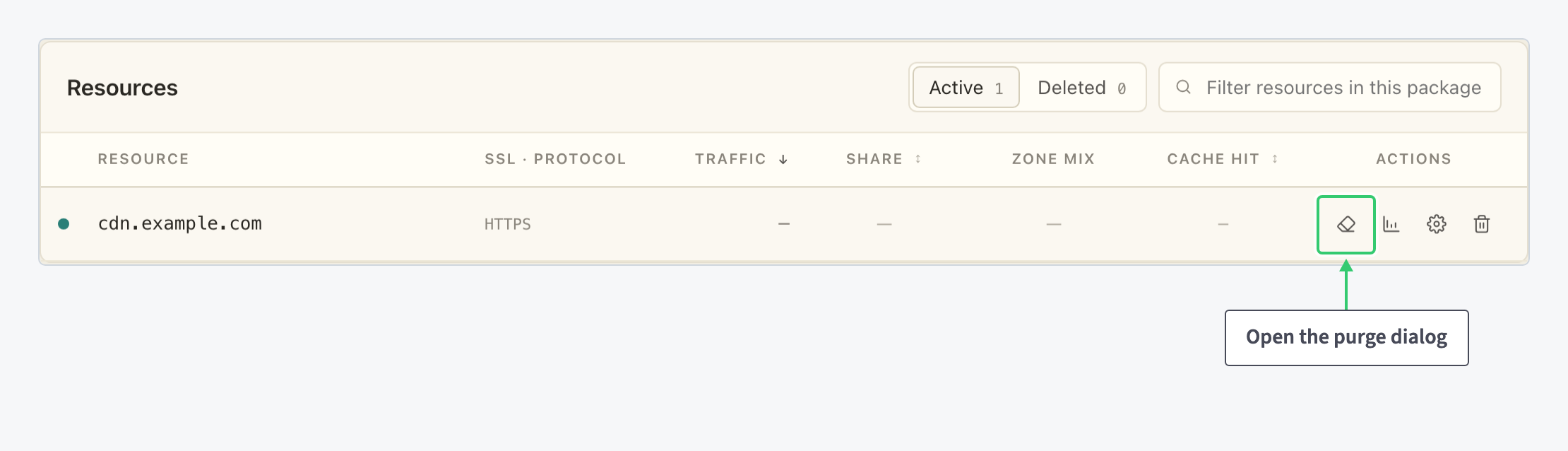
Purging is per resource, so the dialog opens on the hostname whose row you clicked and names it in its title. If your package holds several resources, check that title before going further.
Step 2: Purge a single URL
The dialog is built around one field, Path to purge. The scheme and hostname sit to its left as a fixed prefix, so you only type what comes after the hostname.

Two rules govern the path you type:
- Relative paths only. No scheme, no host, no domain and no spaces. Type
/assets/style.css, nothttps://cdn.example.com/assets/style.css. - End the path with a slash to clear a folder. A path such as
images/clears that folder and everything under it, which is the quickest way to invalidate a whole directory of assets after a build.
With a path in the field the button reads Clear path. Only the objects under that path are evicted, so everything else in the cache keeps serving and your origin only sees the traffic it needs to.
Step 3: Purge the entire cache
Leave Path to purge empty and the dialog switches scope: an amber warning spells out that every cached object for that hostname will be evicted across all edge nodes, and the button changes to Clear entire cache.
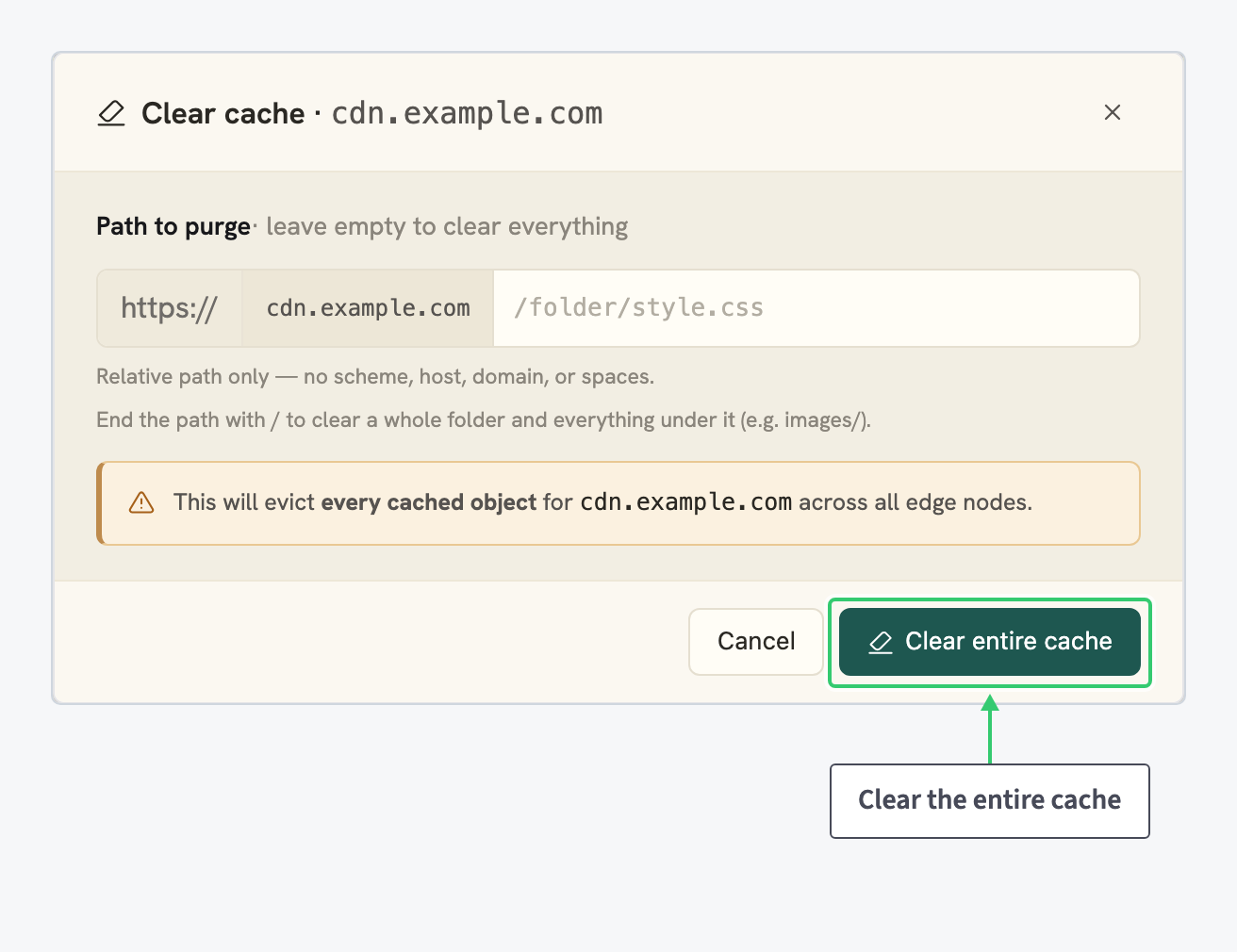
The purge itself is immediate. What follows is not: with the cache empty, the next request for each object is a cache miss that travels to your origin.
A full purge on a busy resource therefore briefly concentrates traffic on the origin. On a large zone, prefer a path purge when you know what changed.
Step 4 (optional): Purge from the API
For deploy pipelines and scripts, the same purge is one authenticated request. First find your service ID with the services endpoint, then call purge-cache. resource_url takes the same relative path as the dialog: pass one to purge a single file or folder, omit it to purge the entire cache.
curl -X POST https://api.melbicom.net/services/$SERVICE_ID/resources/purge-cache \
  -H "Authorization: Bearer $TOKEN" \
  -H "Content-Type: application/json" \
  -d '{"resource_name": "cdn.resource.name", "resource_url": "/folder/style.css"}'
import requests
requests.post(
f"https://api.melbicom.net/services/{service_id}/resources/purge-cache",
headers={"Authorization": f"Bearer {token}"},
json={"resource_name": "cdn.resource.name", "resource_url": "/folder/style.css"},
)await fetch(`https://api.melbicom.net/services/${serviceId}/resources/purge-cache`, {
method: "POST",
headers: { Authorization: `Bearer ${token}`, "Content-Type": "application/json" },
body: JSON.stringify({ resource_name: "cdn.resource.name", resource_url: "/folder/style.css" }),
});A successful purge returns:
{
  "status": "success",
  "data": { "message": "Successfully" }
}
What you’ve built
You can now clear exactly as much as you need to: one file, one folder, or every cached object on the hostname. Use a path purge as the default: it fixes the file you changed without sending the rest of your traffic back to your origin. Keep the full purge for the times you do not know what changed.
With the API call in your deploy script, neither is something you have to remember: every release purges what it changed.