
A CDN gives you a hostname to point your site at, and DNS allows that kind of pointer, a CNAME record, on www.example.com but not on example.com itself. The usual result is a site that is fast on www, while the bare domain is served directly by the origin or redirected through it.
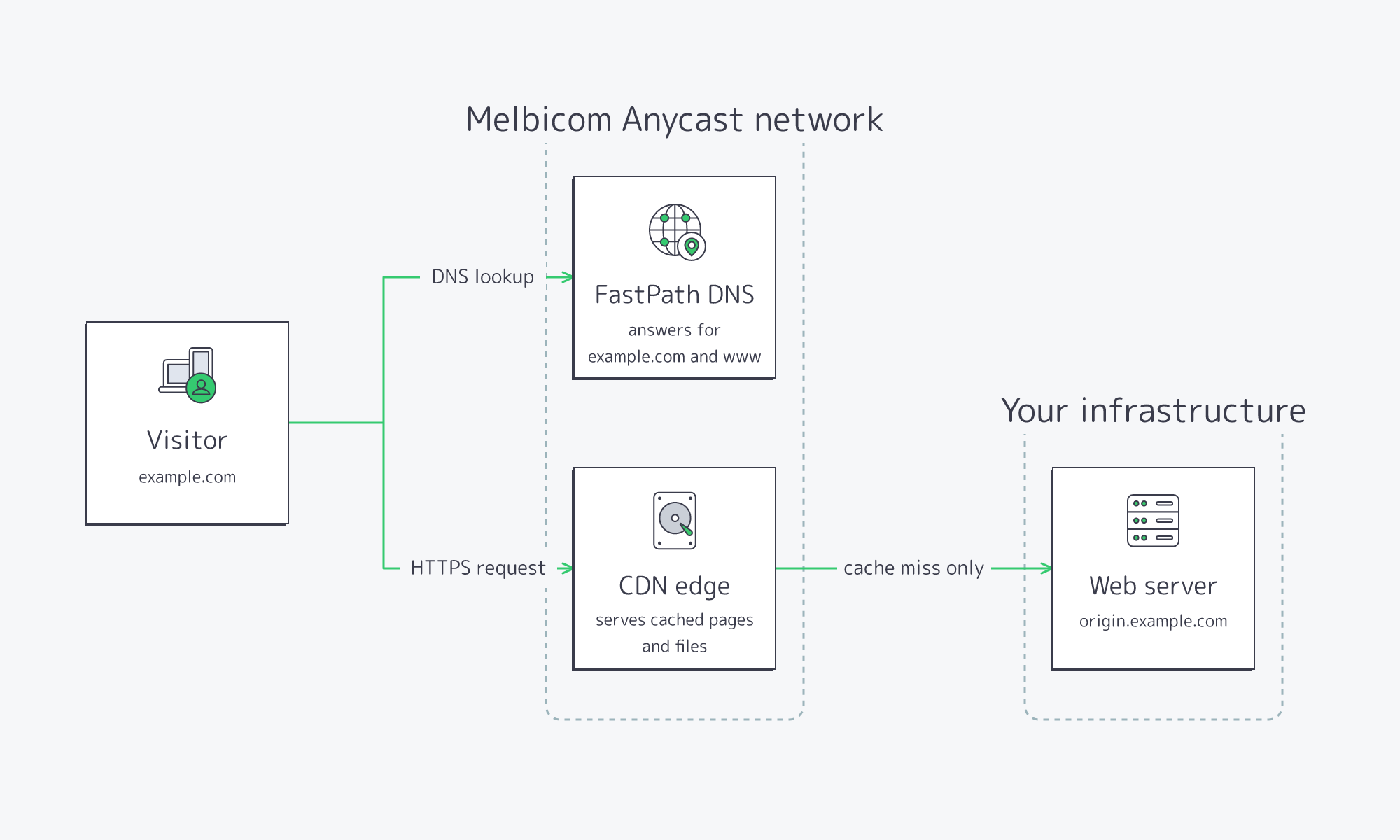
FastPath DNS removes that limit with the ALIAS record, which does at the root what a CNAME does elsewhere. This guide puts both names of a site behind the CDN: an ALIAS record for example.com, a CNAME for www, and a separate name for the origin server, so that the lookup and the page are both answered from Melbicom’s Anycast network.
Prerequisites
- A CDN package with a free resource slot.
- A zone for your domain on your FastPath DNS service, with the domain already using the service’s name servers (Point Your Domain to the FastPath DNS Name Servers).
- The web server that hosts your site today, and its IP address.
- Client Area access to both services.
Why Put DNS and Delivery on the Same Network
- The root domain is included: an ALIAS record works where a CNAME is forbidden, so a visitor who types
example.comreaches the edge directly, without a redirect through your server. - Both steps of a first visit are answered nearby: the lookup by name servers announced from 40 points of presence, the page by the CDN cache.
- The cutover stays under your control: the records and the resource are managed in one client area, and with a short TTL the change, or a return to the previous records, takes effect within the TTL of the records.
Step 1: Give the Origin Its Own Name
Once example.com points at the CDN, the CDN can no longer use that name to find your server: it needs a name that still leads straight to it. Open your zone in the client area (Services, your FastPath DNS service, Records), click Add Record and create it:
| Setting | Value |
|---|---|
| Type | A |
| Name | origin |
| TTL | 1 hr |
| IPv4 address | The address of your web server, for example 203.0.113.10. |
Your server is now reachable as origin.example.com, regardless of later changes to the public records. It keeps answering for example.com and www.example.com as before: the CDN asks it for the site under those names.
Step 2: Create the CDN Resource for Both Names
The CDN has to know which hostnames it serves and where to fetch what it has not cached. Open your CDN package, click Add Resource and fill in the wizard:
| Setting | Value |
|---|---|
| Hostname | www.example.com |
| Protocol | HTTPS |
| SSL certificate | Free Let’s Encrypt |
| Source Server (Origin) | https://, origin.example.com, port 443 |
Click Add resource to create it.
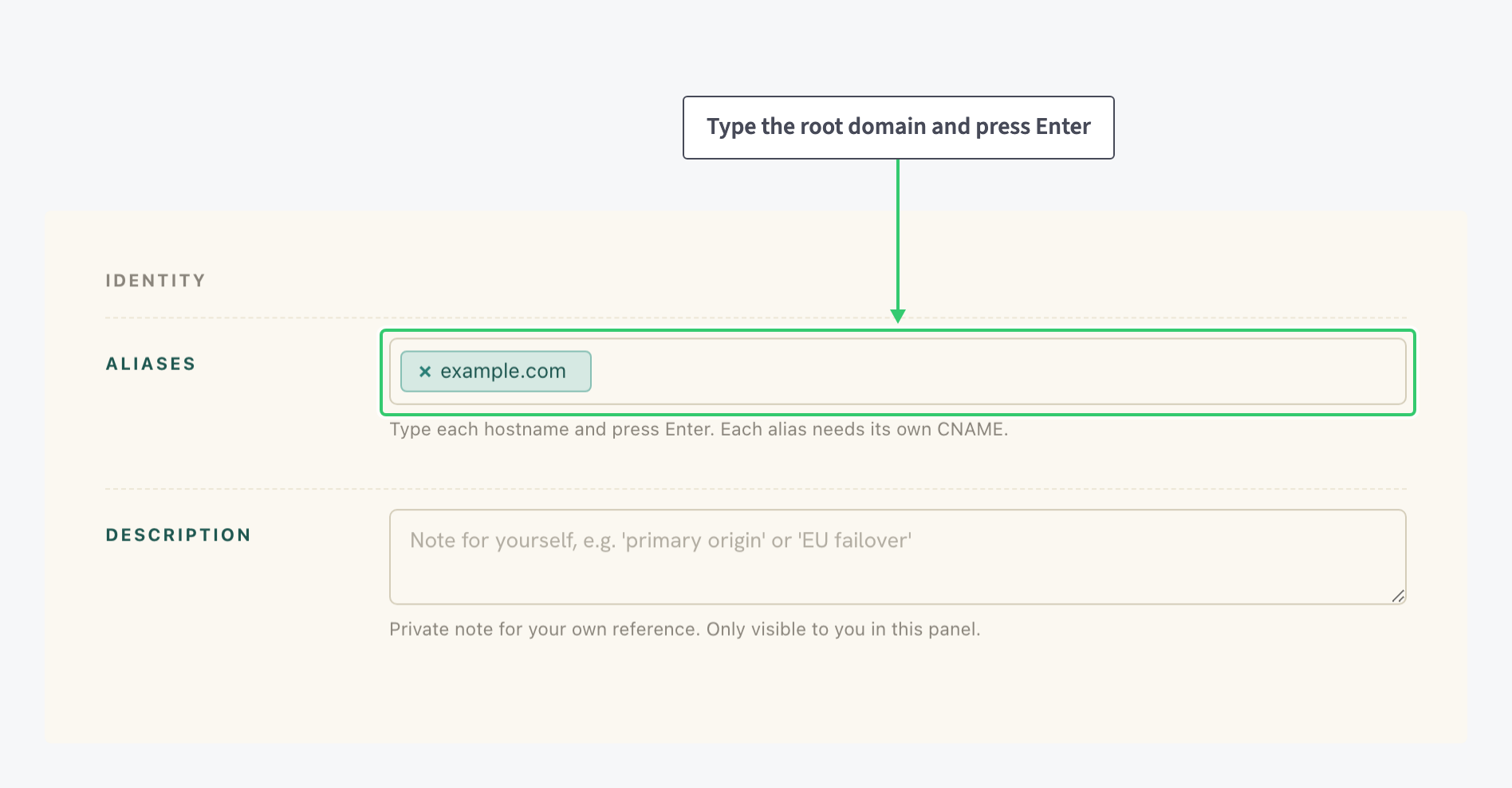
The resource answers for one hostname. Add the bare domain as an alias, so that the same resource, with the same cache, answers for both names. Open the resource’s settings (the gear icon on its row) and click Advanced settings. In the Identity group of the General tab, type example.com in Aliases and press Enter. Then click Save.
The resource now has a CNAME target, the hostname on the CDN that your two names must point to. Copy it from the resource’s General tab:
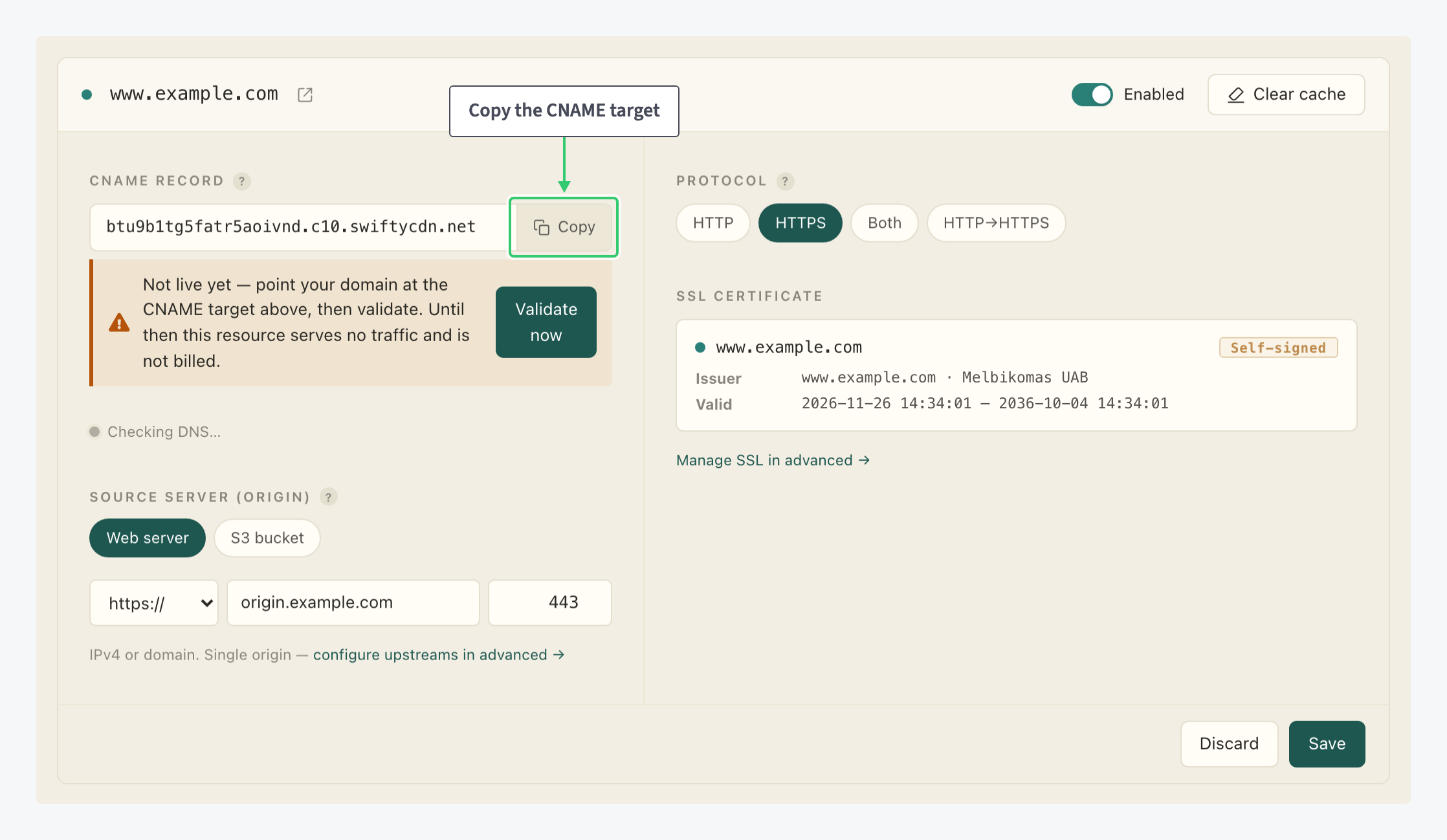
Nothing has changed for your visitors yet: until the names point at it and are validated, the resource serves no traffic and is not billed. Every field of the wizard is described in Add Your First CDN Resource.
Step 3: Point the Root and www at the CDN
Both public names still lead to your server. Change them in the zone, starting with the root. A name that carries an ALIAS record takes no address record next to it. Delete the A record of example.com with the bin button on its row, and its AAAA record if there is one. Then click Add Record and create the ALIAS record immediately:
| Setting | Value |
|---|---|
| Type | ALIAS |
| Name | @, the root of the zone. |
| TTL | 5 min for the cutover. |
| Target | The CNAME target you copied in Step 2. |
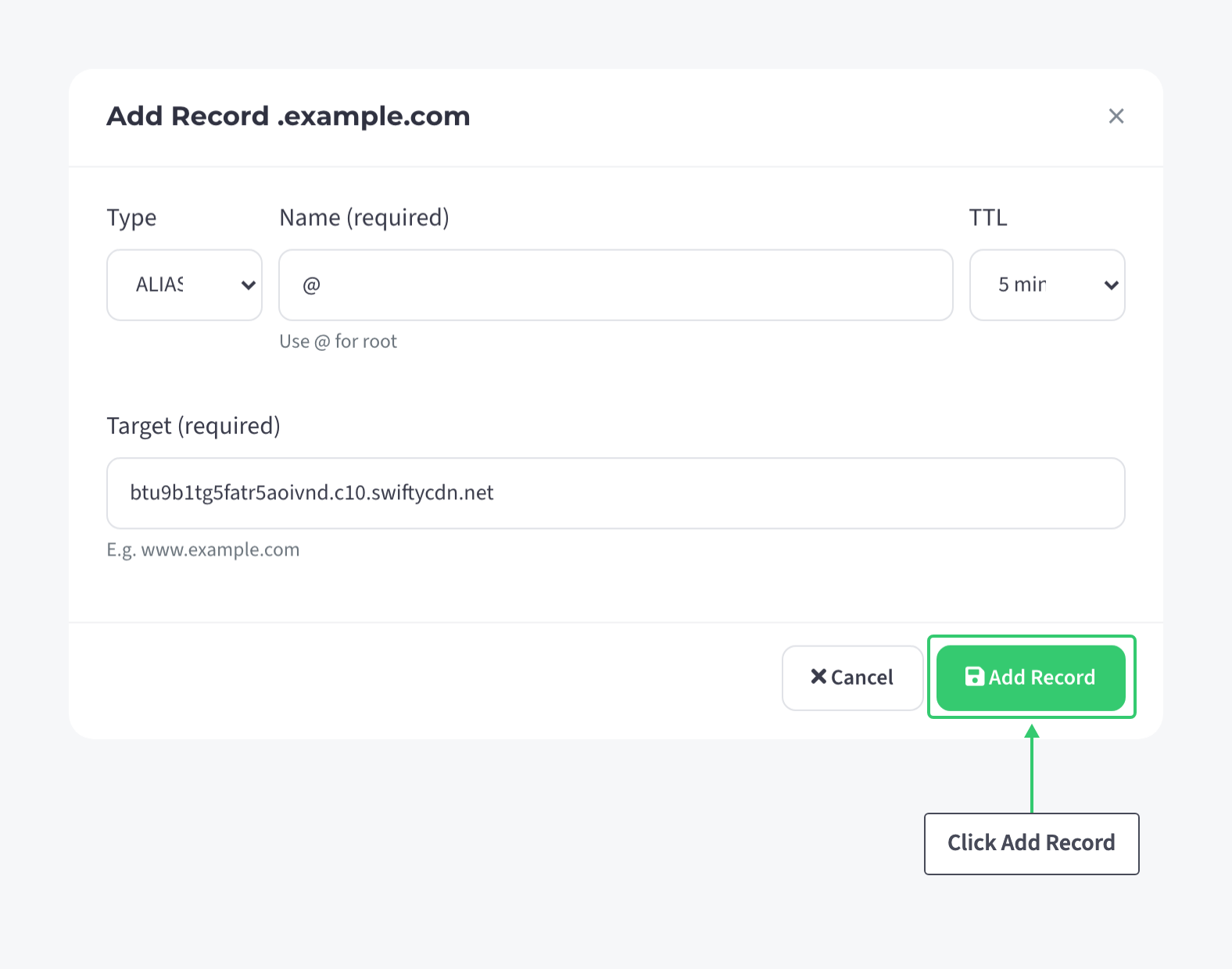
Resolvers that already hold the previous answer keep using it until its TTL expires. Have the CNAME target ready and create the ALIAS record immediately after the deletion: until it exists, the root has no address.
Then send www to the same target. If the zone already has a CNAME record for www, click its edit button and replace the target. Otherwise click Add Record and create it:
| Setting | Value |
|---|---|
| Type | CNAME |
| Name | www |
| TTL | 5 min |
| Target | The same CNAME target. |
The zone now sends both public names to the CDN and keeps a direct name for the server:
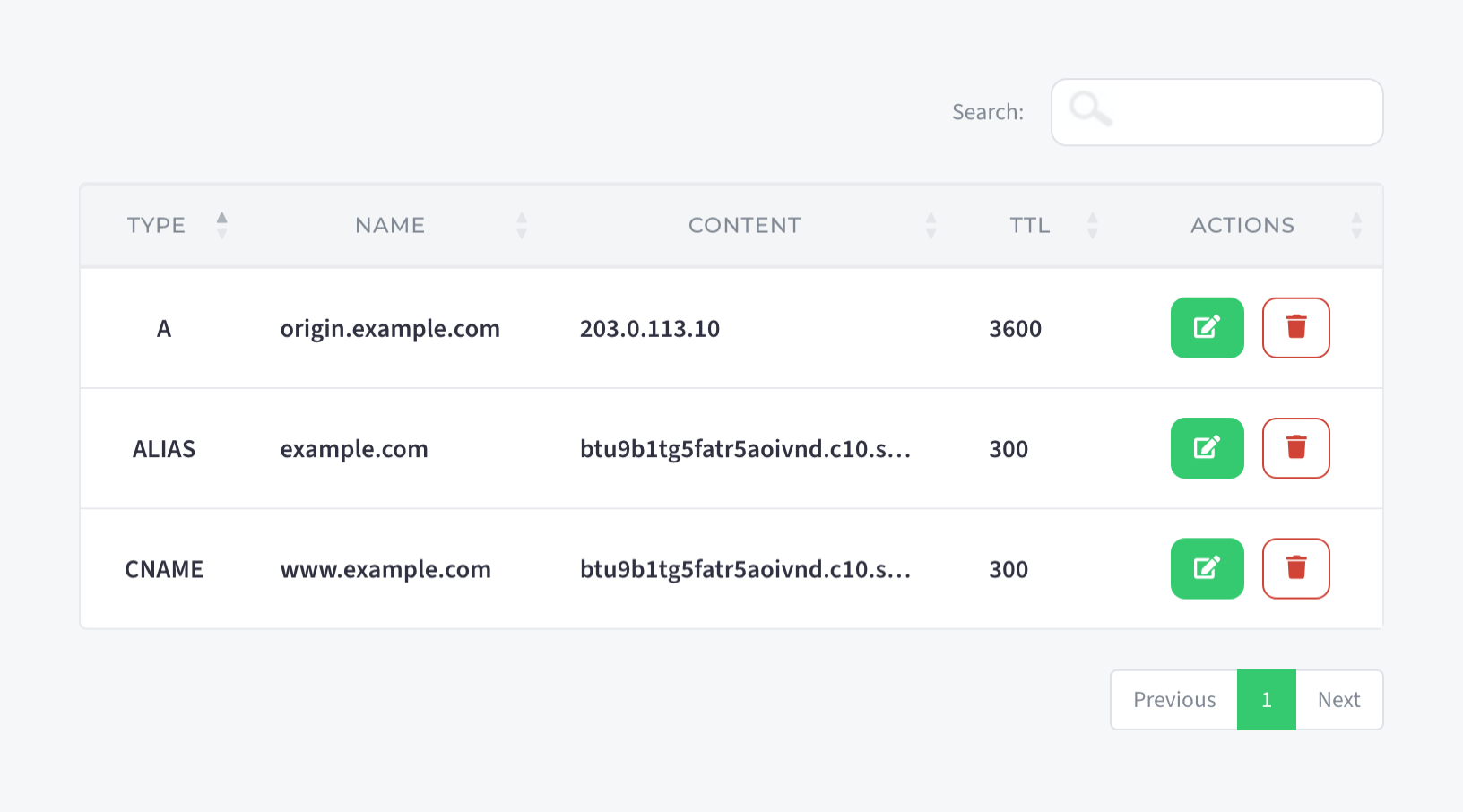
Step 4: Validate the Resource and Check Both Names
The CDN serves a hostname only after it has seen the DNS change. Return to the resource’s General tab and click Validate now. The free certificate is issued automatically once the validation succeeds.
Then confirm that each name is answered by the edge and no longer by your server:
dig example.com A +short
dig www.example.com A +short
curl -sI https://example.com/ | grep -i cache-status
The two lookups return addresses of the CDN, not 203.0.113.10. The last command shows the Cache-Status header the edge adds to its responses: MISS on the first request, HIT once the page is cached.
If a check fails, restore the previous records: with a TTL of five minutes, resolvers return to the origin within that time. When both names have been served through the CDN for a day, edit the ALIAS and CNAME records and raise their TTL to 1 hr.
What You’ve Built
A site whose two names, with and without www, are answered from the edge: the lookup by Anycast name servers, the content by the CDN cache, and your server only for what the cache does not hold. The origin has a name of its own that no visitor needs to know.
From here the resource is tuned like any other: cache durations in Control How Your CDN Caches Content, and a second origin for failover in Add Multiple Origins and Failover to Your CDN.