
FastPath DNS hosts the DNS zones of your domains on Melbicom’s Anycast name servers, and you edit them from the client area. This page defines the terms the DNS articles use, then explains where you manage your zones and their records in the client area.
Zone
A zone is the complete set of DNS records of one domain, held on the name servers that answer for it. Create one zone per domain and name it after the domain itself: example.com, not www.example.com. Every subdomain is then a record inside that zone.
Record
A record is one answer the zone gives: a name, a type and a value. The type decides what the value means:
| Type | Question it answers |
|---|---|
| A | Which IPv4 address serves this name? |
| AAAA | Which IPv6 address serves this name? |
| CNAME | Which other hostname is this name an alias of? |
| MX | Which mail servers accept email for the domain? |
| TXT | Which text do other systems read here? SPF, DKIM, DMARC and ownership checks use it. |
| SRV | On which host and port does a service run? |
Every type the service supports, with the fields each one requires, is in FastPath DNS Record Types and Fields.
TTL
The TTL (time to live) is how long a resolver may keep an answer before it asks again. It is set per record. A long TTL means fewer queries and slower changes; a short one means a change is picked up quickly. One hour suits records that rarely change: lower it before a planned change and raise it again afterwards.
Name Server
The name servers are the machines that answer queries for your zones. Every zone on the service is served by dns1.swiftycdn.net and dns2.swiftycdn.net. A domain uses FastPath DNS once its registrar lists these two name servers; until then the zone exists but receives no queries from the Internet.
Anycast
Both name servers are announced with Anycast from 40 points of presence: the same address is reachable at every location, and each query is answered by the nearest one. Lookups stay fast wherever your visitors are, and the loss of one location does not interrupt resolution.
Manage Your Zones on the Service Page
Open Services in the client area and click your FastPath DNS service to reach its name servers and the list of your zones:
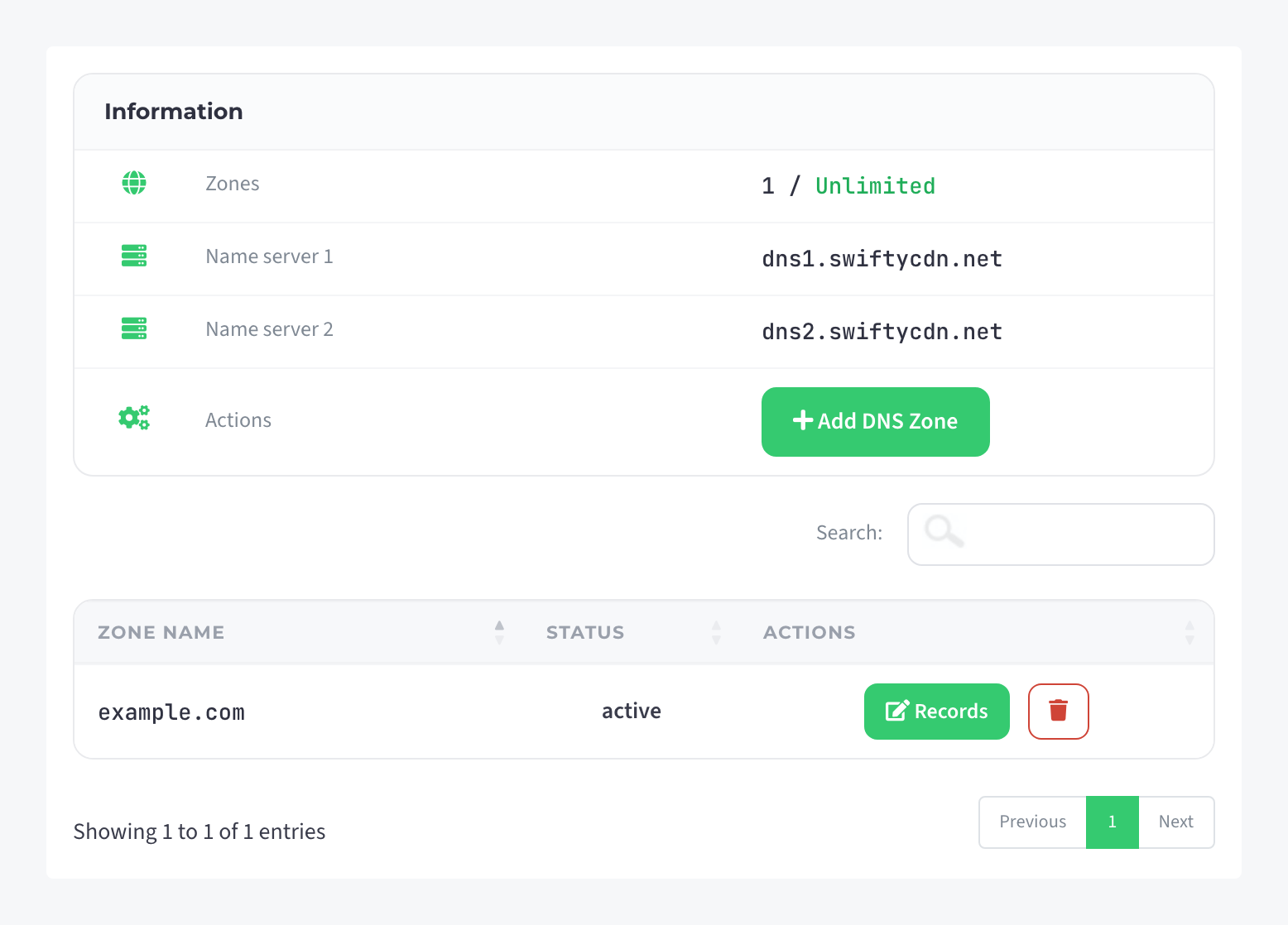
| Element | Use |
|---|---|
| Zones | The number of zones on the service, next to the number your plan allows. More zones are available with the Extra zones option of the service. |
| Name server 1, Name server 2 | The two name servers to set at your registrar. |
| Add DNS Zone | Click it to create a zone for a domain. |
| Status | active: the zone is served. not allowed: the name is blocked; the zone is not served and its records cannot be opened. |
| Records | Click it to open the zone view, where you manage the zone’s records. |
| Delete (bin icon) | Click it to delete the zone with all its records. A confirmation is required. |
Manage Records in the Zone View
Click Records on a zone’s row to open the zone view and manage everything the zone answers:
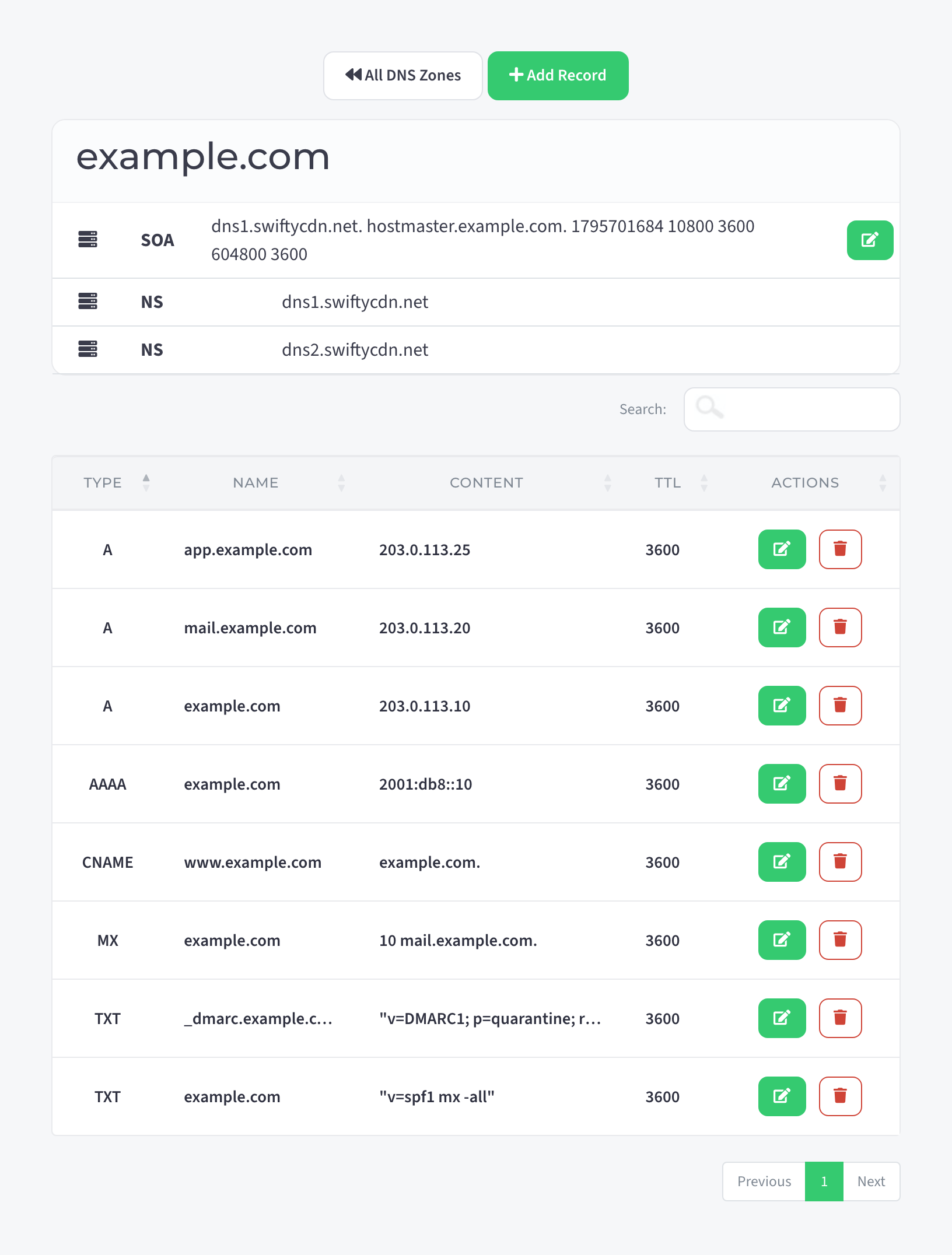
| Element | Use |
|---|---|
| All DNS Zones | Click it to return to the service page. |
| Add Record | Click it to create a record. |
| SOA | The zone’s start of authority record: primary name server, administrator mailbox, serial number and four timers. FastPath DNS increases the serial number on every change. Click the edit button on the line to change the administrator mailbox and the timers. |
| NS | The two name servers of the zone. They are set by the service. |
| Records table | One row per record: type, full name, content and TTL in seconds. Use the edit and delete buttons on a row to change or remove the record, and Search to filter the rows. |
The SOA values are read by secondary name servers and resolvers. Change them only when you have a reason to, for example to publish your own administrator address:
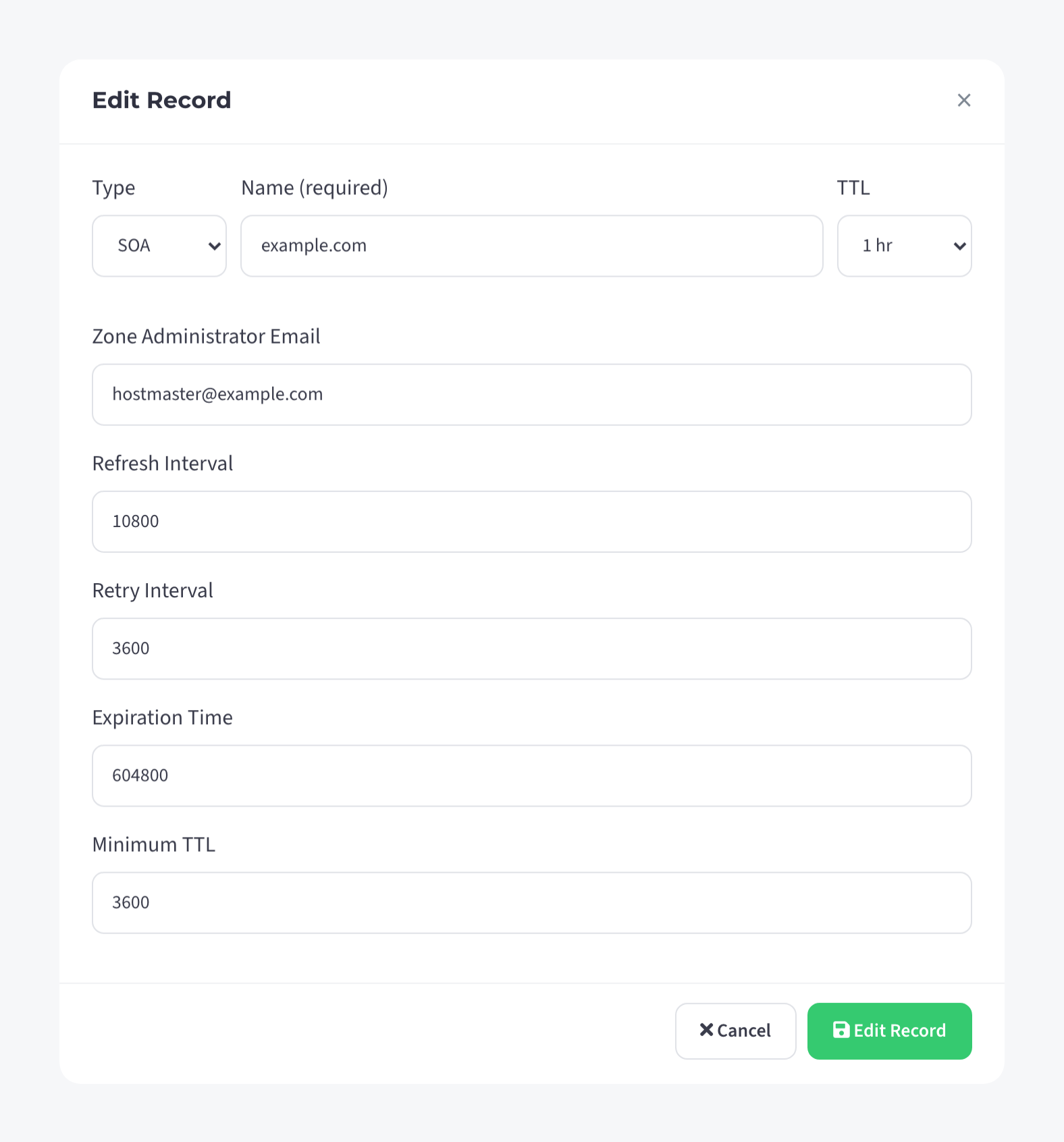
| Setting | Meaning |
|---|---|
| Zone Administrator Email | The contact address published in the SOA record. |
| Refresh Interval | How often a secondary name server checks the zone for changes, in seconds. |
| Retry Interval | How long a secondary waits before it retries a failed check, in seconds. |
| Expiration Time | How long a secondary keeps answering without a successful check, in seconds. |
| Minimum TTL | How long resolvers cache the answer that a name does not exist, in seconds. |
Where to Go Next
Bringing a domain onto the service takes three steps, in this order:
- Add a DNS Zone to FastPath DNS: create the zone for your domain.
- Create the Root Record for Your Domain in FastPath DNS: make the domain and
wwwresolve to your server. - Point Your Domain to the FastPath DNS Name Servers: switch the domain once every record it needs is in the zone.