
Every resource in a CDN package lives in one place: the Resources table on the package overview. With one or two hostnames you can scan the list directly, but once a package serves a dozen sites filtering is faster than scrolling. This tutorial shows how to narrow the table down to the resource you need, how to switch between active and deleted resources, and where to go once you have found the right row.
Prerequisites
- An active CDN service with at least one resource. If you have not created one yet, start with Add your first CDN resource.
- Client Area access to the package.
Step 1: Open the Resources table
Open your CDN package in the Client Area and scroll to the Resources card. Each row is one resource:
- The hostname, with a link that opens it in a new tab.
- Its SSL · Protocol summary.
- Traffic figures: the Traffic, Share and Cache hit columns are sortable, so clicking a header is another way to locate a resource. Sorting by traffic lists the busiest hostnames first.
- An Actions column.

The tools for this tutorial sit in the card’s header: the Active and Deleted filter pills, each with a count, and the Filter resources in this package search box next to them.
Step 2: Filter by hostname
Type part of the hostname into the Filter resources in this package box. The table narrows as you type, and matching is not case sensitive, so example, example.com and EXAMPLE all find cdn.example.com. There is no search button: the rows that do not match simply disappear.
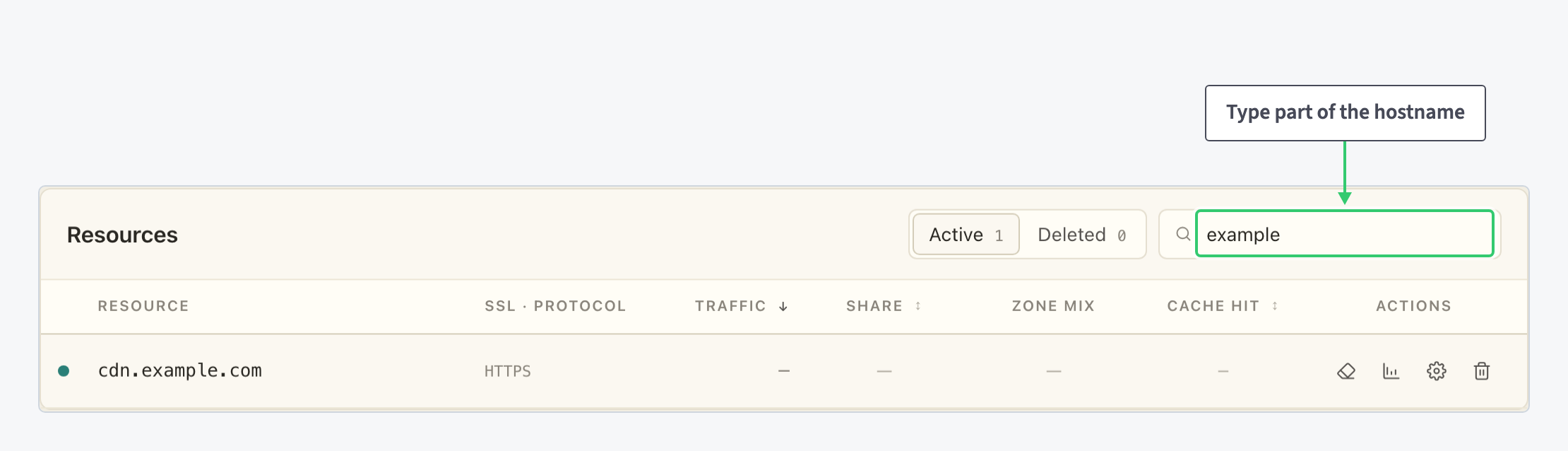
If nothing matches, the table shows No resources match the current filters instead of rows. That message covers the search box and the filter pills together. Before concluding a resource is gone, clear the box and check you are on the right pill.
The filter matches on the hostname, so search with the name of the site, not with internal identifiers.
Step 3: Switch between Active and Deleted
The two pills next to the search box split the table into Active resources, the ones currently configured in the package, and Deleted ones. Each pill carries a count, so you can see at a glance how many resources each view holds before switching.
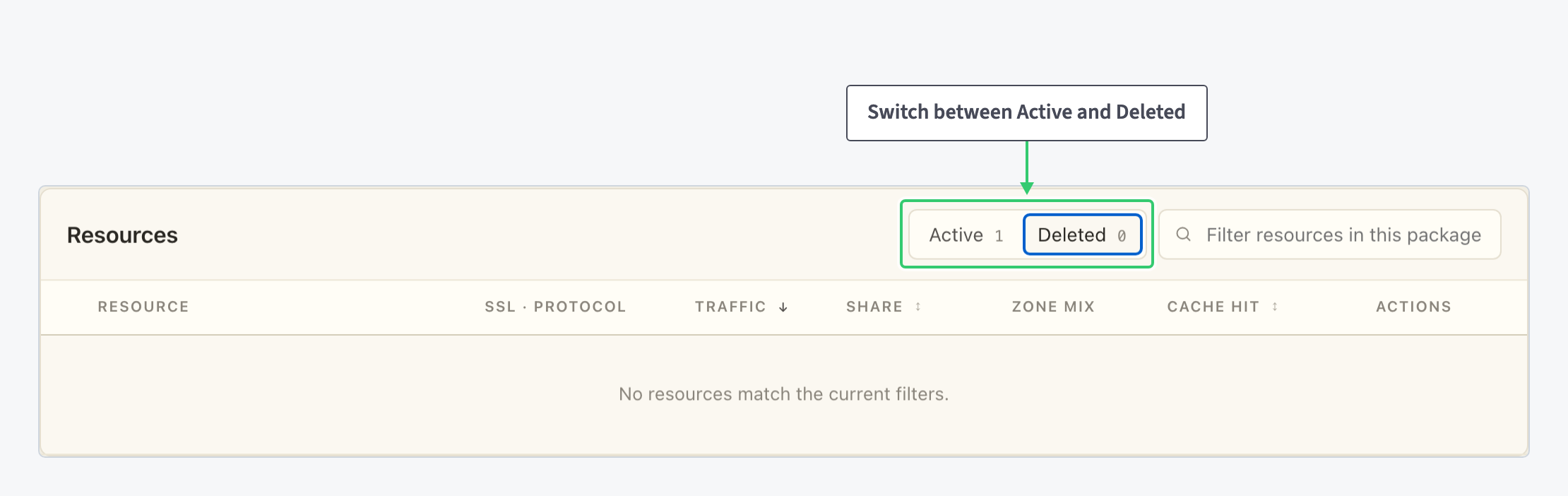
In this package nothing has been deleted yet, so the Deleted view shows the same empty-state message with a count of zero. The search box applies to whichever view is selected. For what deletion means for a resource, and why the panel keeps a separate view for it, see Delete a CDN resource.
Step 4: Open the resource you found
Once you have found the right row, the Actions column opens the pages you need. Its four icons, in order:
- Clear cache (the eraser)
- View statistics (the chart)
- Edit resource settings (the gear)
- Delete (the trash can)
For most tasks you want the gear:
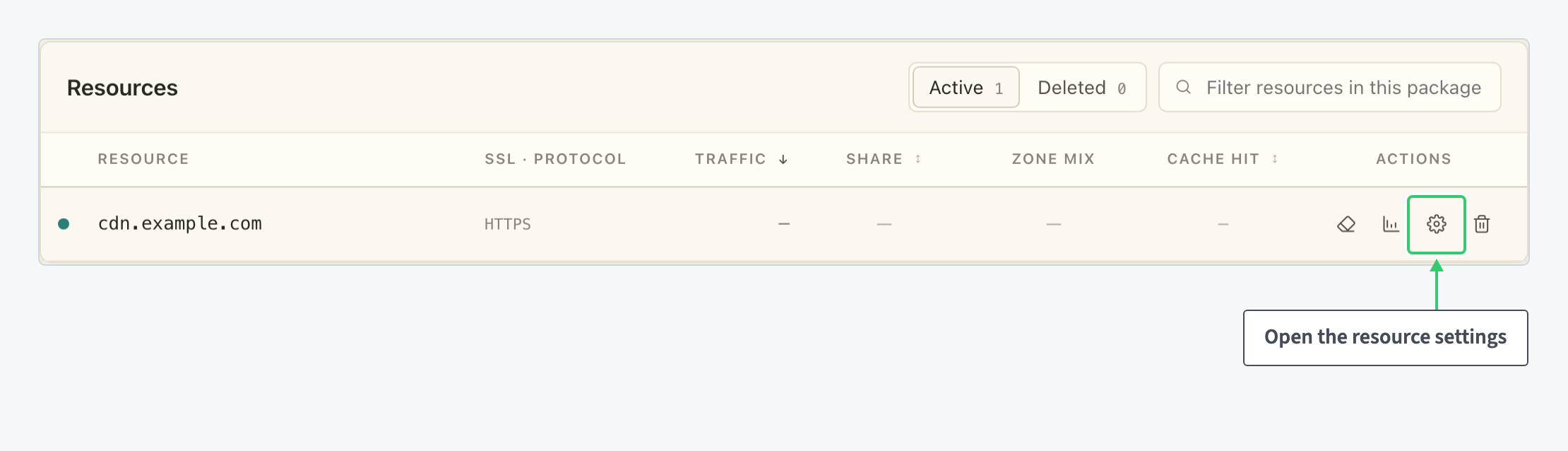
The settings page holds the CNAME record, the origin, the protocol and the SSL certificate for that resource. The eraser opens the purge dialog covered in Purge a URL or your entire CDN cache, and the same settings page carries the toggle used in Enable or disable a CDN resource.
What you’ve learned
You can now locate the exact resource in a few keystrokes. Filter by hostname, switch to the Deleted view when a hostname no longer appears, and sort by traffic when you need to know which resource generates the load.
If the terms in the table (protocol, cache hit, origins) are still unclear, Understanding the Building Blocks of Your CDN Product defines them all in one place.