
Deleting a resource permanently removes a hostname from your CDN package. The panel makes the consequences explicit before you confirm: the resource stops serving immediately, the deletion frees a slot in your package, and it cannot be undone.
This tutorial walks through the confirmation dialog, what to check before confirming, and where deleted resources show up in the panel afterwards. If you only need delivery to stop for a while, do not delete: disable the resource instead and keep its configuration.
Prerequisites
- An active CDN service with the resource you want to remove.
- Client Area access to the package.
Step 1: Open the delete confirmation
Open your CDN package and find the resource in the Resources table. If the package holds several hostnames, filter the table first (Find a CDN resource) rather than relying on a visual scan. Deletion is per resource and permanent, so this is the moment to be sure you have the right row.
In the Actions column, click the trash icon (Delete).

Step 2: Read the confirmation, then delete
The confirmation dialog names the resource in its title, Delete resource · cdn.example.com in this example. Check that hostname against what you meant to remove before anything else.
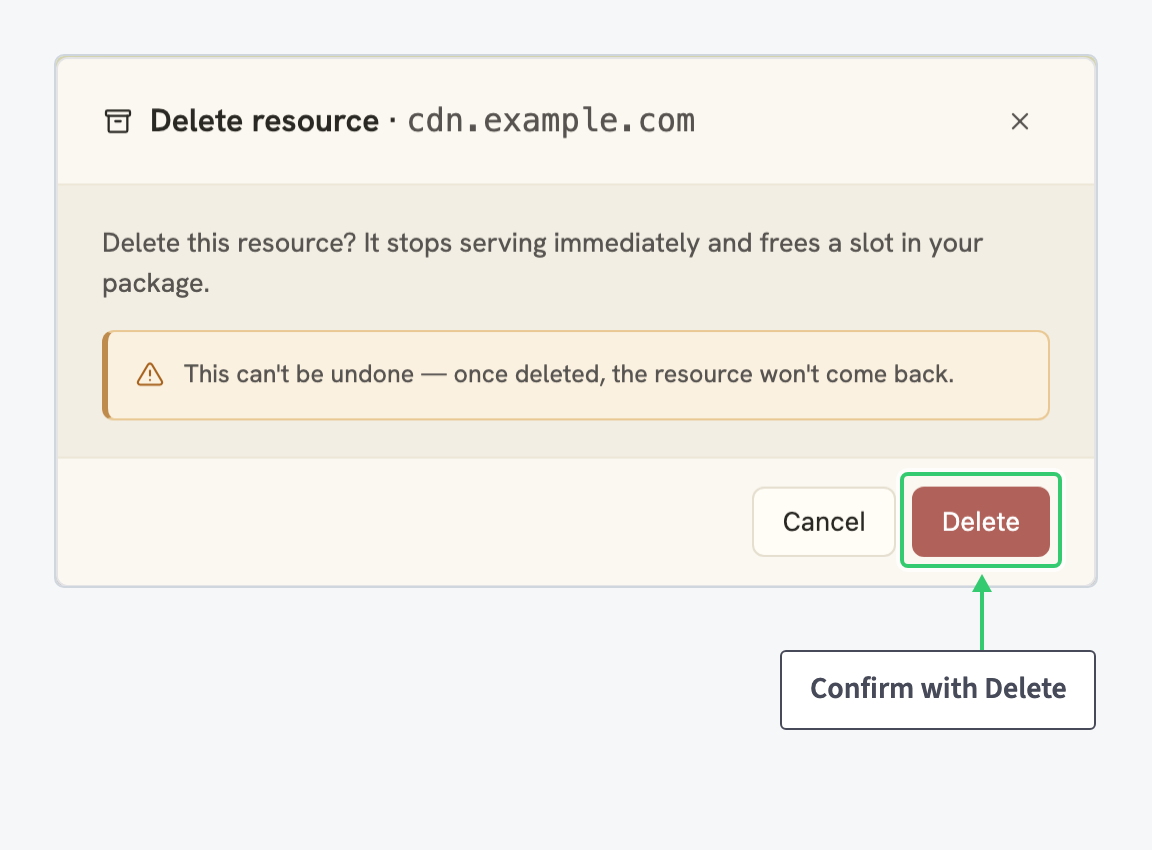
Confirming stops the resource serving immediately and frees a slot in your package.
- Delivery stops with no grace period. Visitors requesting the hostname stop getting content the moment you confirm.
- The freed slot is the benefit. Package capacity comes back right away for a new resource.
- The amber warning is literal. “This can’t be undone”, and once deleted, “the resource won’t come back”. There is no recovery path.
- DNS is not touched. If your domain still carries a CNAME record pointing at the CDN, update or remove it at your DNS provider. Deleting the resource only removes the CDN side of the pair.
If there is any doubt, click Cancel: it closes the dialog without changing anything. Otherwise, click Delete to confirm.
Step 3: Where deleted resources appear
The Resources table keeps two views, switched by the filter pills in its header: Active and Deleted, each with a count. After a deletion, the Deleted pill is where the count moves, and selecting it switches the table to the deleted set.
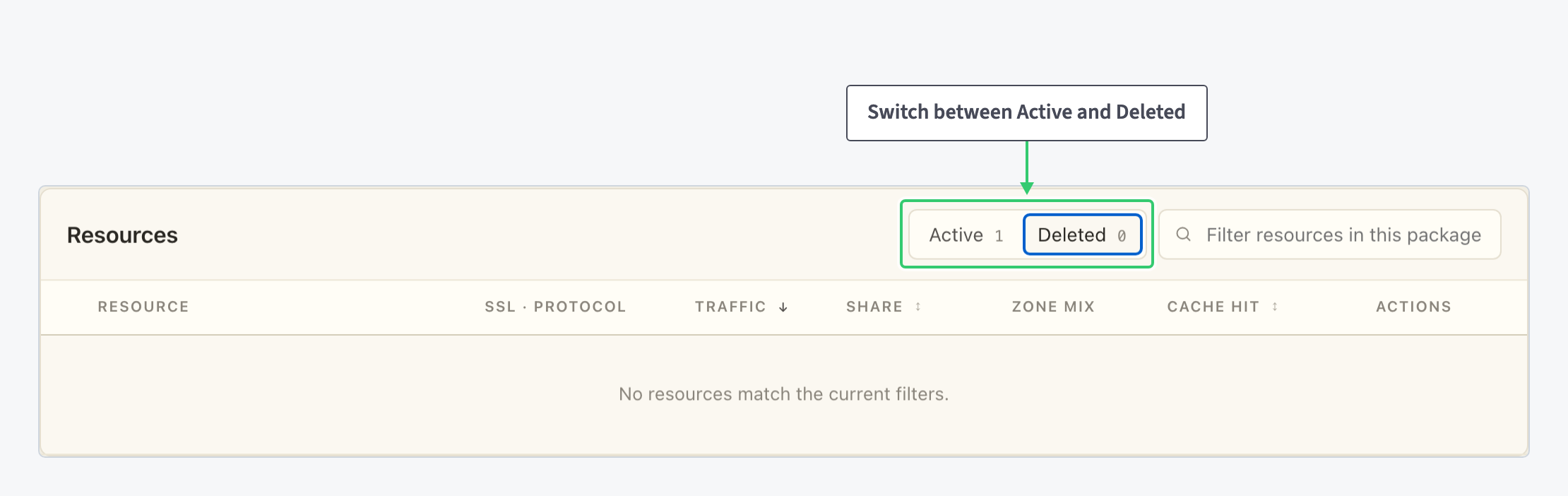
In a package where nothing has been deleted, as here, the view is empty and reads No resources match the current filters. The count on the pill is the quick way to check how many resources a package has lost over time.
Keep in mind what the confirmation already told you: this view is a record, not a recycle bin. A deleted resource will not come back.
What you’ve learned
You now know exactly what the Delete action does before you ever click it: immediate stop, a freed slot, no recovery, and a Deleted view that keeps count afterwards. That knowledge gives you the confidence to pick the right tool:
- Delete for hostnames you are removing permanently.
- Disable for pauses.
- A cache purge when the content, not the resource, is what needs to be removed.