
You manage your Melbicom S3 Object Storage service from two places: the service page in the client area for connection details, usage and limits, and the web console for buckets, objects and access keys. This reference explains the service page, block by block.
Connection Details
Open Services in the client area and click your S3 service. Your tools connect with four values from its Domain tab:
| Field | Meaning |
|---|---|
| Username | Your account identifier and the access key you log into the console with, in the form 100-00-1000-100. It is also the mandatory prefix of every bucket name you create. |
| Server Name | The storage host. The S3 API listens on port 9000: your tools connect to https://s3-ams.swiftycdn.net:9000. |
| Web interface address | The MinIO Console, https://s3-ams.swiftycdn.net:38854/. Log in with the username above and your service password. |
| Password | The secret key that pairs with the username. Set or reset it under Actions with Change Password; it is never displayed afterwards. |
Status, Limits and Notifications
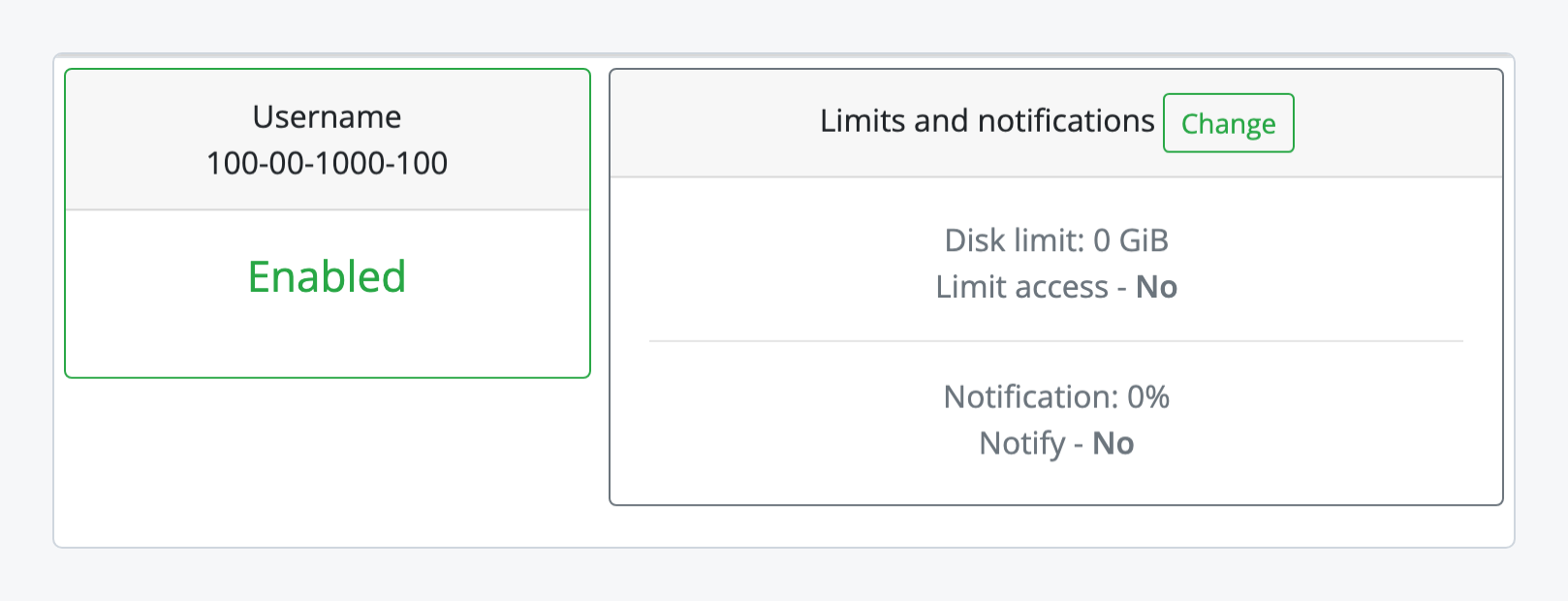
An active service is Enabled. Under Limits and notifications, cap what the service can consume and set a warning before you reach the cap:
| Setting | Meaning |
|---|---|
| Disk limit | A ceiling on stored data. With Limit access on, writes stop at the ceiling instead of billing the overage. |
| Notification | The percentage of the commitment at which an email warns you, when Notify is on. |
Set both to the numbers your budget tolerates: a limit slightly above your expected peak turns an unexpected upload volume into refused writes instead of an unexpected charge, and a notification at around 80 percent leaves time to react.
Usage and Pricing
Read usage from the two charts (commitment used, usage overall) or as numbers under Real-time usage statistics: used space, the commitment included in the plan, the amount exceeding it, and the hard limit:

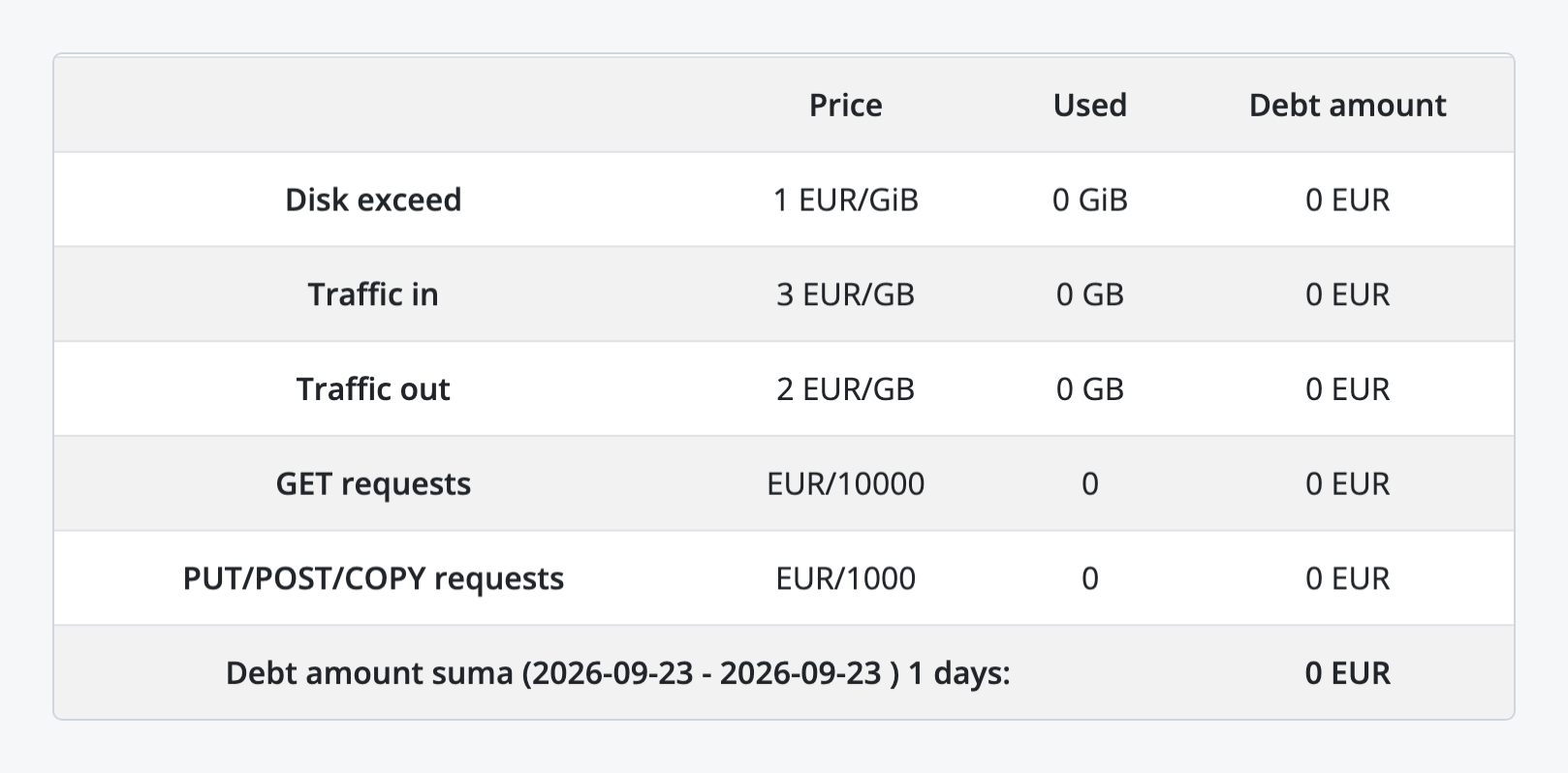
Every metered item is priced per unit, with your current usage and the amount accumulated so far in the billing period. The unit prices are those of your plan; the current plans and their included commitment are on the product page:
| Item | What is counted |
|---|---|
| Disk exceed | Stored data above the plan’s commitment, per GiB. |
| Traffic in | Data uploaded to your buckets, per GB. |
| Traffic out | Data downloaded from your buckets, per GB. Serving objects through a CDN resource moves this traffic to the CDN’s own metering. |
| GET requests | Read operations, billed per 10,000. |
| PUT/POST/COPY requests | Write operations, billed per 1,000. |
Buckets
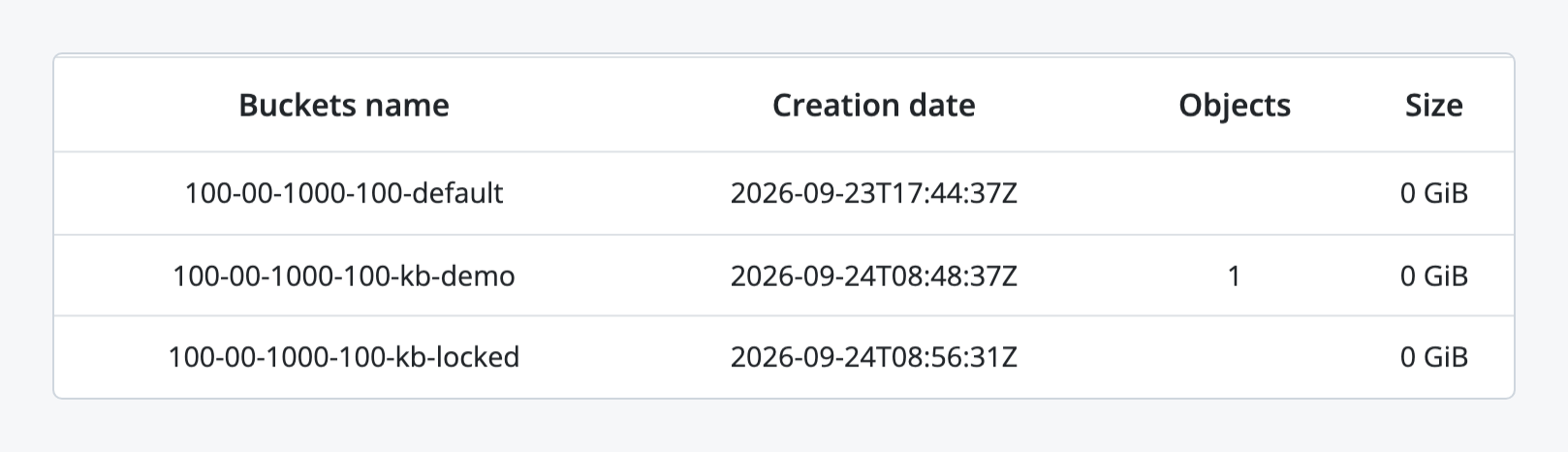
Each bucket appears with its creation date, object count and size. Buckets are created and configured in the console, and every bucket name carries your username as a prefix.
Where to Go Next
Everything beyond this page happens in the console or from the command line, in this order:
- Create a Bucket on Melbicom S3 Storage: the first bucket, named with your username prefix.
- Create Melbicom S3 Access Keys with Limited Permissions: a key per application, so the service password stays yours.
- Serve a Melbicom S3 Bucket through Your CDN: the bucket on your own hostname, cached at the edge.