
Without versioning, uploading a file over an existing object replaces it, and deleting removes it permanently. With versioning on, the bucket keeps every version: an overwrite adds a new one, a delete adds a marker, and the earlier copies stay retrievable. This tutorial enables it on an existing bucket of your Melbicom S3 Object Storage from the web console.
Prerequisites
- A Melbicom S3 service with at least one bucket; to create one, follow Create a Bucket on Melbicom S3 Storage.
Step 1: Open the Bucket Summary
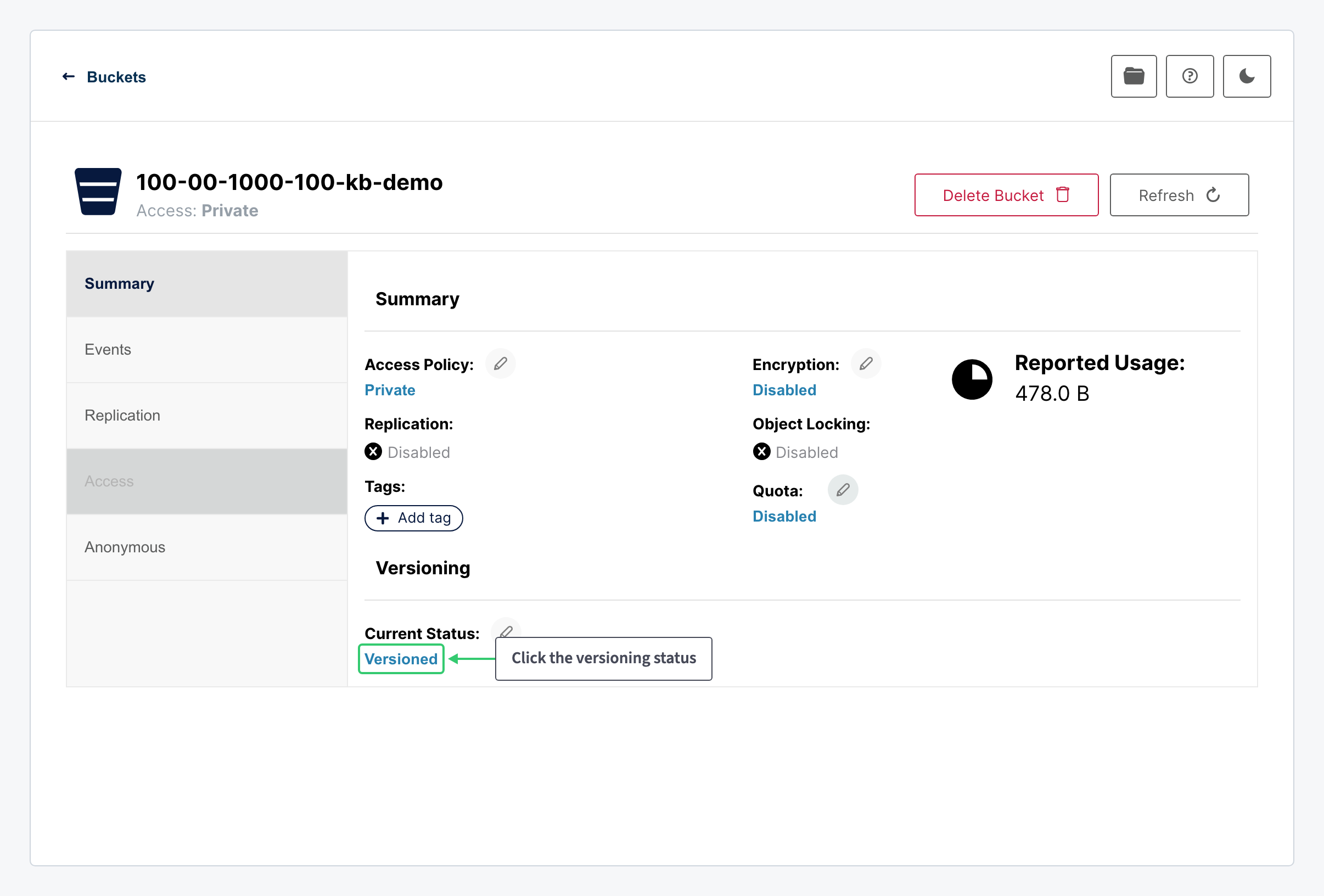
In the console, open Buckets under Administrator and click the bucket. On its Summary tab, find the Versioning block; a new bucket is Unversioned (Default):
Step 2: Switch Versioning On
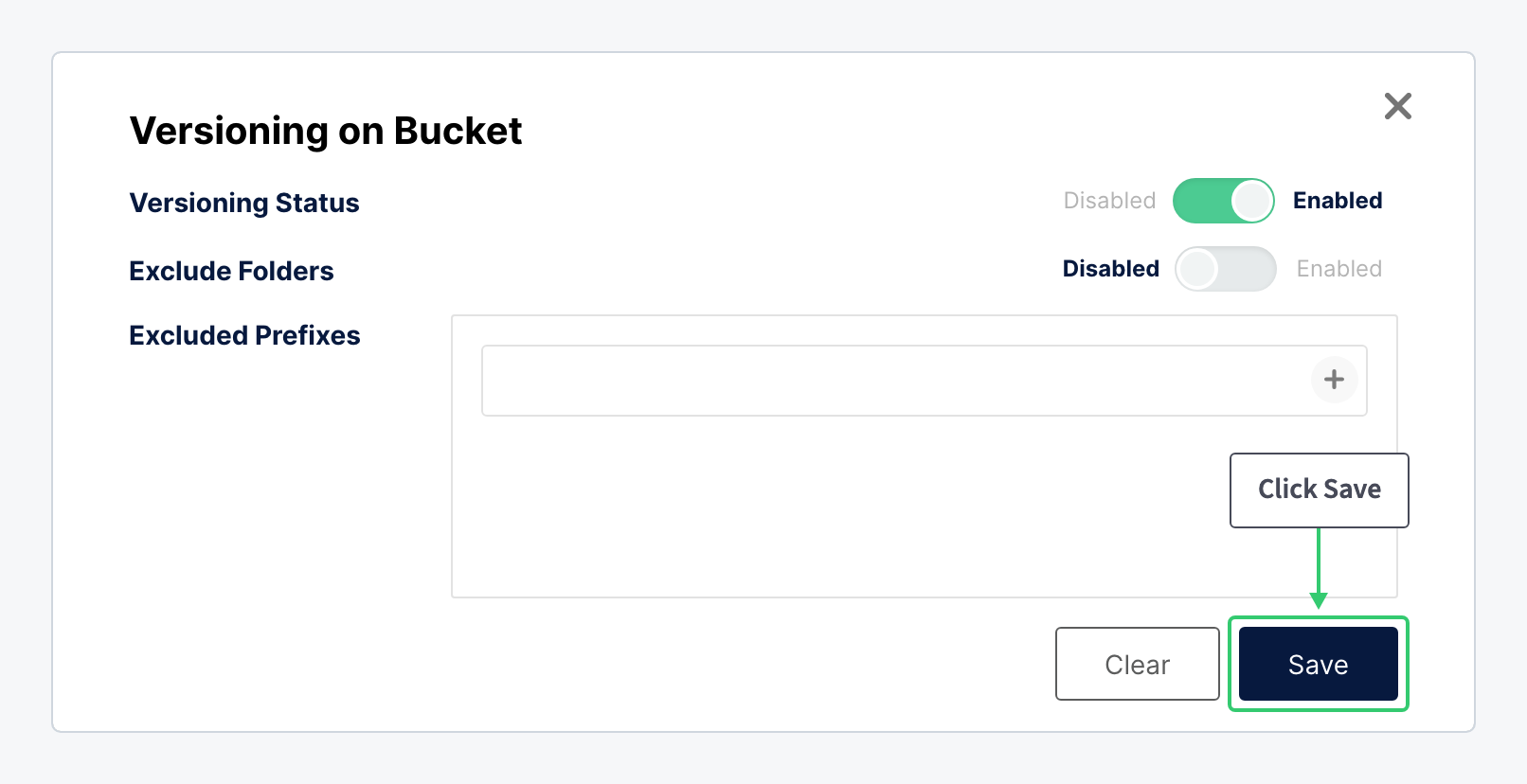
Click the versioning status. Set the dialog’s fields and click Save:
| Setting | Value |
|---|---|
| Versioning Status | Enabled |
| Exclude Folders, Excluded Prefixes | Leave empty. List prefixes only when part of the bucket holds churn you never need to recover, such as temporary files; those objects then stay out of the version history. |
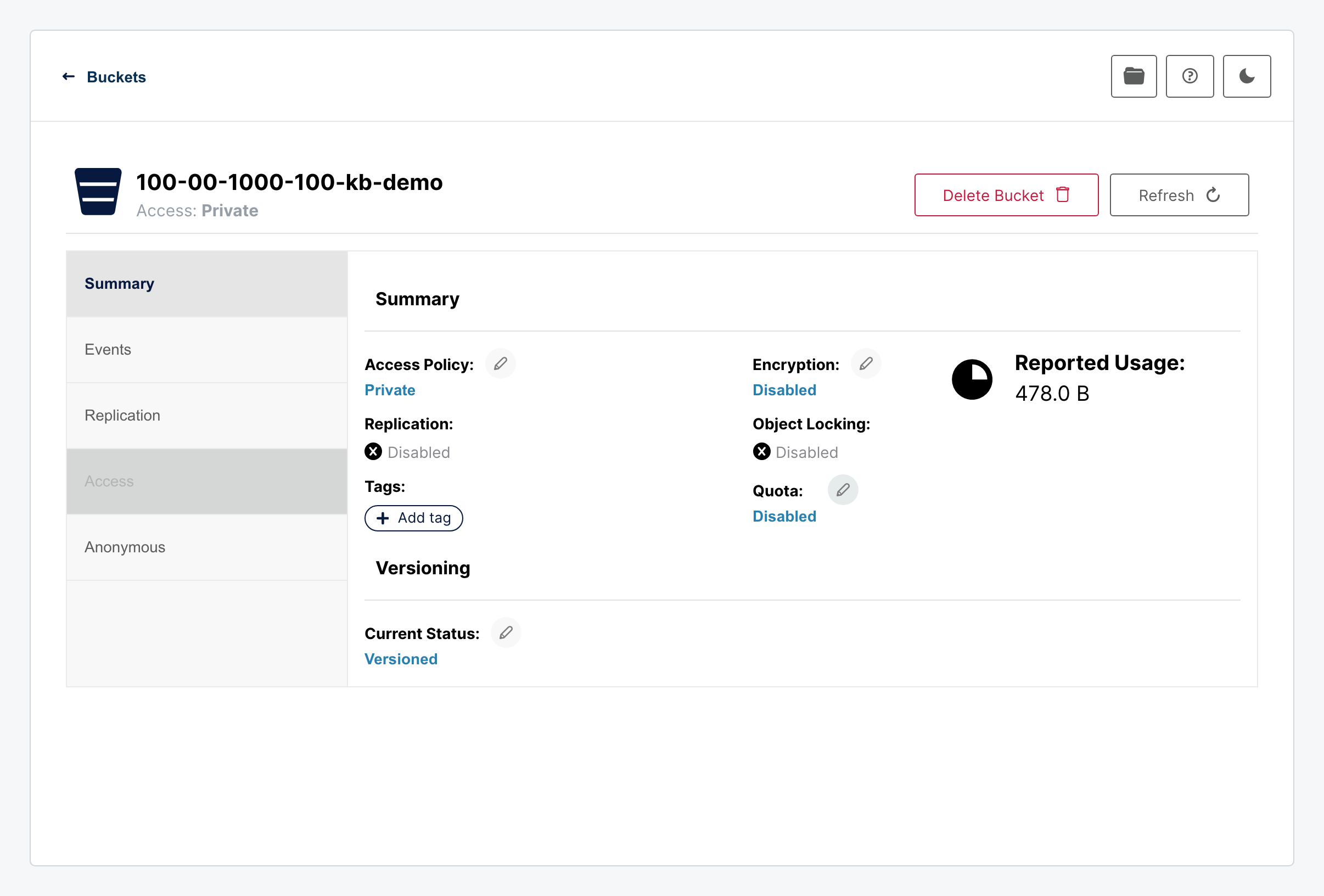
The bucket is now versioned. Versioning cannot be switched off again; it can only be suspended, which stops creating new versions while keeping the existing ones.
Step 3: Browse Earlier Versions
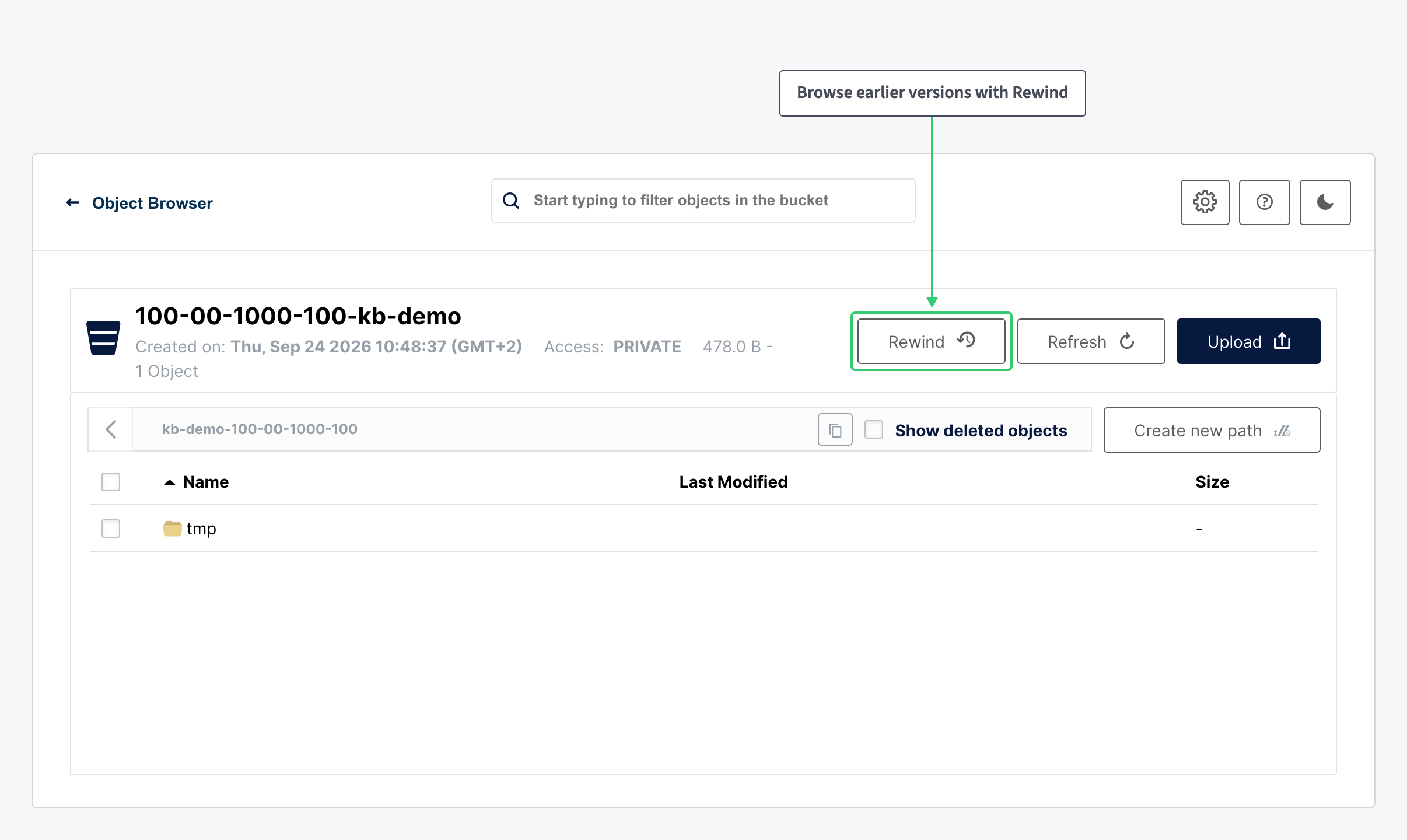
Open the bucket in the Object Browser and click Rewind. Pick a date and time to see the bucket as it was then, and download or restore the version that existed at that moment.
From the command line, mc ls --versions lists every version of the objects under a path. The client setup is in Install and Configure the MinIO Client for Melbicom S3.
What You Have
A bucket where mistakes are reversible: an accidental overwrite or delete is recovered with Rewind. Every retained version counts toward your stored data. Pair versioning with a lifecycle rule that expires old versions after the period you need, and reserve Create a Melbicom S3 Bucket with Object Lock for the buckets where versions must not be removable at all.