
Your service password opens everything on your Melbicom S3 Object Storage, so it should stay with you. Applications, backup jobs and CI pipelines get access keys instead: separate key pairs you can scope to one bucket or to reading only, and revoke individually. This tutorial creates one in the web console.
Prerequisites
- An active Melbicom S3 service with console access (see Understanding Your Melbicom S3 Object Storage Service).
- A password manager or secret store for the key pair.
Step 1: Open Access Keys
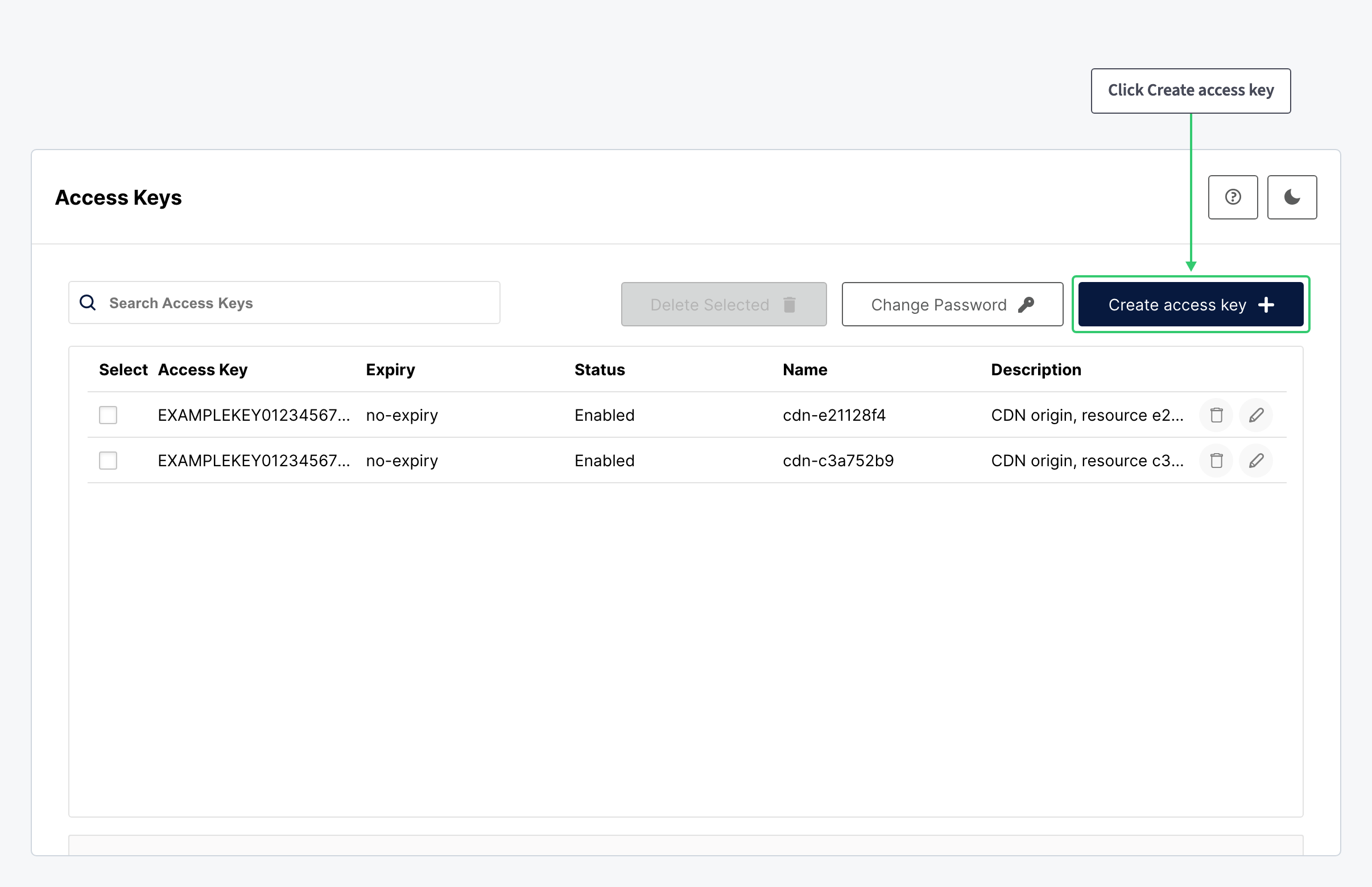
In the console, click Access Keys under User. Existing keys are listed with their expiry, status, name and description; a key named cdn- followed by a resource id belongs to a CDN resource that reads one of your buckets. Click Create access key.
Step 2: Name the Key and Restrict Its Policy
An access key and a secret key are generated for you; keep both. Fill in the rest of the form:
| Setting | Value |
|---|---|
| Name | What will use the key, for example the application or host name. |
| Description | Why the key exists. |
| Restrict beyond user policy | On. The key inherits your account policy, full access to every bucket under your prefix; narrow it in the editor. |
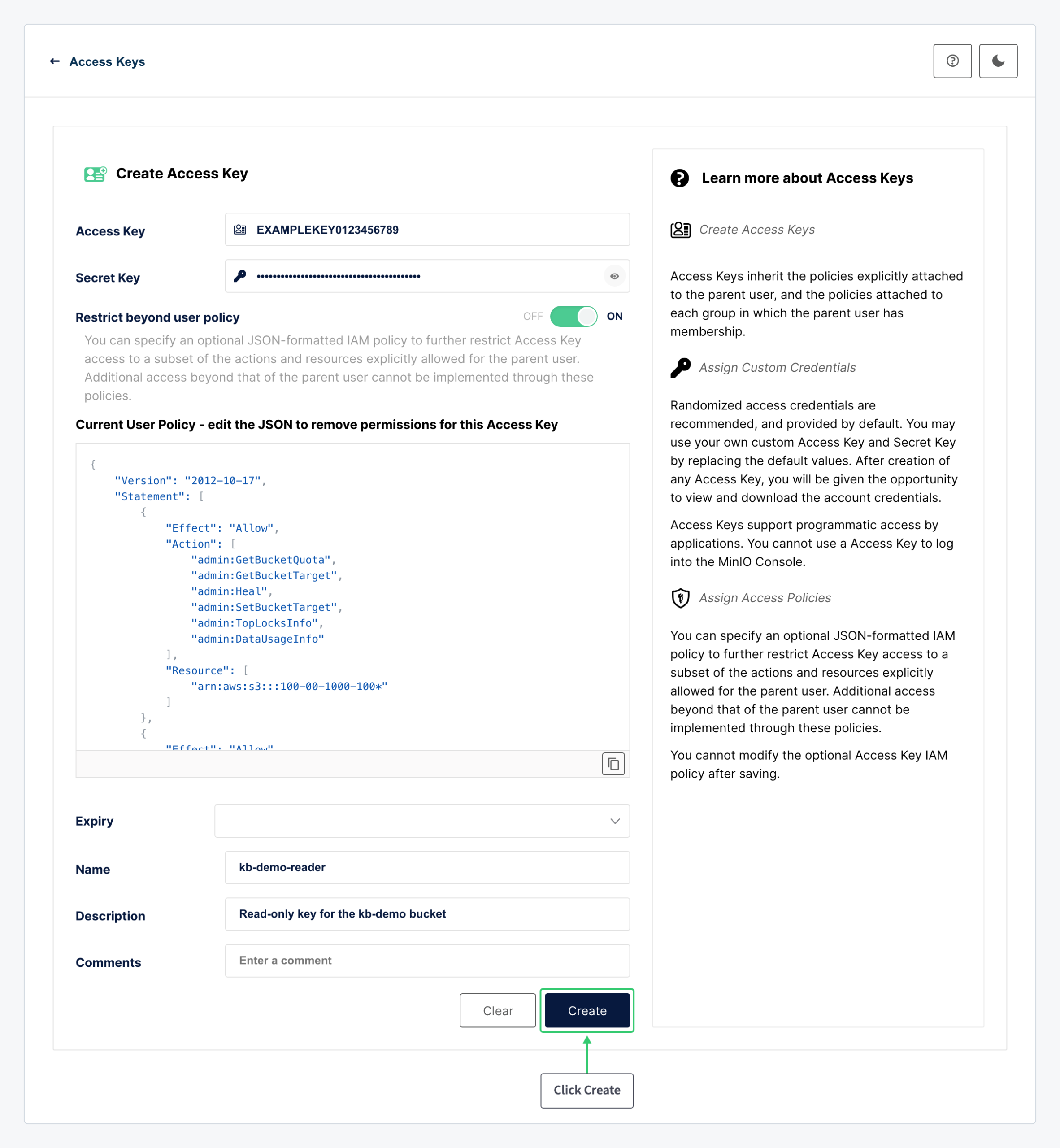
Replace the policy with one that allows only what the consumer needs. This one lets a key read a single bucket and nothing else; change the bucket name to yours:
{
  "Version": "2012-10-17",
  "Statement": [
    {
      "Effect": "Allow",
      "Action": [
        "s3:ListBucket"
      ],
      "Resource": "arn:aws:s3:::100-00-1000-100-kb-demo"
    },
    {
      "Effect": "Allow",
      "Action": ["s3:GetObject"],
      "Resource": "arn:aws:s3:::100-00-1000-100-kb-demo/*"
    }
  ]
}
For a key that also uploads, add s3:PutObject to the second statement. For one that manages the bucket completely, use s3:* on both resources.
The policy cannot be changed after the key is saved, so a new requirement means a new key. Click Create.
Step 3: Copy the Key Pair Now
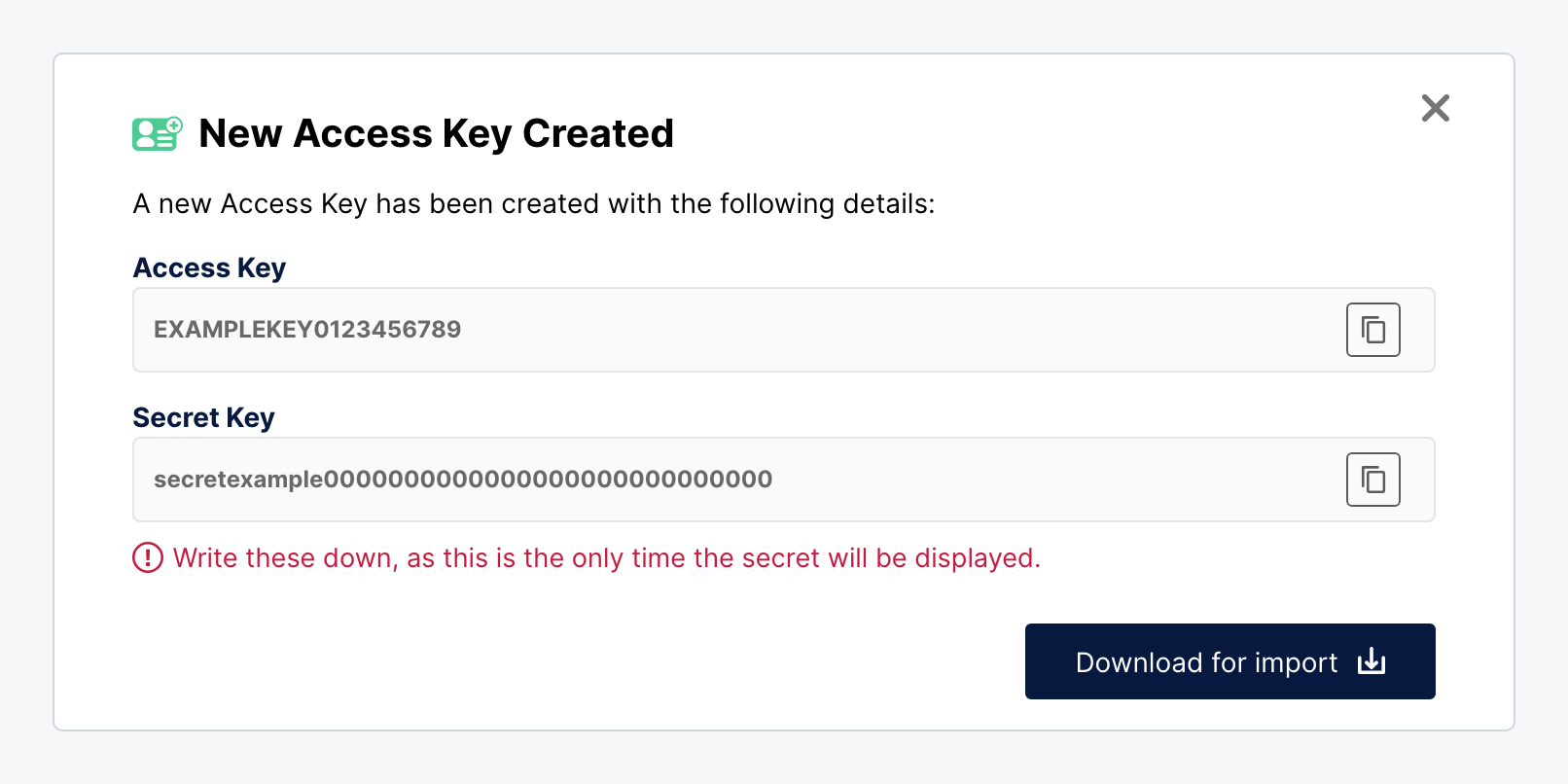
The secret key is shown exactly once. Copy both values into your secret store, or use Download for import to save them as a file, before closing the dialog:
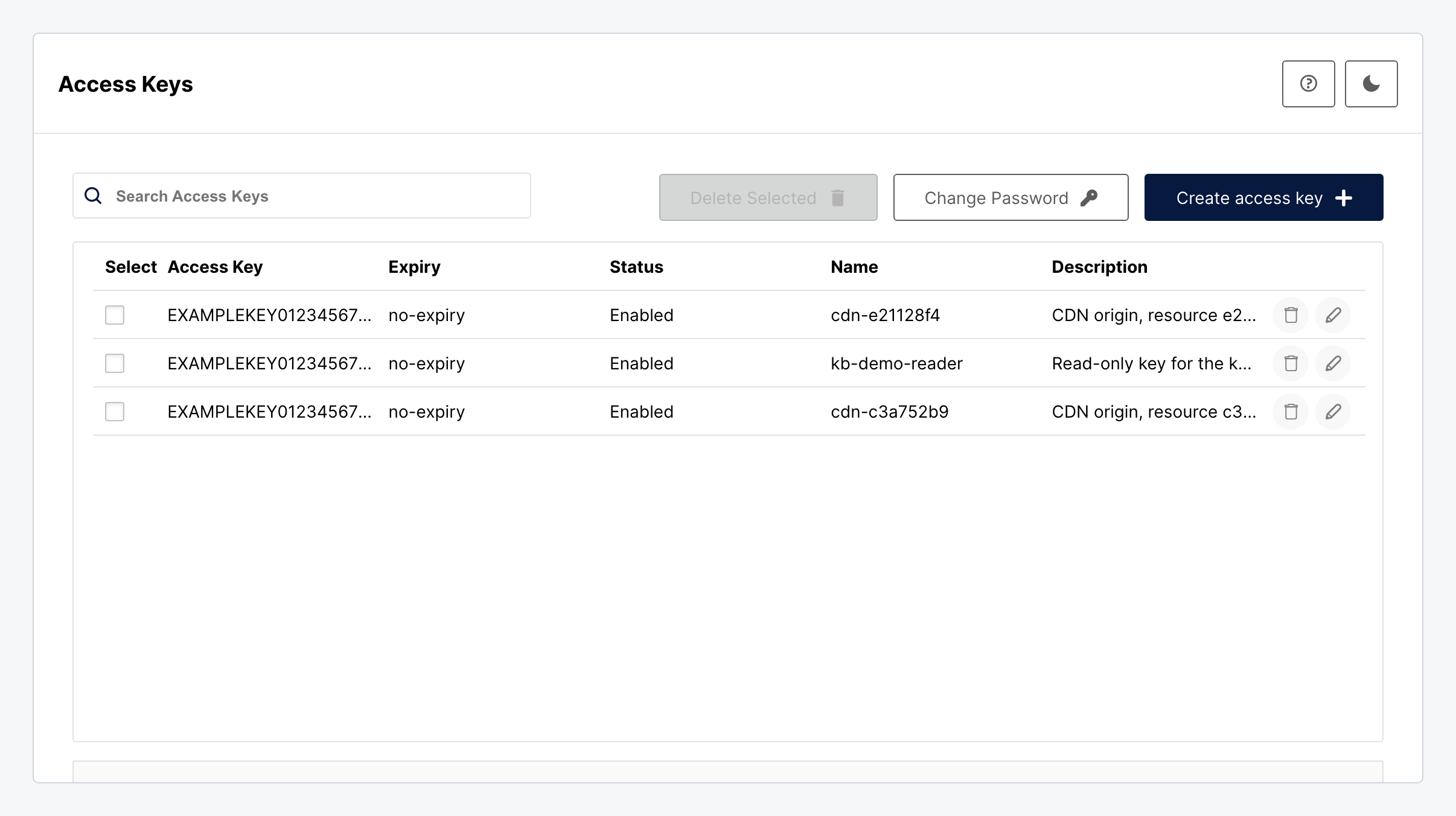
The key then appears in the list as Enabled. If a secret is lost or exposed, delete the key here and create a new one; the applications that used it stop working at that moment, so update them first.
What You Have
A credential that can reach one bucket, read-only, and nothing else on the account: the right shape for a website, a backup agent or a CI job. Configure it in your tool with the endpoint https://s3-ams.swiftycdn.net:9000; for the command line, Install and Configure the MinIO Client for Melbicom S3 shows the alias setup.