
Every name your domain answers for is a record in its zone, and all of them are created in one dialog of the FastPath DNS manager. This tutorial explains the settings every record takes, adds a record for a subdomain, and shows how to edit and delete records afterwards.
Prerequisites
- A zone for your domain on your FastPath DNS service (Add a DNS Zone to FastPath DNS).
Step 1: Open the Add Record Dialog
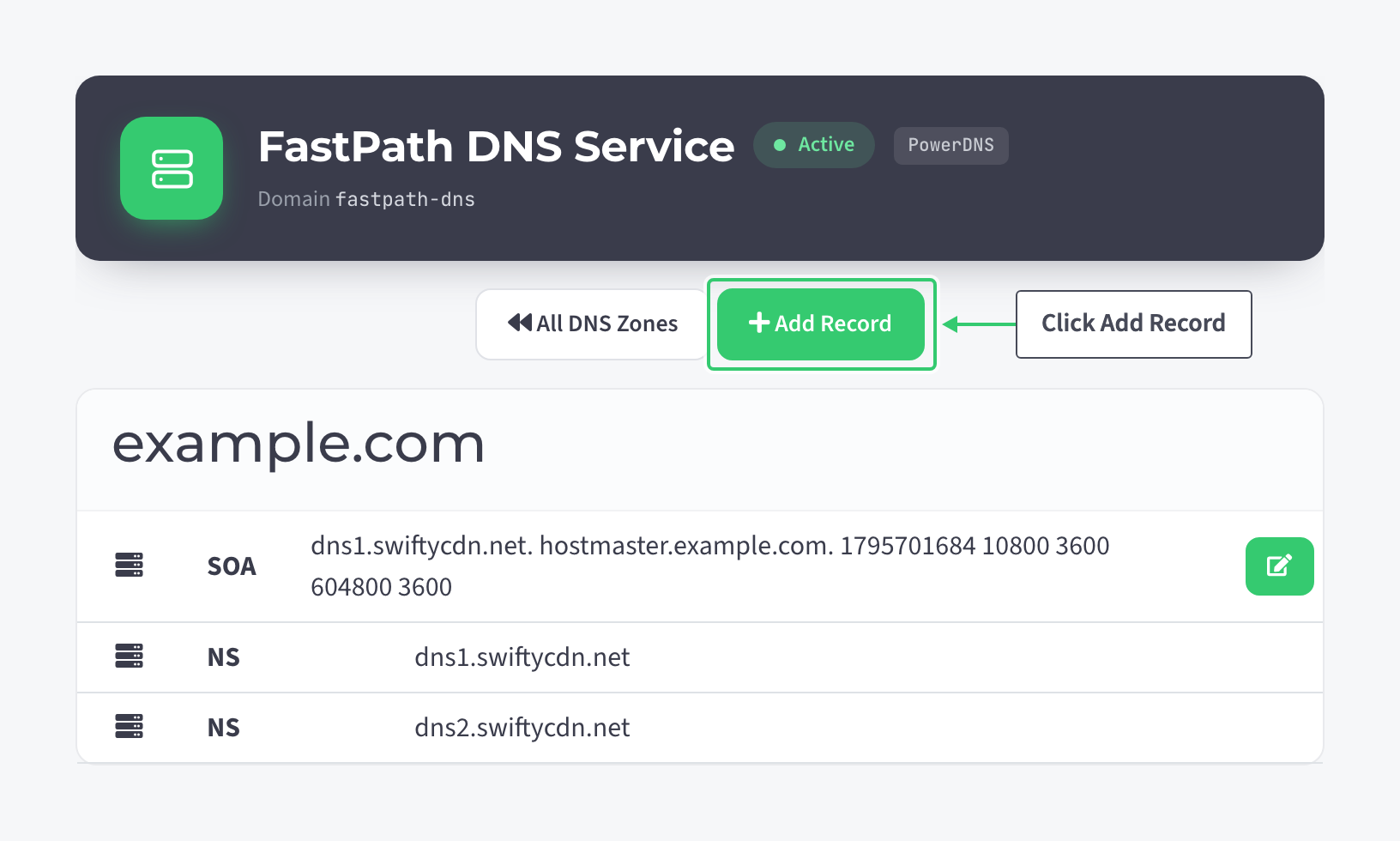
Open Services in the client area, click your FastPath DNS service, then click Records on the zone’s row. In the zone view, click Add Record:
Every record takes the same three settings, then the fields of its type:
| Setting | Value |
|---|---|
| Type | The kind of record. The fields below the first row change with it. |
| Name | The part of the name in front of your domain: app for app.example.com. The zone name is added for you. Use @ for the domain itself. |
| TTL | How long resolvers keep the answer. Choose 1 hr for records that rarely change, and a shorter value before a planned change. |
Step 2: Add a Record for a Subdomain
An A record sends a name to an IPv4 address. To serve app.example.com from its own server, fill in the dialog and click Add Record:
| Setting | Value |
|---|---|
| Type | A |
| Name | app |
| TTL | 1 hr |
| IPv4 address | The server’s address, for example 203.0.113.25. |
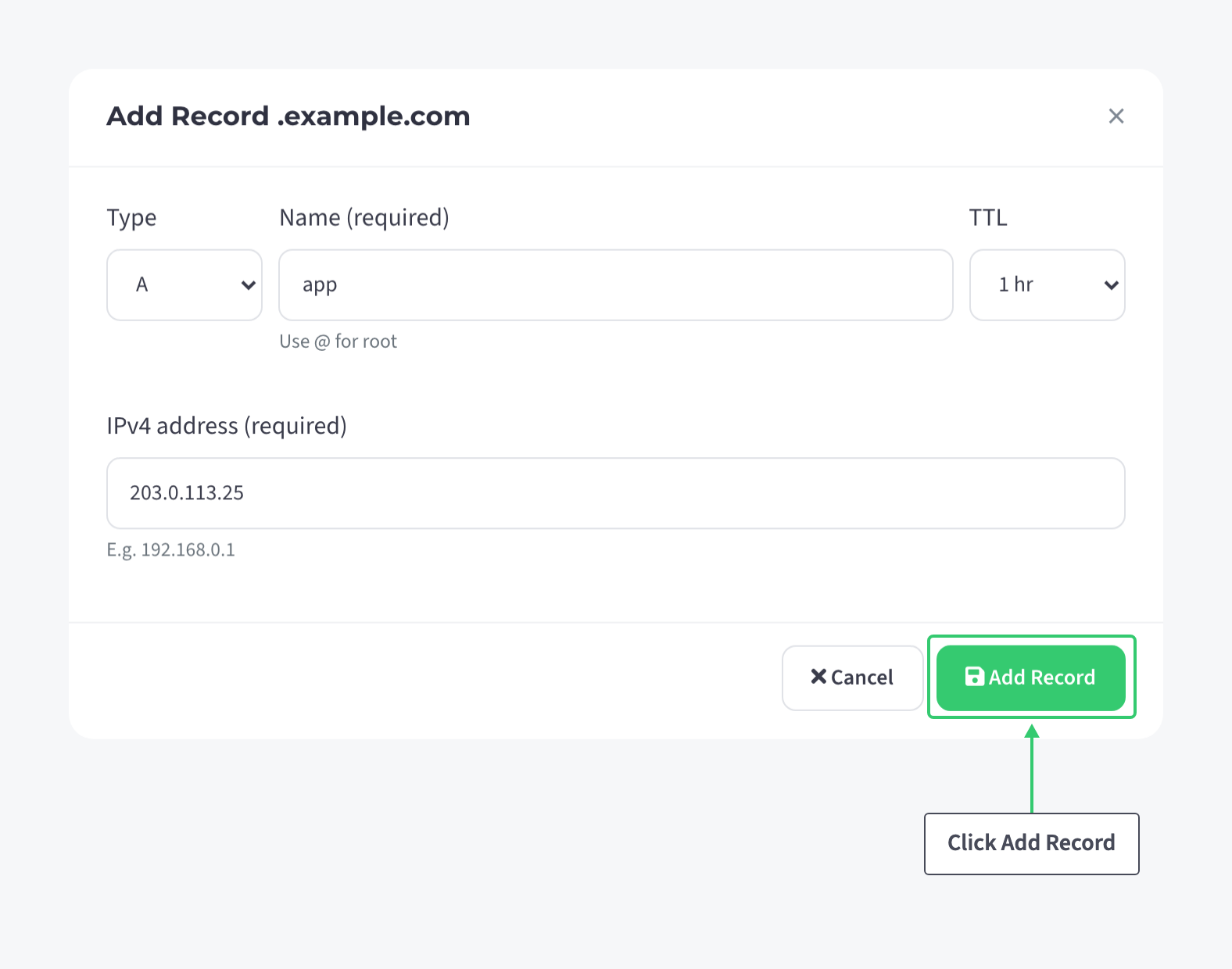
Other types are created the same way, each with its own fields. Click Add Record again and choose the type. Fill in its fields and click Add Record.
A CNAME record makes a name an alias of another hostname, for example a shop hosted by a third-party platform:
| Setting | Value |
|---|---|
| Type | CNAME |
| Name | shop |
| Target | The hostname the platform gives you, for example stores.example.net. |
An SRV record tells clients on which host and port a service runs, for example a SIP server:
| Setting | Value |
|---|---|
| Type | SRV |
| Name | The service and protocol, for example _sip._tcp. |
| Priority | 10. Clients try the lowest number first. |
| Weight | 5. Shares the load between records of equal priority. |
| Port | The port of the service, for example 5060. |
| Content | The host that runs the service, for example sip.example.com. |
The fields of every type are listed in FastPath DNS Record Types and Fields.
Step 3: Edit a Record
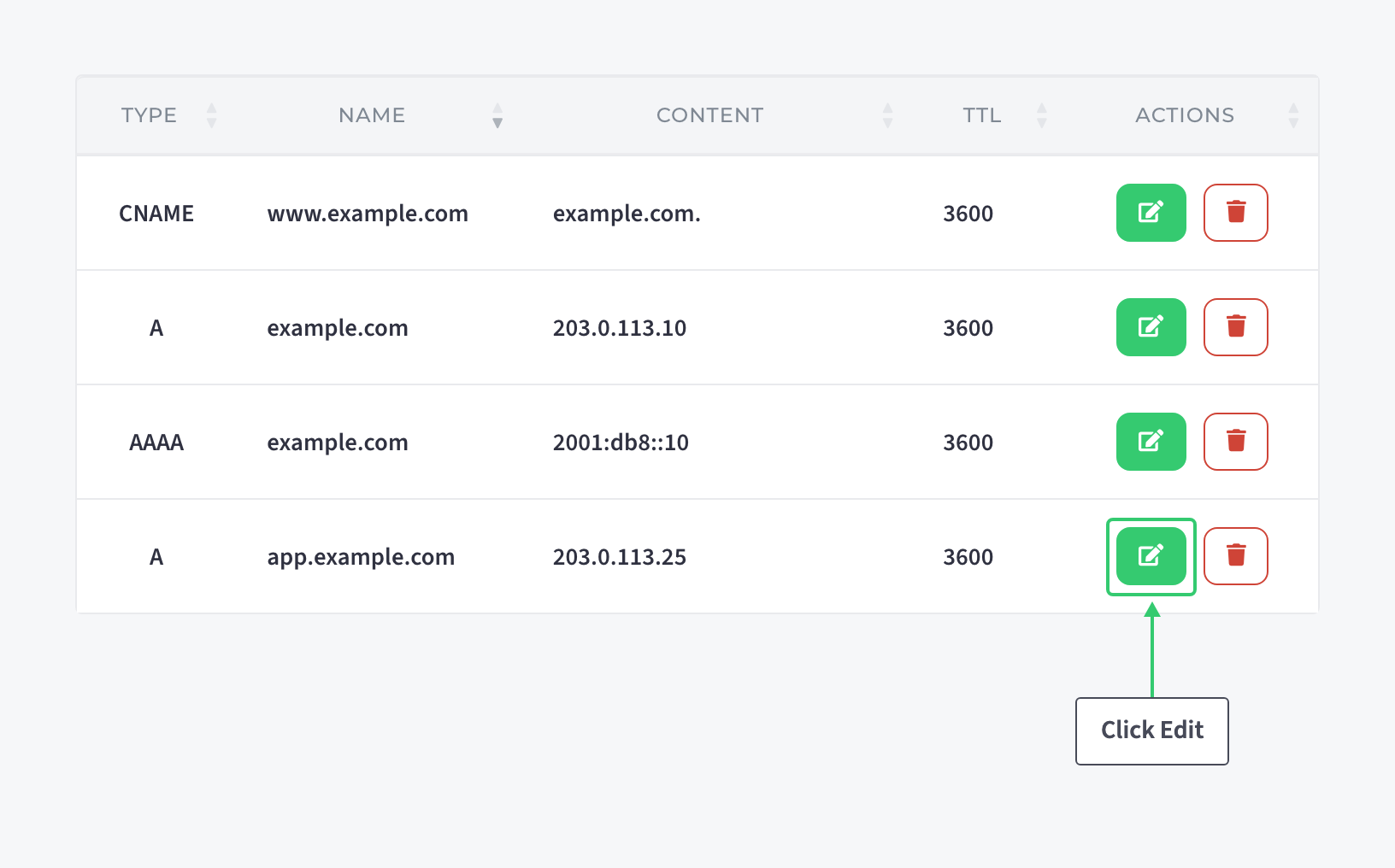
In the records table, click the green edit button on the row of the record to change:
Change the TTL or the value, then click Edit Record:
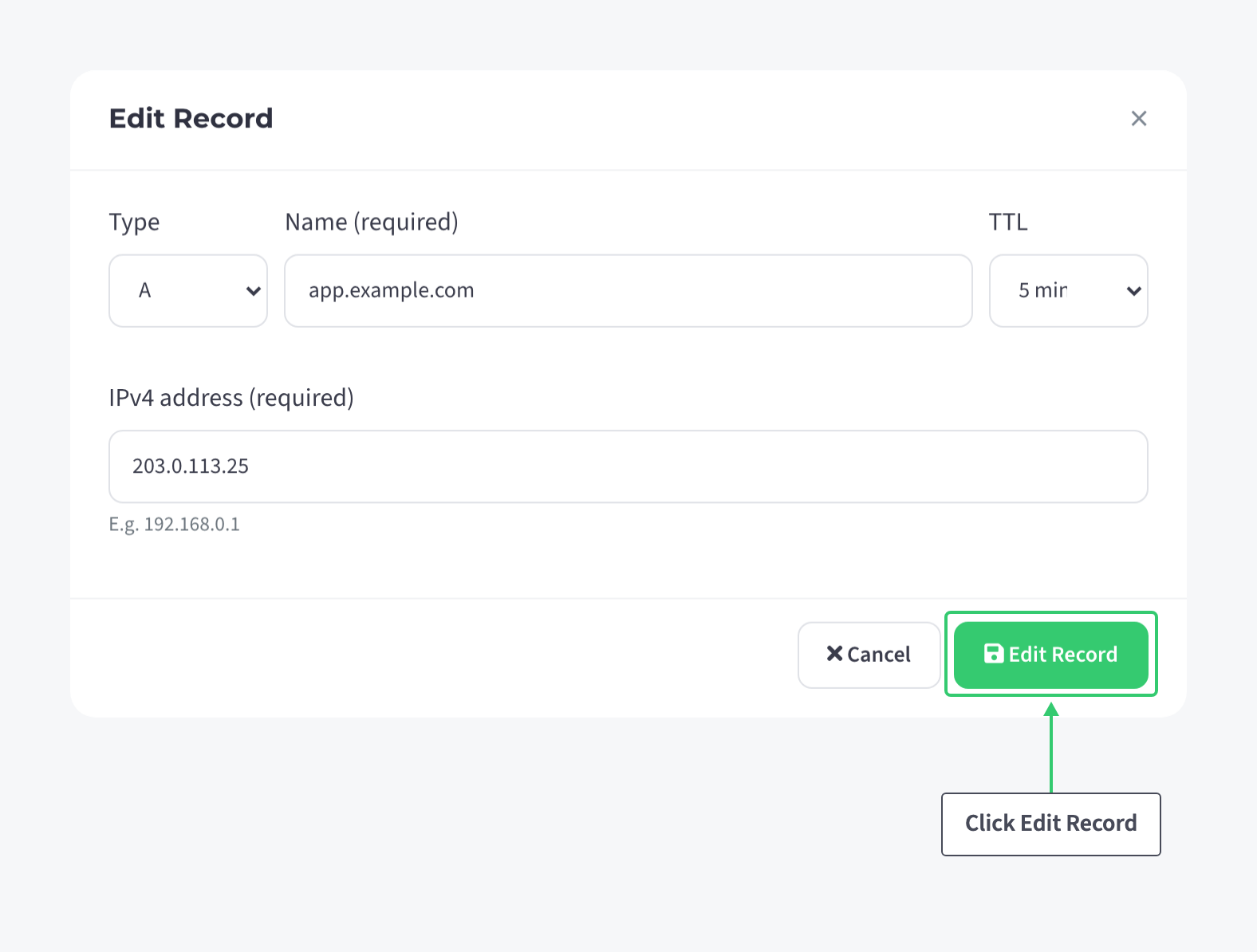
The type and the name of a record are fixed. To move a record to another name, add the new record first, then delete the old one.
Step 4: Delete a Record
Click the red bin button on the record’s row and confirm with Delete:
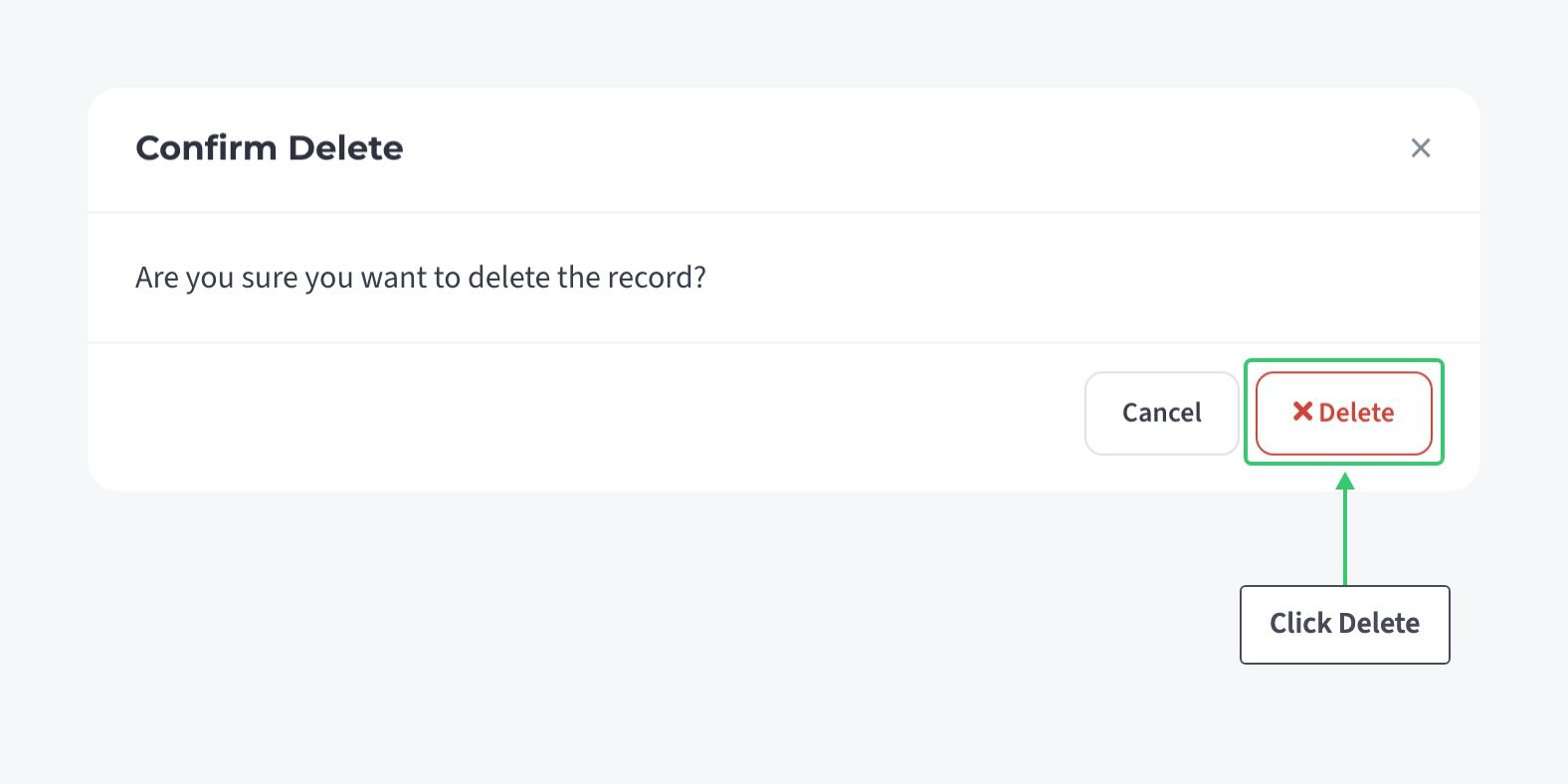
The name servers stop answering for the record at once. Resolvers that already hold the answer keep it until its TTL runs out, so a deleted record can stay visible for that long.
What You Have
You can now create a record of any type, change its value or TTL, and delete it. Email needs a few specific records on top of these: Set Up Email Records in FastPath DNS: MX, SPF, DKIM and DMARC.